To keep a Discord bot online 24/7, run it on a server that never sleeps instead of your own PC, with an automatic restart after a crash. On a PlayNHost bot plan (from US$1.99 a month) the bot keeps its files between restarts, and the Set up your bot card on Overview takes you from a new server to a bot online in Discord in four steps.
- Open your server in the panel and find the Set up your bot card at the top of Overview.
- In What runs, click Continue, or Change what runs if your code is in another language.
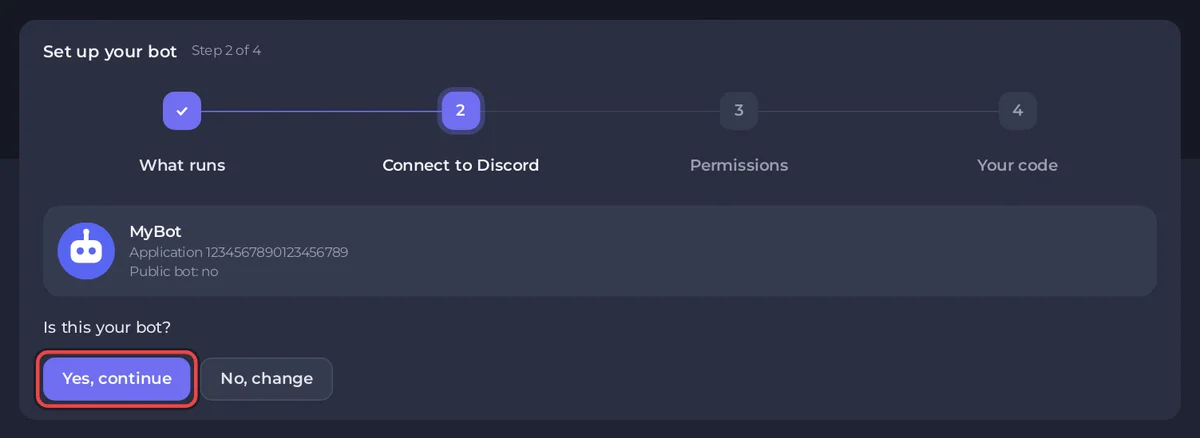
- In Connect to Discord, paste your token into Paste your bot token, click Connect, then Yes, continue.
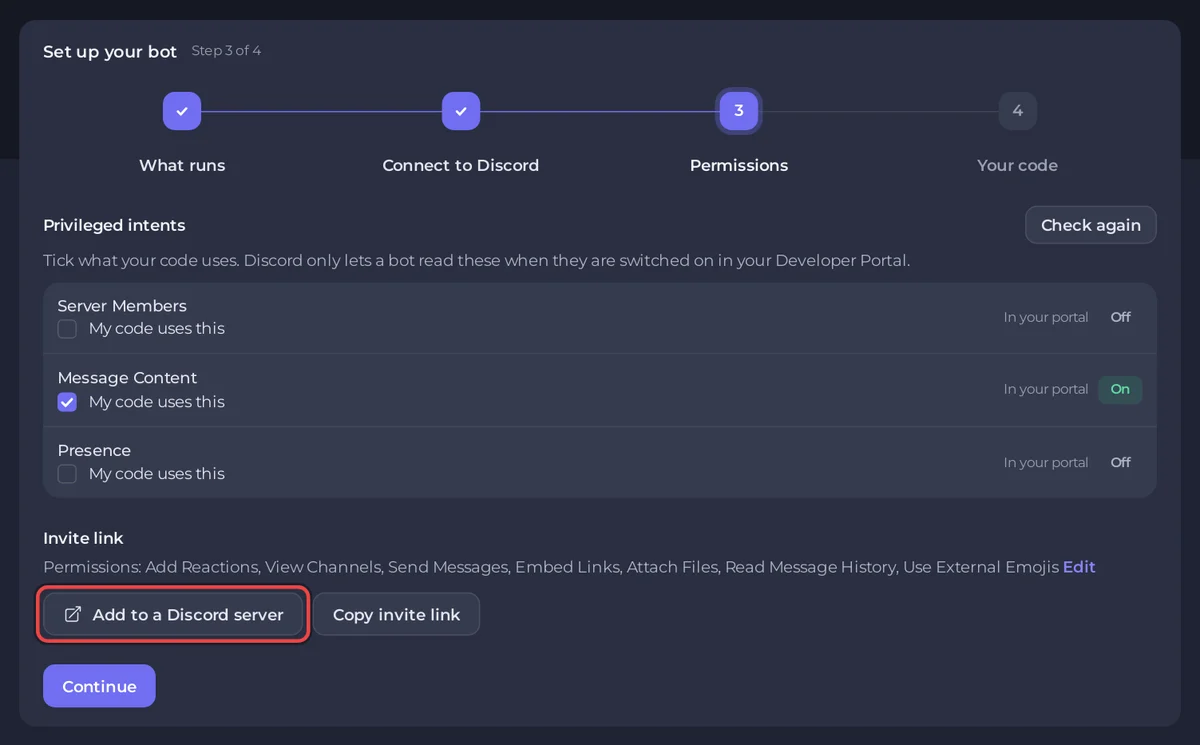
- In Permissions, tick My code uses this for each intent your code uses, click Add to a Discord server, then Continue.
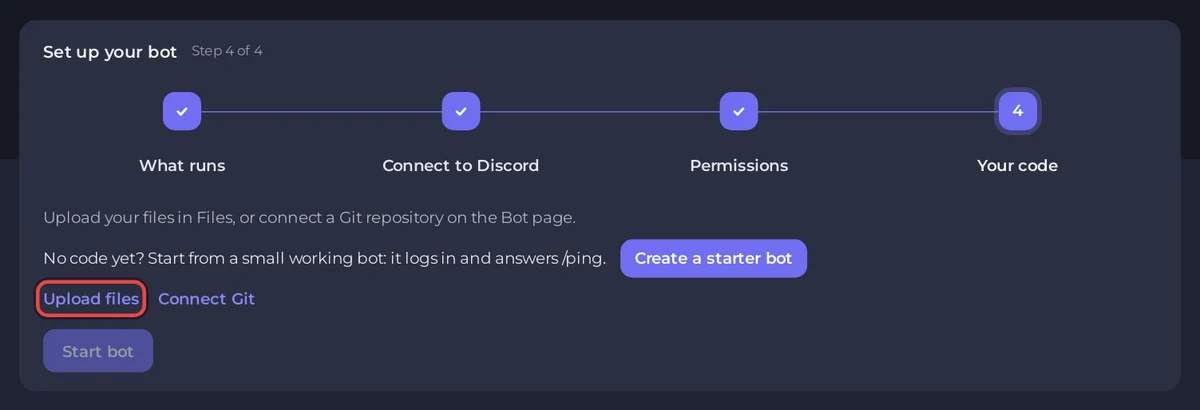
- In Your code, click Upload files, Connect Git or Create a starter bot, then Start bot.
- Wait for Your bot is online in Discord. and click Done.
Each step is explained below.
Before you start
- A bot token from the Discord Developer Portal: How to create a Discord bot and get its token.
- Your bot's code (a folder of files, a GitHub repository, a jar or a compiled program). No code? The card can create a starter bot for Node.js and Python.
- Want a ready-made bot instead? Eight run on the same plan: Discord Tickets, AI Chat Bot, Red, JMusicBot, Ree6, Bastion, Game Server Monitor and matterbridge (Ree6 needs 1 GB of memory or more, Bastion 2 GB). Start with How to change a ready-made bot's settings or How to set up a ready-made music bot.
The four steps of the setup card
Open your server in the panel. The card Set up your bot sits at the top of Overview until the token is saved and your code is in place. You can click any step to go back to it.
1. What runs
The card says This bot runs Node.js Bot. (or the type you ordered). If your code is in another language, click Change what runs and pick the right type; otherwise click Continue. All types: How to switch your bot to another language.
2. Connect to Discord
Paste your token into Paste your bot token and click Connect. The panel checks it with Discord and shows your bot's picture and name. Click Yes, continue if it is your bot.
Running a Telegram, Twitch, Slack or Matrix bot instead? Click This bot is not for Discord under the token field: setup closes. See How to host a Telegram, Twitch, Slack or Matrix bot.
3. Permissions
Under Privileged intents, tick My code uses this for each intent your code asks for, and check they show On in your portal. Under Invite link, click Add to a Discord server to add the bot to your server. Then Continue.
4. Your code
Put your code on the server in one of these ways:
- Upload files opens Files. Zip a folder, upload it, tick the zip and click Unzip. See How to upload your Discord bot code.
- Connect Git opens the Code pane of the Bot page. See How to deploy and update your Discord bot from GitHub.
- Create a starter bot (Node.js and Python, when the server has no code yet) writes a working bot that answers
/ping.
If your main file has another name, the card says so, for example We found bot.js on the server., with Use bot.js as the entry file. When the card says Your code is on the server., click Start bot. The card shows your bot's output as it starts and says Your bot is online in Discord. once it logs in. Click Done.
If it says Your bot has not said it is connected yet., your bot may simply print nothing when it is ready. Check Console, and see How to read your Discord bot's console and logs.
After setup
- The bot's card on Overview shows its state: Online in Discord, Running, Offline, Token problem or Missing intents. A Setup checklist lists anything left to do, each with Fix.
- If the bot crashes, it is started again within about a minute. If it crashes again within a minute of that, it stays stopped so a bug cannot loop, and the console says why: Why your Discord bot keeps stopping.
- Packages install again when you change them, so a new dependency is picked up at the next restart.
- Everything else about the bot lives on the Bot page: How to use the Bot page of your Discord bot.
Guides for each language
Node.js, Python, Java, C# (.NET), Bun, Deno, Go, Rust. Plans and what each includes: Discord bot hosting.
Questions people ask
Can I host a Discord bot 24/7 for free?
Some free hosts put a bot to sleep, cap its hours or change their terms. PlayNHost has no free plan. What to check with any host: Free Discord bot hosting: what you really get.
Why does my bot go offline when my PC sleeps?
The bot only answers while a program runs it. On a bot plan it runs on our server, so your PC can be off: Host a Discord bot on your PC or on a bot server?
Which languages can I run?
Node.js, Python, Java, C# (.NET), Bun, Deno, Go and Rust, or one of eight ready-made bots, on the same plan.
Before you share any file: read How to keep your Discord bot token safe.