Every Discord bot starts as an application in the Discord Developer Portal. You create it there, copy its token once, and paste that token into the panel. The panel checks it with Discord straight away and shows you the bot's name, so you know it is the right one.
1. Create the application and the bot
- Go to the Discord Developer Portal and sign in with your Discord account.
- Click New Application, give it a name and accept the terms. People see this name when they add your bot.
- Open Bot in the left menu. The bot user is created with the application.
- Under Token, click Reset Token and confirm. Copy the token now. Discord shows it once. If you lose it, press Reset Token again: you get a new one and the old one stops working.
- Still on Bot, decide on Public Bot. When it is on, anyone with your invite link can add the bot to their server. Switch it off if the bot is only for your own server.
The token is the bot's password. Never post it in a chat, a screenshot or a public repository. See How to keep your Discord bot token safe.
2. Switch on the intents your code uses
On the same Bot page, the three Privileged Gateway Intents are off until you switch them on:
- Message Content Intent: your bot reads the text of messages, for example prefix commands like
!ping. Slash commands do not need it. - Server Members Intent: your bot lists members or reacts when someone joins or leaves.
- Presence Intent: your bot sees who is online or what they are playing.
Switch on only what your code asks for. A bot that asks for an intent that is off is disconnected by Discord at login. See Fix "Used disallowed intents" on your Discord bot.
3. Paste the token in the panel
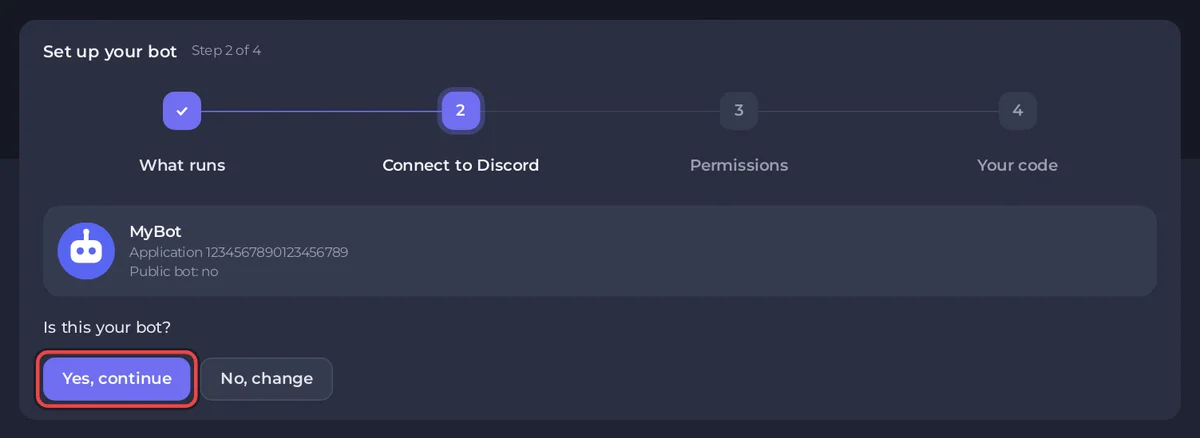
A new bot server opens on Overview with a Set up your bot card. Its second step, Connect to Discord, takes the token.
- Open your bot server in the panel.
- In the Set up your bot card, paste the token into Paste your bot token and click Connect. You can also do it later on the Bot page, pane Discord, under Token.
- The panel shows Checking with Discord..., then your bot's picture, its name and its Application number. Check it is your bot and click Yes, continue. If it is the wrong bot, click No, change and the token is taken out again.
Spaces around the token, and a Bot prefix copied from a code sample, are removed for you. Once saved, the token is never shown again: the panel only shows dots and its last four characters.
If the panel refuses the token
| Message | What happened |
|---|---|
That looks like the Client Secret, not the token. | You copied the secret from OAuth2. Copy the token from Bot, Reset Token instead. |
That is a Discord account token, not a bot token. | That is your own account's token. Running an account as a bot breaks Discord's terms, and we do not host self-bots. |
That is not a Discord bot token. | Something else was copied, or only part of the token. Reset it and copy the whole value. |
Discord did not accept that token. | The token was reset after you copied it, or a character is missing. Reset it once more and paste the new one. |
If Discord cannot be reached at that moment, the token is still saved and the panel says it is not checked yet. Press Check now on the Discord pane later.
4. Your code reads the token
The saved token reaches your bot as the environment variable DISCORD_TOKEN every time it starts (a bot with your own code also gets it as TOKEN, BOT_TOKEN and DISCORD_BOT_TOKEN). Read it from there instead of writing it in a file:
- Node.js and Bun:
process.env.DISCORD_TOKEN - Python:
os.environ["DISCORD_TOKEN"] - Java:
System.getenv("DISCORD_TOKEN") - C#:
Environment.GetEnvironmentVariable("DISCORD_TOKEN") - Deno:
Deno.env.get("DISCORD_TOKEN") - Go:
os.Getenv("DISCORD_TOKEN"); Rust:std::env::var("DISCORD_TOKEN")
Next: invite the bot to your server, then follow the guide for your language: Node.js, Python, Java, C# (.NET), Bun, Deno, Go or Rust. No code yet? Create a starter bot in one click.