

Every option a ready-made bot reads when it starts is on the Bot tab, in Code, on the Settings card. Bastion's and matterbridge's other options live in their own files (settings.yaml, matterbridge.toml) under Files. Change a value, press Save next to it, then restart the bot. Keys and passwords are not there: they are under Environment, Credentials.
Change a setting
- Open your server in the panel and click the Bot tab.
- Click Code in the list of sections. The first card says "This bot comes with its own code. Its files are in Files." The Settings card is under it.
- Type the new value in the field. A Save button appears next to the field as soon as you change it. Press it.
- If the value is not allowed, the reason shows under the field. Fix it and press Save again.
- Restart the bot: Restart on Console. The bot reads its settings only when it starts.
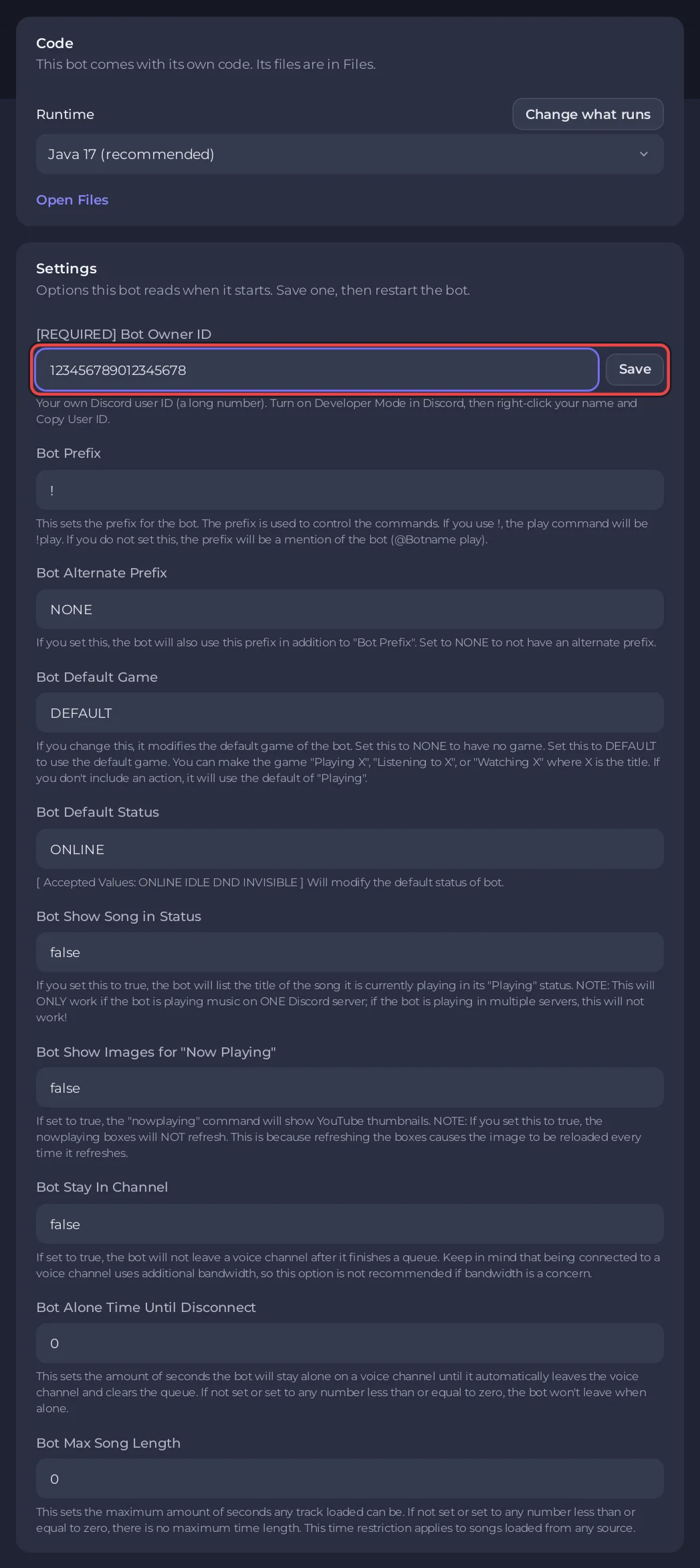
Every field is plain text. Where a setting is on or off, type true or false (matterbridge's Debug log takes 1 or 0).
A setting the bot cannot start without (JMusicBot's [REQUIRED] Bot Owner ID, Ree6's Database host, Database name and Database user, Game Server Monitor's Your Discord server ID) is also asked for in the Set up your bot card on Overview: its last step says "Fill in ... on the Bot page, Code, Settings first", keeps Start bot off, and has an Open Settings link to this card. A required key works the same way (Discord Tickets' Client secret, Ree6's Database password): the card says "Fill in ... on the Bot page, Environment first" and links to it with Open Environment.
What each ready-made bot has
| Bot | Code, Settings | Environment, Credentials |
|---|---|---|
| Red | Command Prefix (default .), Owner (a Discord user ID; empty means the owner of the application) | None. Red has no Environment section. |
| JMusicBot | [REQUIRED] Bot Owner ID, Bot Prefix, Bot Alternate Prefix, Bot Default Game, Bot Default Status, Bot Show Song in Status, Bot Show Images for "Now Playing", Bot Stay In Channel, Bot Alone Time Until Disconnect, Bot Max Song Length | None. JMusicBot has no Environment section. |
| Discord Tickets | Bot owners (optional), Dashboard address (optional), Trust proxy headers, Publish commands on start, Version | Client secret (required), Database connection string, and ENCRYPTION_KEY, which PlayNHost makes for you |
| AI Chat Bot | Default model, Allowed users, Version | OpenAI API key, Anthropic API key, Google Gemini API key, xAI API key, DeepSeek API key |
| Ree6 | Your Discord user ID, Database host, Database port, Database name, Database user, Version | Database password (required) |
| Bastion | Bot Client ID (optional), Your Discord user ID (optional), MongoDB address, Publish commands on start, Music activity, Relay direct messages, Unsafe mode | None. Bastion has no Environment section. |
| Game Server Monitor | Your Discord server ID, Refresh every (seconds), Anyone can use /queryserver, Version | None. Game Server Monitor has no Environment section. |
| matterbridge | Debug log | Telegram bot token |
The bot token is never in either place. It is on the Bot tab, under Discord, for every bot type.
Keys and passwords: Environment, Credentials
- On the Bot tab, click Environment. The Credentials card lists the keys this bot can use. A key that is still missing shows Not set, and a required one also shows Required.
- Press Set (or Replace for a key that is already saved), paste the value and press Save.
- Restart the bot.
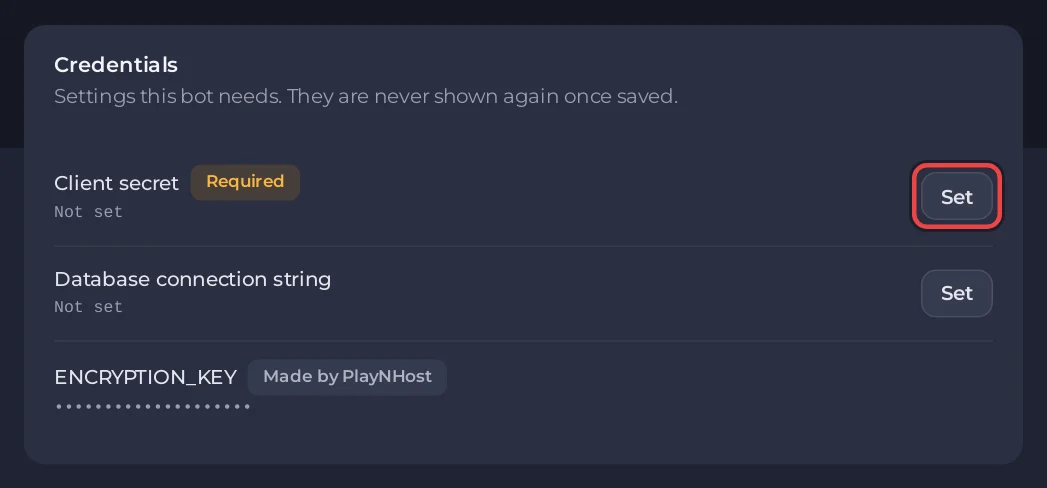
A saved key is never shown again, only its last four characters. To change it, press Replace and paste the new one.
Change the version or update the bot: Reinstall
Version on Discord Tickets, AI Chat Bot, Ree6 and Game Server Monitor is read only while the server installs, not when the bot starts. An install is also how the other ready-made bots get their newest release; Bastion (v10.16.0) and matterbridge (1.26.0) are fixed versions, and a reinstall puts the same version back. Both happen with Reinstall:
- If you want a particular release, set Version on the Settings card first and press Save.
latesttakes the newest. - Under the Settings card, the Reinstall card says: "Downloads the bot again, at the version in Settings where it has one, which is also how it gets an update. Its settings and data stay." Press Reinstall.
- Confirm in Reinstall this server? by pressing Reinstall. The server stops while the install runs.
- When it is done, press Start on Console.
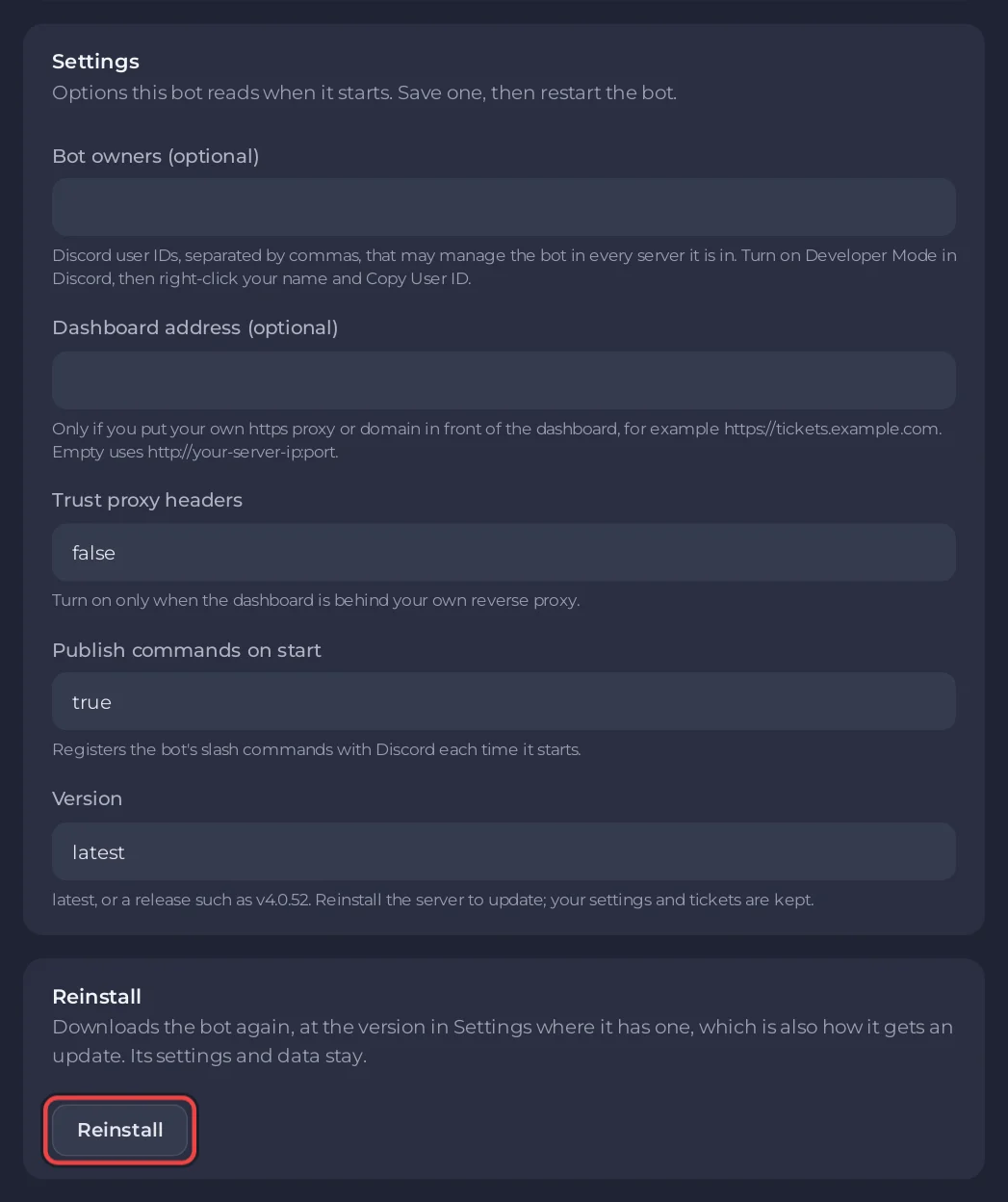
Your settings and the bot's data stay. If you changed files the install writes, take a backup first: How to create, download and restore backups. The Reinstall card only shows if you have permission to reinstall the server.
Good to know
- You need permission to change the startup to edit these fields. On a server someone shared with you, ask the owner.
- Your own code (Node.js, Python and the other languages) uses the same Settings card for its extra options, under the entry file and packages.
Each bot's own guide: Red, JMusicBot, Discord Tickets, AI Chat Bot, Ree6, Bastion, Game Server Monitor, matterbridge.


