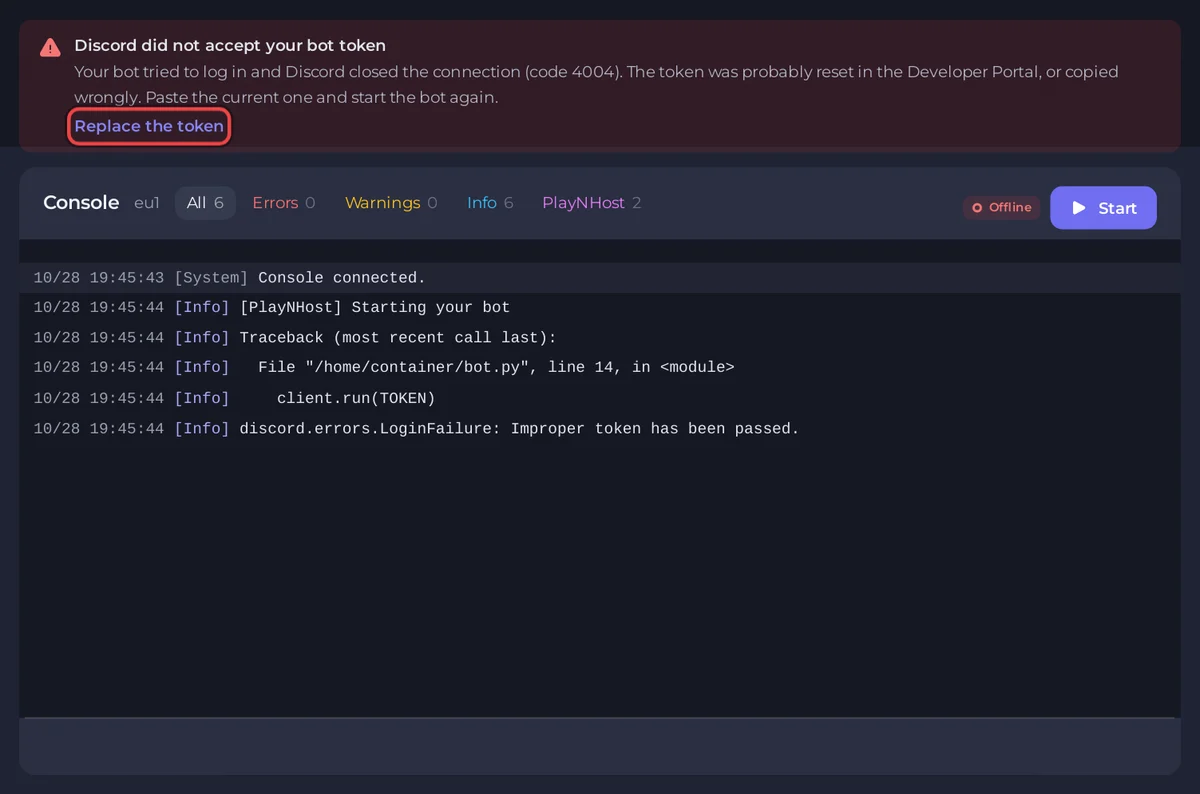
Open Console: it shows everything your bot prints, live, from the moment it starts. When the panel recognises a known problem in those lines, it puts a banner above them that says what went wrong in plain words, with a button to the place that fixes it.
Where to find it
- The Console tab of your server in the panel.
- The console card on Overview, with Open console for the full page.
- The Logs button on the bot's card on Overview.
A bot's console is for reading only: it has no box for typing commands. Your bot takes its commands in Discord.
The lines from PlayNHost
Lines that start with [PlayNHost] come from the start script, before your code runs. On a healthy start you see, in order: a Git download if one is set, the package install (or [PlayNHost] Packages are up to date when nothing changed), then:
[PlayNHost] Starting your botEverything after that line is your bot's own output. If the start stops before it, the [PlayNHost] line just above says why, for example:
[PlayNHost] Your bot is not set up yet: the main file index.js was not found.
[PlayNHost] Upload your bot files in the Files tab, or connect a Git repository on the Bot page, Code, then press Start.
The full list is in Why your Discord bot keeps stopping.
The banners above the console
The banner shows the latest problem seen since the bot last started.
| Banner | Button | Meaning |
|---|---|---|
| Discord did not accept your bot token | Replace the token | Discord closed the login (code 4004). The token was reset or copied wrong. |
| Your bot needs an intent that is switched off | Check the intents | Code 4014. Switch the intent on in the Developer Portal. |
| Your bot ran out of memory | See My plan | It used more memory than the plan gives and was stopped. |
| A package your code needs is missing | Open Packages | Cannot find module or ModuleNotFoundError. |
| A package could not be installed | Open Packages | A package name is misspelled or does not exist. |
| Your code is in another language than this server runs | Change what runs | For example a .py file on a Node.js server. |
| Your file still has the ``` lines from a chat | Open Files | Code copied from a chat kept its Markdown fence lines. |
| Your bot has no code yet | Open Files | The start found no main file to run: upload your code, connect Git, or create a starter bot. If the start first found code in another language, the language banner shows instead. |
| Your bot stopped after crashing twice | Open Files | It crashed again within a minute of its automatic restart, so it was left stopped. Shown when no other banner already names the cause. |
Reading an error from your code
An error is a message followed by a list of places. Read it in this order:
- The message: the first line, for example
TypeError: Cannot read properties of undefined (reading 'send'). - The first place that names your own file, not a library: in Node.js a line like
at Client.<anonymous> (/home/container/index.js:14:22), in PythonFile "/home/container/bot.py", line 14. - Open that file in Files and go to that line.
/home/containeris your server's main folder.
Python prints the message last, at the bottom of the traceback. Node.js prints it first. Common messages are in Common Discord bot errors and what they mean.
Print your own lines
console.log (Node.js, Bun, Deno), print (Python, unbuffered, so no flush=True needed), System.out.println (Java) and Console.WriteLine (C#) all show here. Two lines worth adding:
Logged in as <name>when your bot is ready. The panel reads it: the chip on the bot's card on Overview turns from Running to Online in Discord, and the setup card says Your bot is online in Discord.- One line at the top of each command handler, so you can see whether Discord delivered the command at all.
The chip on Overview
| Chip | Meaning |
|---|---|
| Online in Discord | Running, and the bot printed a login line since it started. |
| Running | Running, but nothing in the console says it has logged in yet. |
| Starting / Offline | The server is starting, or stopped. |
| Token problem | Discord refused the token. Replace it on the Discord pane. |
| Missing intents | Discord refused an intent the code asked for. |
The console is cut off or empty
- Scroll up: older lines stay above.
- If your bot writes its own log file, open it in Files.
- If the bot stopped with no message at all, it may have run out of memory: Why your Discord bot keeps stopping.