To host a Python Discord bot 24/7, run it on a server that stays on instead of your PC: upload your .py files and requirements.txt, set the entry file, paste the token and start it. On a PlayNHost bot plan (from US$1.99 a month) you pick Python 3.10 to 3.14 (3.12 by default), your requirements install by themselves whenever you change them, and a bot that crashes is started again. The five steps:
- Check the bot's card on Overview says Python Bot; if not, on the Bot page, pane Code, click Change what runs next to Runtime and pick it.
- Upload your files with
requirements.txtin Files. - Set the Entry file on the Bot page, pane Code, and click Save.
- Paste your token on the Discord pane and click Connect.
- Press Start and watch Console. Your requirements install by themselves on the first start, and again whenever you change them.
Writing a Telegram bot in Python instead, with python-telegram-bot or aiogram? It runs on the same bot plans: choose Telegram when you order. See Telegram bot hosting and How to host a Telegram bot.
1. Check the type
The bot's card on Overview says what runs, for example Discord bot - Python Bot. If it says another language, change it before you go on: on the Bot page, pane Code, click Change what runs next to Runtime (on a computer, the type label at the top of the page opens the same dialog) and pick Python Bot. Your files stay unless you tick Delete my existing files and start clean. See How to switch your bot to another language.
2. Add your code
- Open your server in the panel, then Files.
- Upload your
.pyfiles andrequirements.txt. Leave outvenv,.venvand__pycache__: the server installs packages itself. To upload a folder, zip it, upload the zip, tick it and click Unzip. See How to upload your Discord bot code. - No code yet? On Overview, the Set up your bot card offers Create a starter bot: a working discord.py bot that answers
/ping. See How to create a starter Discord bot in one click.
Your code on GitHub? Choose Git repository as the source on the Code pane: How to deploy and update your Discord bot from GitHub.
3. Set how it runs
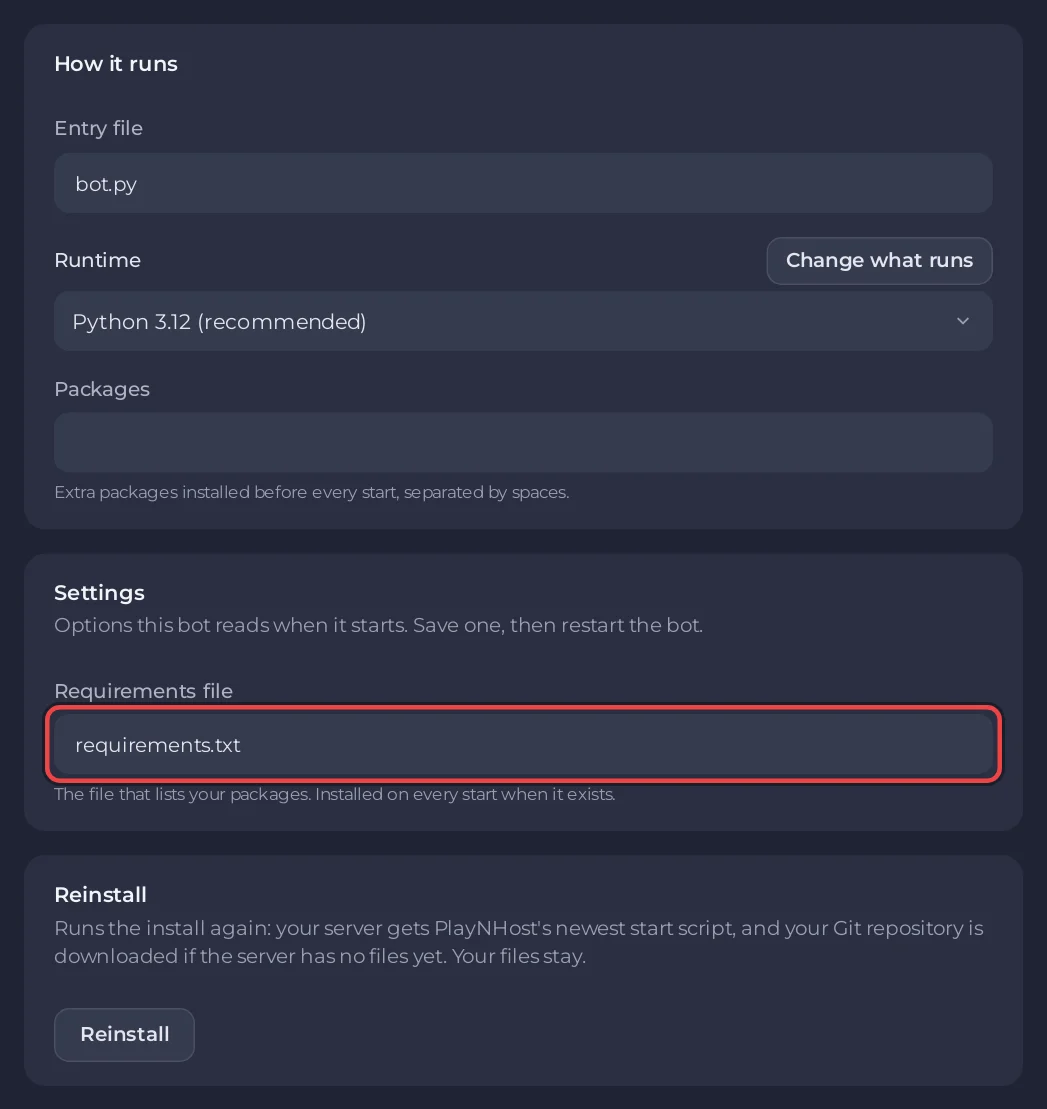
On the Bot page, pane Code, card How it runs:
- Entry file: the file that starts your bot,
bot.pyby default. For examplemain.pyorsrc/main.py. Names are case sensitive. - Runtime: Python 3.12 (recommended), or Python 3.10, 3.11, 3.13 or 3.14. The change applies at the next start.
- Packages: extra pip packages, installed at the next start after you change them, separated by spaces, for example
discord.py aiohttp.
Lower down, the Settings card has Requirements file, requirements.txt by default. Change it if yours has another name or sits in a folder. Click the Save button that appears next to a field after you change it.
4. Paste the token
On the Discord pane, paste the token and click Connect. Your code reads it with os.environ["DISCORD_TOKEN"]. See How to create a Discord bot and get its token.
5. Start it
Press Start and open Console. The server installs Packages, then everything in your requirements file (with pip install -U, so packages are kept up to date), prints [PlayNHost] Starting your bot and runs your entry file with python. The first start takes longer while packages download. Later starts install again only when Packages, your requirements file or the Python version changed, or once a day; otherwise the console says [PlayNHost] Packages are up to date.
Output is not buffered: every print() reaches the console at once, so you do not need flush=True. Print a line such as Logged in as MyBot in on_ready: the chip on Overview then turns to Online in Discord.
A minimal discord.py bot
requirements.txt
discord.pybot.py
import os

import discord

intents = discord.Intents.default()
client = discord.Client(intents=intents)


@client.event
async def on_ready():
    print(f"Logged in as {client.user}")


client.run(os.environ["DISCORD_TOKEN"])
For a slash command, see How to make a Discord bot with Python.
How much memory a discord.py bot uses
We measured it on one of our own servers on 6 November 2026, in a throwaway container set up like a 1 GB bot plan, with a fake token that Discord refused. A minimal discord.py 2.7.1 bot on Python 3.12, with the library loaded and its login sent, used about 48 MB of memory, and Discord answered 1.0 s after the start. Python on its own used 9 MB. A bot that has connected, joined servers and cached members uses more, so check RAM on the Usage card after a day of real use; the library itself takes less than a tenth of the 0.5 GB STARTER plan.
| Library | Version | Memory | Start to Discord's answer |
|---|---|---|---|
| discord.py | 2.7.1 | 48 MB | 1.0 s |
| Pycord | 2.8.1 | 51 MB | 1.1 s |
| nextcord | 3.2.0 | 47 MB | 1.0 s |
| disnake | 2.12.2 | 47 MB | 0.9 s |
| hikari | 2.7.0 | 61 MB | 1.3 s |
Memory is the resident memory 15 seconds after Discord's answer; each figure is the median of three runs after a warm-up run.
Console lines you may see
| Line | What to do |
|---|---|
[PlayNHost] Your bot is not set up yet: the main file bot.py was not found. | Upload your files, or set Entry file to the real name and folder. |
[PlayNHost] index.js is a JavaScript file, but this server runs Python. | Your code is JavaScript. Change the type to Node.js Bot and keep your files. |
[PlayNHost] bot.py starts with ```, a Markdown code fence copied together with the code. | Open the file in Files, delete the first and last ``` lines, save, start again. |
[PlayNHost] pip could not install everything in requirements.txt. Starting with the packages already installed. | A line in the file is wrong. The pip error just above names it. |
[PlayNHost] Some packages in Bot page, Code, Packages could not be installed. | Check the spelling in Packages and that names are separated by spaces. |
ModuleNotFoundError: No module named 'x' | Add the package to requirements.txt or Packages. The pip name can differ from the import name: import discord comes from discord.py. |
The panel shows these as a banner above the console with a button to the right place. More: Why your Discord bot keeps stopping.
Good to know
- Packages are installed into a
.localfolder in your server's files. Leave it there. - Using
python-dotenv? Variables you set under Environment are already inos.environ, andload_dotenv()does not overwrite them. See How to set environment variables and secrets.
See also How to use a MySQL database with a discord.py bot (aiomysql).
Questions people ask
Which Python version should I pick?
Python 3.12, the default, marked (recommended). Choose 3.13 or 3.14 if a package needs it under Runtime on the Code pane. The change applies at the next start.
Does the bot stay online when I turn off my PC?
Yes. It runs on the server, not in your browser. If it crashes it is started again within about a minute; if it crashes again within a minute of that, it stays stopped and Console says why.
Can I use Pycord, Nextcord or disnake instead of discord.py?
Yes. Put py-cord, nextcord or disnake in requirements.txt instead of discord.py. List only one: py-cord and discord.py both install the discord module and clash. Each library has its own guide with a sample bot and its wrong-token error: How to host a Pycord bot 24/7, How to host a nextcord bot 24/7 (nextcord 3 needs Python 3.12 or newer) and How to host a disnake bot 24/7. For hikari, which is not a discord.py fork: How to host a hikari bot 24/7.