

Deno runs TypeScript as is and loads npm packages straight from your imports. To run a Deno bot:
- Switch the type: on the Bot page, pane Code, click Change what runs next to Runtime and pick Deno Bot.
- Upload your files in Files.
- Check the Entry file (
main.tsby default) on the Bot page, pane Code. - Paste your token on the Discord pane and click Connect.
- Press Start and watch Console.
1. Switch the type to Deno Bot
On the Bot page, pane Code, click Change what runs next to Runtime and pick Deno Bot. On a computer, the type label at the top of the page (for example Node.js Bot) opens the same dialog. Leave Delete my existing files and start clean. unticked to keep your files. See How to switch your bot to another language. The install downloads Deno into your server.
2. Add your code
Upload your .ts files (and deno.json if you use one) in Files: zip a folder, upload, tick it, Unzip. Or choose Git repository as the source on the Code pane: How to deploy and update your Discord bot from GitHub.
3. Set how it runs
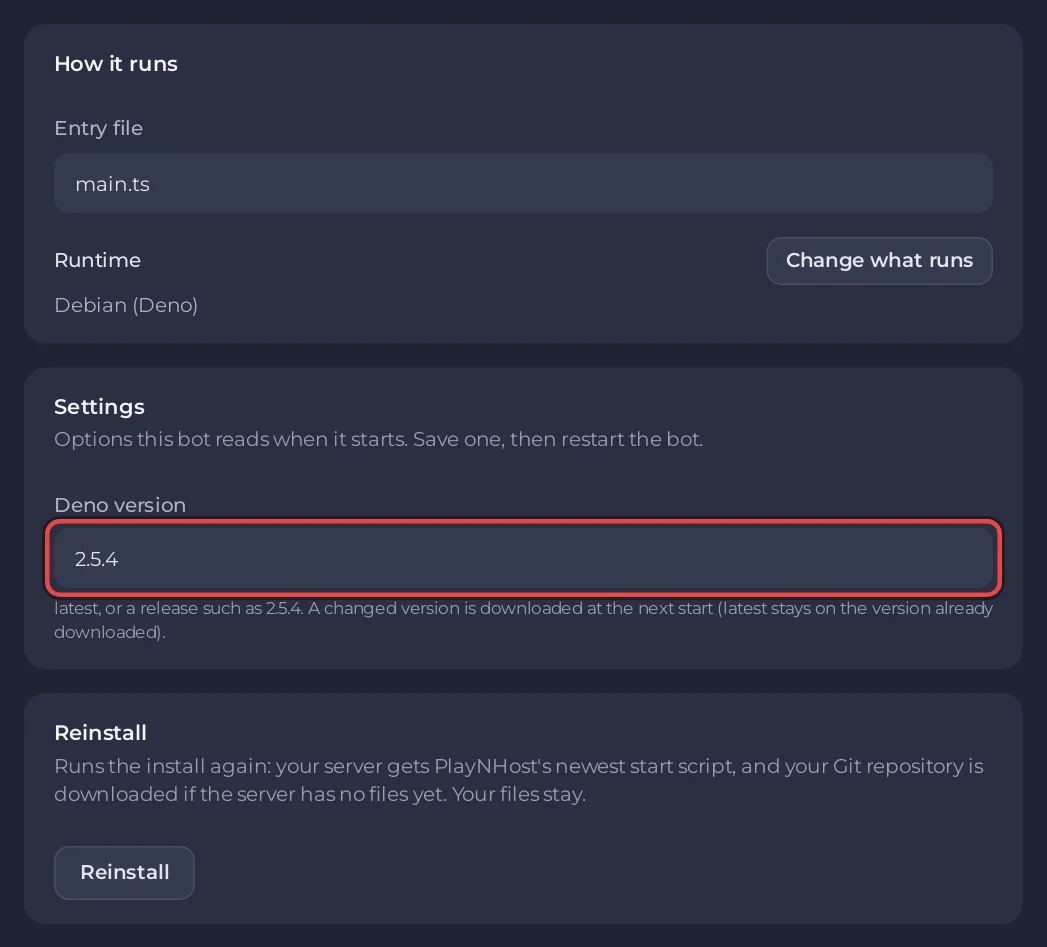
- Entry file (card How it runs):
main.tsby default, for examplesrc/bot.ts. - Deno version (card Settings):
latest, or a release number such as2.5.4.
There is no Packages field: Deno downloads what your imports name (npm:, jsr: or a URL) the first time it loads them, and keeps them for later starts.
4. Paste the token and start
On the Discord pane, paste the token and click Connect. Press Start and open Console. You see the Deno version, for example [PlayNHost] Deno 2.5.4, then [PlayNHost] Starting your bot. Your bot runs with deno run -A: all permissions, inside your own server, so you need no --allow flags. Its memory is limited to 80 percent of your plan's.
A minimal Deno bot with discord.js
main.ts
import { Client, Events, GatewayIntentBits } from "npm:discord.js@14";

const client = new Client({ intents: [GatewayIntentBits.Guilds] });

client.once(Events.ClientReady, (c) => {
  console.log(`Logged in as ${c.user.tag}`);
});

client.login(Deno.env.get("DISCORD_TOKEN"));
The first start downloads discord.js, so it takes a little longer. Printing Logged in as turns the chip on Overview to Online in Discord. You can also use discordeno, a library made for Deno.
Change the Deno version
Deno is downloaded when the server is installed. To run another release:
- On the Code pane, card Settings, set Deno version to a release number, for example
2.5.4, and click Save. - Restart the bot. The console shows
[PlayNHost] The Deno version changed to v2.5.4.and[PlayNHost] Downloading Deno v2.5.4, then starts your bot with it.
latest keeps the release that is already downloaded; it does not update by itself. To move to the newest release, either type its number, or leave latest and click Reinstall at the bottom of the Code pane: the install downloads Deno again and your files stay.
Nothing happens at restart? Your server still has an older start script that only reads the version at install. Click Reinstall once: it installs the version you set and the newest start script.
If the console says Deno could not be downloaded, check that the version you typed is a real Deno release, on the Code pane under Settings, Deno version, then press Start again.
Other console lines
| Line | What to do |
|---|---|
[PlayNHost] Your bot is not set up yet: the main file main.ts was not found. | Upload your files, or set Entry file to the real name and folder. |
An import error for an npm: or jsr: package | Check the package name and version in the import. |
Keys and passwords go under Environment, read with Deno.env.get: How to set environment variables and secrets. TypeScript on other types: How to run a TypeScript Discord bot.


