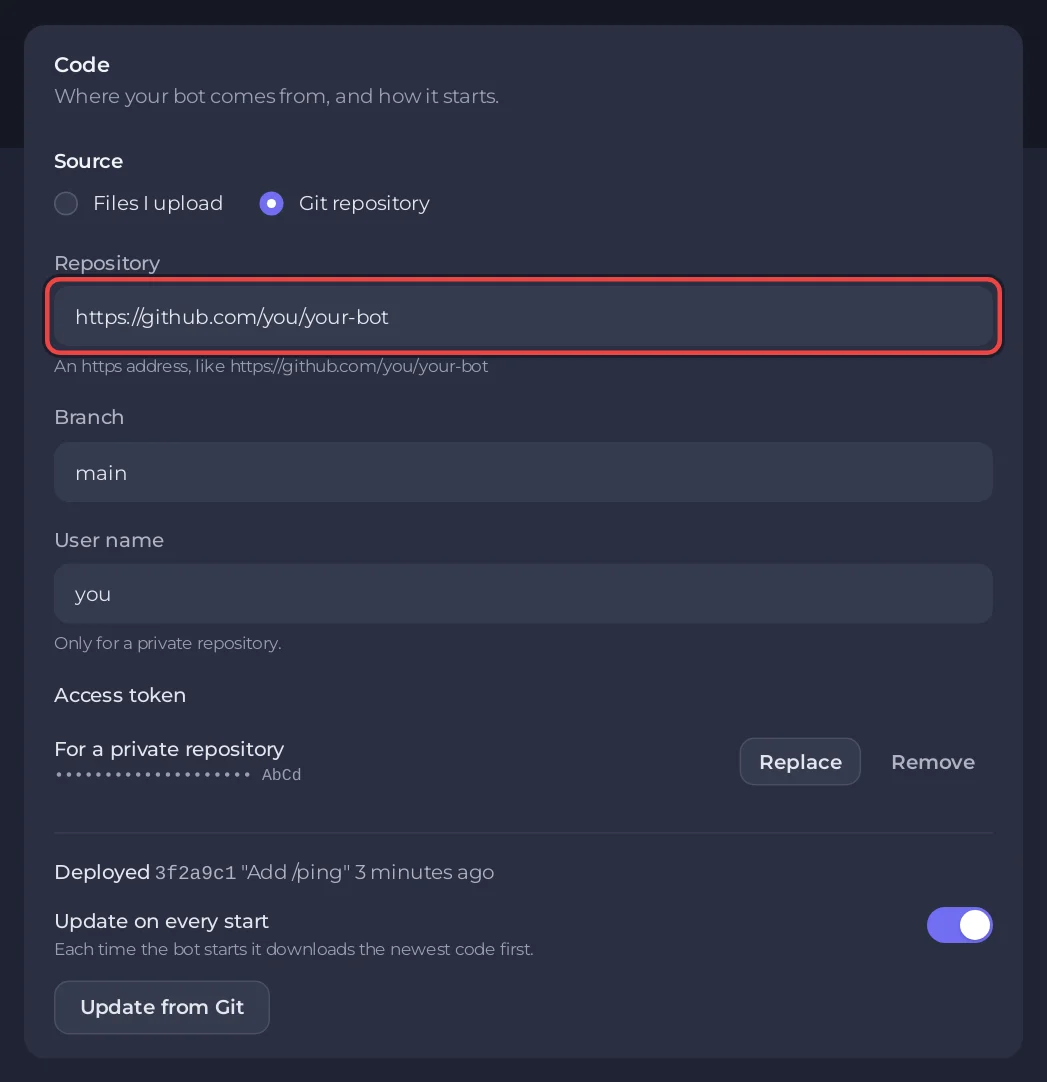
Set your repository on the Bot page, pane Code: choose Git repository, fill in Repository, and start the bot while its folder is empty. The server downloads your code, installs its packages and starts it. Switch on Update on every start and each restart pulls your newest commit.
Git works on the Node.js Bot, Python Bot, .NET Bot, Bun Bot and Deno Bot types. Java, Go and Rust bots run a finished file, so you upload that instead. Go and Rust can download it from a link: see Go and Rust.
Connect the repository
- Open your bot server in the panel, then the Bot page, pane Code.
- Under Source, choose Git repository.
- In Repository, type the https address, for example
https://github.com/you/your-bot, and click Save. It must start withhttps://; SSH addresses likegit@github.com:...are refused. - Leave Branch empty to use the repository's default branch, or type one, for example
mainorproduction. - Under How it runs, set Entry file to the file that starts your bot, as it sits in the repository (for example
src/index.js). - Paste your token on the Discord pane if you have not yet.
- Press Start and open Console. You see
[PlayNHost] Downloading your bot from git, the package install, then[PlayNHost] Starting your bot.
The server already has files
The download only runs while the main folder is empty, so nothing of yours is overwritten. If there are files, the console says:
[PlayNHost] A Git repository is set, but this server already has files, so it was not downloaded.
[PlayNHost] To use the repository instead, delete the files in the Files tab (keep the .pnh folder), then press Start.
Open Files, delete everything except the .pnh folder, and press Start. Download any data file you want to keep first. Packages installed by an earlier start (node_modules, .local) count as files too.
Private repositories
- On GitHub, create a fine-grained personal access token for that one repository, with read-only access to Contents.
- On the Code pane, type your GitHub user name in User name and click Save.
- Next to Access token, click Set, paste the token and click Save.
The access token is used only to download your code. It is stored encrypted and never shown again, not even to you: the row shows dots and its last four characters. It is never written into a URL or into the repository's settings on the server. To change it, click Replace; to take it away, Remove.
Update on every start
Switch on Update on every start. Each time the bot starts, the server runs git pull before anything else, so your release routine becomes:
- Push your change to the branch.
- Press Restart in the panel.
Packages from package.json or requirements.txt install again when the file changes, so a new dependency in your commit is picked up too. For a nightly update, add a scheduled restart: How to restart your Discord bot on a schedule.
Update once, without switching it on
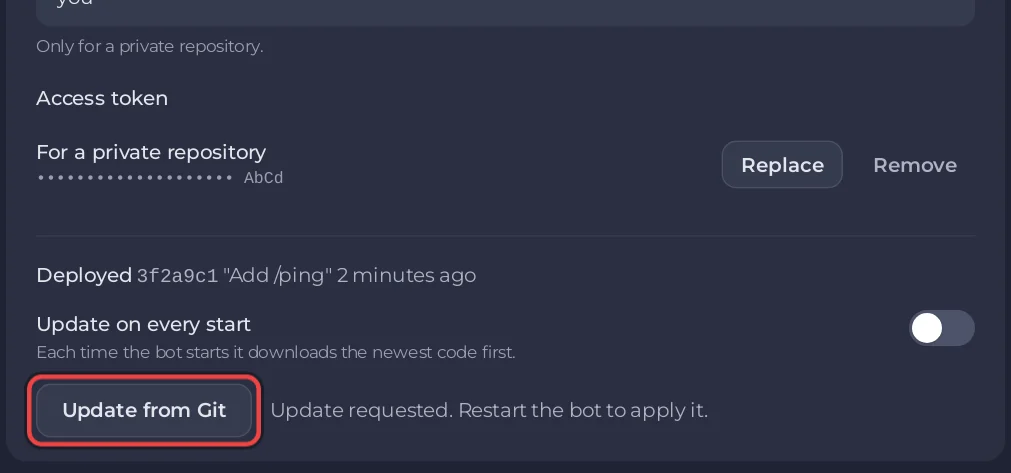
- Push your change, then click Update from Git under the Update on every start switch.
- The panel says Update requested. Restart the bot to apply it. (or, when the bot is stopped, Update requested. It runs the next time the bot starts.). Press Restart or Start.
- The console shows
[PlayNHost] Updating your bot from Gitand git's own output, then your bot starts on the new code.
After an update, the Code pane shows Deployed with the first seven characters of the commit, its message and when it ran, for example Deployed 3f2a9c1 "Add /ping" 2 minutes ago. Update on every start updates the same line.
No Update from Git button? Your server still has an older start script. Scroll to the Reinstall card at the bottom of the Code pane and click Reinstall: your files stay, and the server gets the newest start script with the button. The button also needs the right to change files, if a friend gave you access.
If an update fails
- A failed pull does not stop the bot. The console says
[PlayNHost] The update from Git failed. Starting with the code already on the server.after git's error, and the Deployed line gets a Last update failed badge. [PlayNHost] An update from Git was asked for, but this server has no Git repository. Connect one on the Bot page, Code.: the files on the server did not come from Git. Follow The server already has files above.Authentication failedorcould not read Username: the access token is wrong, expired, or has no access to that repository. Make a new one and click Replace.Your local changes to the following files would be overwritten by merge: a file was edited on the server. Make the change in your repository instead, and delete the edited file on the server (or restore it) so the pull can run.Remote branch ... not found: check the spelling of Branch.
Stop using Git
Choose Files I upload under Source and confirm with Use my own files. The bot stops downloading from your repository; the files already on the server stay.
Related: How to upload your Discord bot code, Node.js, Python.