You can run a music bot without writing code. A PlayNHost bot plan offers two ready-made ones, JMusicBot and Red, but only Red can play in Discord voice channels at the moment (see the note below). Pick one, paste your bot token on the Bot tab, fill in what that bot needs under Code, Settings, and start it.
JMusicBot cannot play in Discord voice channels at the moment. Since 2 March 2026 Discord only accepts voice connections that support its DAVE encryption, and JMusicBot 0.4.3, its newest release (August 2024), has none: it joins a voice channel and leaves again. Red supports DAVE from version 3.5.23.
Looking for Muse? We no longer offer it.
- In the Discord Developer Portal, create the bot, copy its token, and switch on the privileged intents your bot needs (table below).
- In the panel, make the server run JMusicBot or Red (Change what runs).
- Paste the token in the Set up your bot card on Overview, and invite the bot.
- Fill in its options under Bot, Code, Settings.
- Press Start bot.
Each step in detail below.
Which one
| JMusicBot | Red | |
|---|---|---|
| What it is | Music only | A general bot: moderation, fun, music and add-ons |
| Commands | Prefix, or a mention of the bot: !play | Prefix: .play after you load its Audio cog |
| Needs besides the token | Your Discord user ID | All three privileged intents switched on |
| Privileged intents | Message Content | Presence, Server Members, Message Content |
| Discord voice (DAVE) | Not supported in 0.4.3: joins and leaves | Supported from 3.5.23 |
| Guide | How to host JMusicBot | How to host Red |
JMusicBot used to be the one with the fewest steps, but until it gets a release with DAVE support it cannot play. Red plays music through its Audio cog and also brings moderation and other features. In our test on 6 November 2026, Red's own music node could not play YouTube from our servers and started 1 of 4 SoundCloud tracks, so test the music you need first. The route that started YouTube songs in our test is a Lavalink node signed in to YouTube, with a bot you write: How to play YouTube on Lavalink 4.
Before you start
- Create an application in the Discord Developer Portal, open Bot, and copy the token: How to create a Discord bot and get its token. Keep it private: How to keep your Discord bot token safe.
- On the same Bot page, switch on the privileged intents your bot needs (table above) and press Save Changes.
1. Choose the bot
- Open your server in the panel. On Overview, in the Set up your bot card, click the step What runs. It names the bot the server runs now, for example "This bot runs JMusicBot."
- To change it, click Change what runs (or the bot type's name at the top of the page), choose the bot, press Next step, tick the confirmation and press Change server type. The server reinstalls.
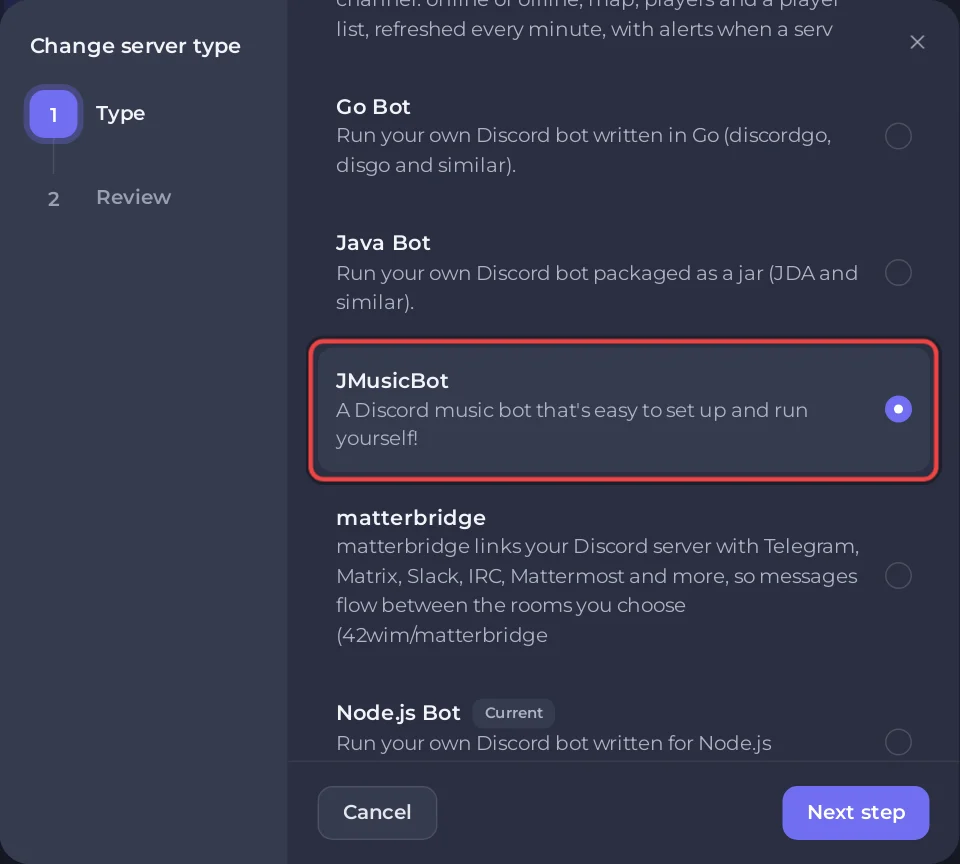
The dialog keeps the server's files unless you tick Delete my existing files and start clean. On a server you already used, download what you want to keep first: How to create, download and restore backups.
2. Connect it and invite it
- Step Connect to Discord: paste the token in Paste your bot token and press Connect. Check the name and picture, then press Yes, continue.
- Step Permissions: the Privileged intents table shows what your bot needs and what is on in your portal. Fix anything marked Off and press Check again.
- Under Invite link, press Add to a Discord server. For both bots the link already asks for Connect, Speak and Use Voice Activity.
3. Fill in its settings
- JMusicBot: Bot tab, Code, Settings: [REQUIRED] Bot Owner ID, and the prefix if you want one.
- Red: Bot tab, Code, Settings: Command Prefix (
.by default) and, if you want, Owner (your Discord user ID).
Press Save next to each field you change. Full list: How to change a ready-made bot's settings.
4. Start it
Press Start bot in the setup card, or Start on Console. For JMusicBot, the setup card keeps Start bot off until [REQUIRED] Bot Owner ID is filled in, and its Open Settings link takes you there. The console shows the bot logging in, and it appears online in your Discord server. If it stops straight away, the console line says why, and each bot's guide lists the common ones.
Good to know
- What a music bot can play depends on the bot and on what each site allows, and sites change that over time. If a song does not play, see Discord music bot not playing: fixes.
- Writing your own music bot instead? Its audio can run on a separate Lavalink node, which we host as its own plan: How to host a Lavalink server 24/7.
- Want music and moderation, levels and more in one bot? Bastion also has music commands; it needs a plan of 2 GB or more: How to host Bastion.
- Not after music? The same plan runs more ready-made bots: Discord Tickets for support tickets, AI Chat Bot for AI chat with your own API key, Ree6, Game Server Monitor and matterbridge.
- To run your own code later, change the type again to Node.js, Python or another language on the same plan: How to switch your bot between Node.js, Python and Java.