

A Go bot is built on your own computer and uploaded as one finished Linux program; nothing is compiled on the server, so all of your plan's memory goes to the bot. To run one:
- Build it for Linux x86-64 on your computer.
- Switch the type: on the Bot page, pane Code, click Change what runs next to Runtime and pick Go Bot.
- Upload the program (named
botby default) in Files, or set Download link (optional) on the Code pane. - Paste your token on the Bot page, pane Discord, and click Connect.
- Press Start and watch Console.
1. Build for Linux
From your project folder, on any computer:
# macOS or Linux
GOOS=linux GOARCH=amd64 CGO_ENABLED=0 go build -o bot

# Windows PowerShell
$env:GOOS="linux"; $env:GOARCH="amd64"; $env:CGO_ENABLED="0"; go build -o bot
CGO_ENABLED=0 makes one self-contained file that does not depend on the server's system libraries. The result is a file called bot with no extension. A .exe or a macOS build does not run on the server.
2. A minimal discordgo bot
package main

import (
	"fmt"
	"os"
	"os/signal"
	"syscall"

	"github.com/bwmarrin/discordgo"
)

func main() {
	dg, err := discordgo.New("Bot " + os.Getenv("DISCORD_TOKEN"))
	if err != nil {
		fmt.Println("error creating session:", err)
		return
	}
	dg.Identify.Intents = discordgo.IntentsGuilds
	dg.AddHandler(func(s *discordgo.Session, r *discordgo.Ready) {
		fmt.Println("Logged in as", r.User.Username)
	})
	if err := dg.Open(); err != nil {
		fmt.Println("error opening connection:", err)
		return
	}
	defer dg.Close()

	stop := make(chan os.Signal, 1)
	signal.Notify(stop, os.Interrupt, syscall.SIGTERM)
	<-stop
}
The token comes from DISCORD_TOKEN. When you press Stop, your program gets an interrupt signal, so the last lines close the Discord connection cleanly. Printing Logged in as turns the chip on Overview to Online in Discord.
3. Switch the type to Go Bot
On the Bot page, pane Code, click Change what runs next to Runtime and pick Go Bot. On a computer, the type label at the top of the page (for example Node.js Bot) opens the same dialog. See How to switch your bot to another language.
4. Put the program on the server
Upload it: in Files, click Upload and pick bot. Upload any files it reads next to it. You do not need to make it executable: the server does that at start.
Or let the server download it: on the Bot page, pane Code, card Settings, set Download link (optional) to an https link to your finished program, for example a GitHub release file, and click Save. On a start, when the program file is missing, the server downloads it (up to 500 MB). To update, publish a new build at that link, delete the program in Files, and press Start.
With a download link set, Start bot in the Set up your bot card works even before the file exists: the download runs as part of the start.
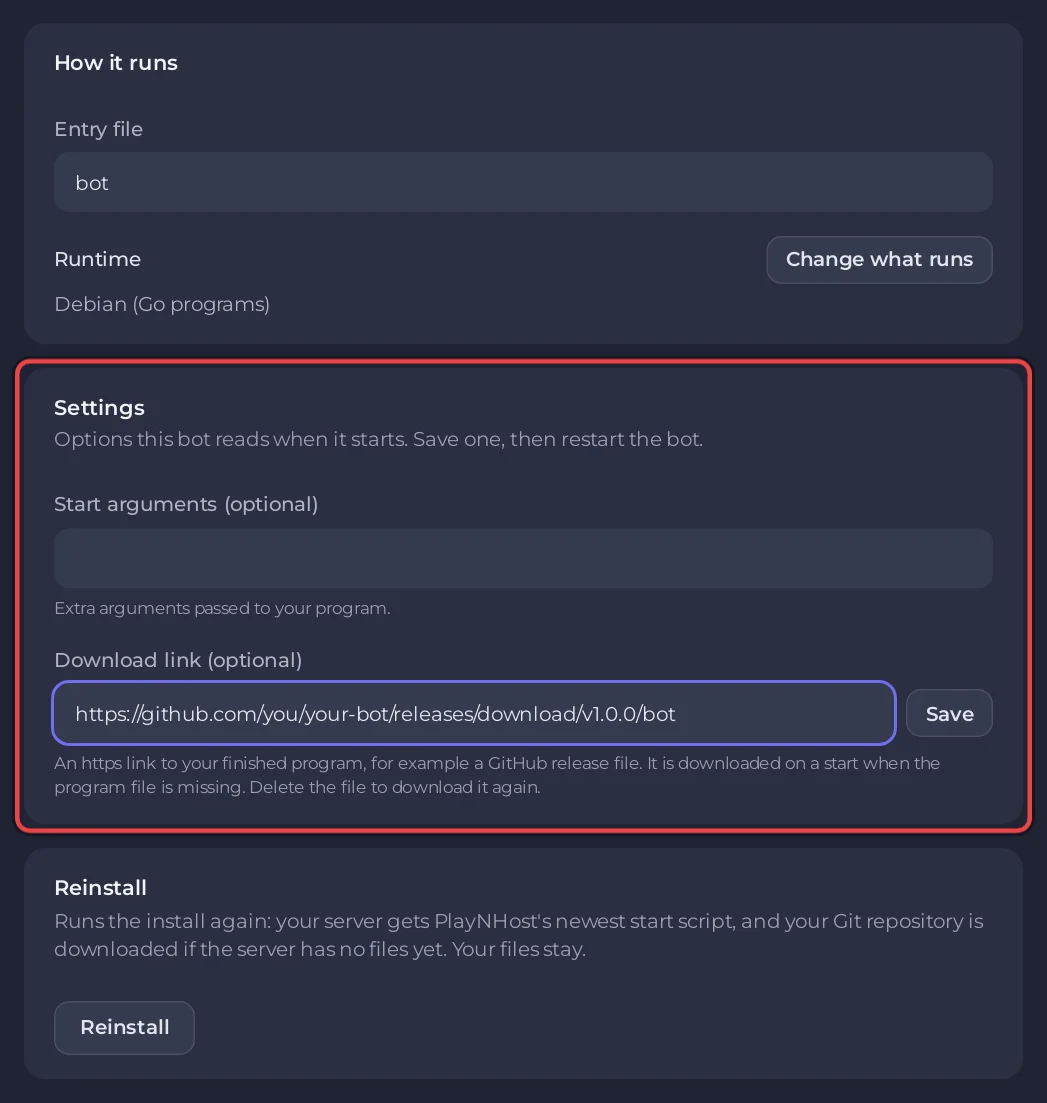
5. Check the settings and start
- Entry file (card How it runs): the program's name and folder,
botby default, for examplebin/mybot. - Start arguments (optional) (card Settings): extra arguments for your program, such as
--debug. Shell characters like$,;,&and>are not allowed.
Paste your token on the Discord pane, click Connect, then press Start. The console shows [PlayNHost] Starting your bot and then your program's output.
Console lines you may see
| Line | What to do |
|---|---|
[PlayNHost] Your bot is not set up yet: the program bot was not found. | Upload the program, or set Entry file to its exact name and folder. |
[PlayNHost] bot is not a Linux program. Build it for Linux x86-64 (not Windows or macOS) and upload it again. | Build again with GOOS=linux GOARCH=amd64. |
[PlayNHost] Downloading your program, then [PlayNHost] The download failed. Check the download link on the Bot page, Code, Settings, then press Start. | The link is wrong, private, or not https. Check Download link (optional) on the Code pane, under Settings. |
Go bots have no Git source and no Packages field: your libraries are inside the program. Keys and passwords go under Environment, read with os.Getenv: How to set environment variables and secrets.


