

The Bot page holds everything about your bot that is not a file: its Discord token, intents and invite link, where its code comes from and how it starts, its variables and secrets, and what happens when it stops.
- Open your server in the panel.
- Click the Bot tab, or Bot settings on the bot's card on Overview.
- Pick a pane in the menu on the left (on a phone, at the top): Discord, Code, Environment or Restarts.
- Change a field and click the Save button next to it, then restart the bot when the pane says so.
A bot server has no Settings tab: this page replaces it, and old links to Settings land here.
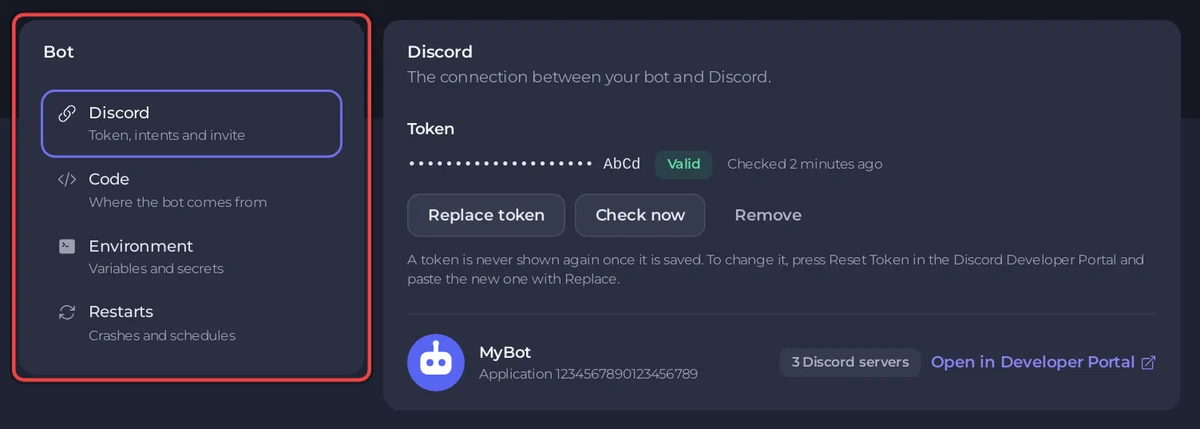
Discord: token, intents and invite
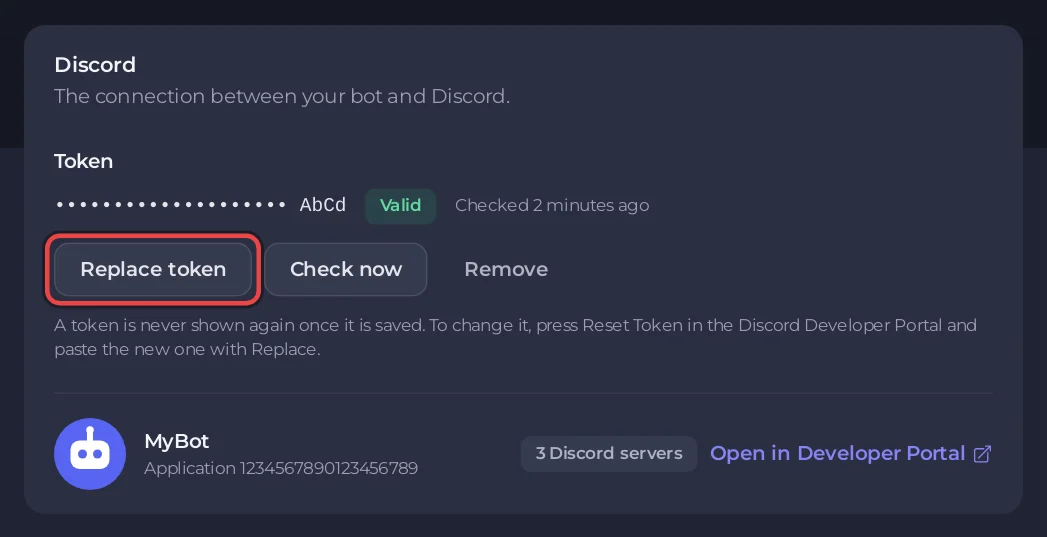
- Token: paste your bot token and click Connect. Once saved it shows as dots and its last four characters, with a badge: Valid, Discord did not accept it, Not checked yet, Could not be checked or Check paused. Buttons: Replace token, Check now, Remove. See How to keep your Discord bot token safe.
- Under the token, once Discord has confirmed it: your bot's picture and name, its Application number, how many Discord servers it is in, and Open in Developer Portal.
- Privileged intents: Server Members, Message Content and Presence, with what your portal has switched on. For your own code, tick My code uses this; a ready-made bot shows Needed by or Not needed by instead. See Fix "Used disallowed intents".
- Invite link: Add to a Discord server, Copy invite link, and Edit to choose the permissions it asks for. See How to invite your Discord bot to a server.
Code: where the bot comes from and how it starts
For a bot with your own code, the pane has up to four cards:
- Code: the Source, Files I upload or Git repository (Node.js, Python, .NET, Bun and Deno). With Git: Repository, Branch, User name, Access token, Update on every start, Update from Git and the Deployed commit. See How to deploy and update your Discord bot from GitHub.
- How it runs: Entry file (the main file, jar, program or .NET project), Runtime (the language version), with Change what runs next to it to switch the bot type, and, for Node.js, Bun and Python, Packages. See How to install packages for your Discord bot.
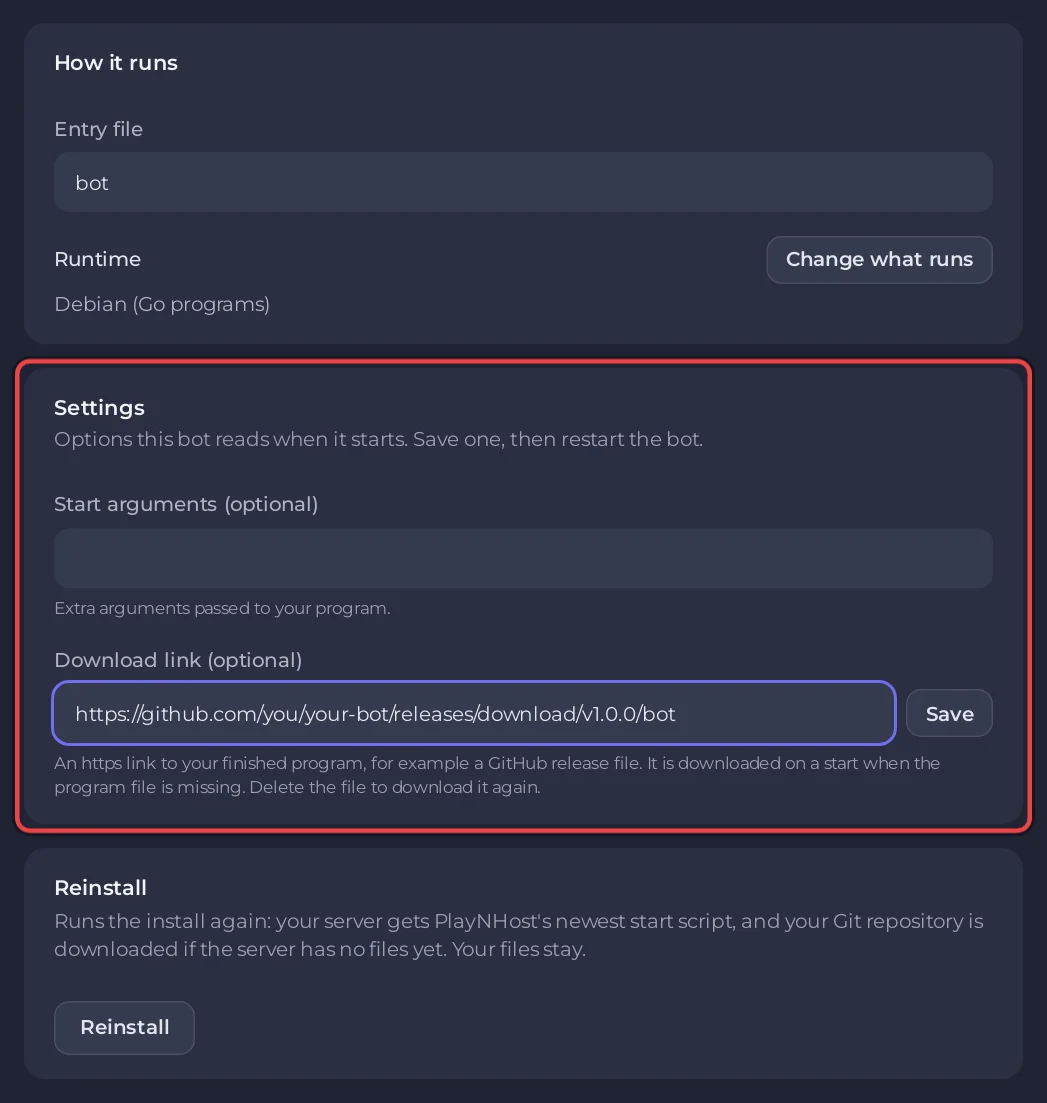
- Settings: any other option your bot type reads when it starts, for example Requirements file (Python), Node arguments (optional) (Node.js), Deno version (Deno), Start arguments (optional) and Download link (optional) (Go and Rust). Save one, then restart the bot.
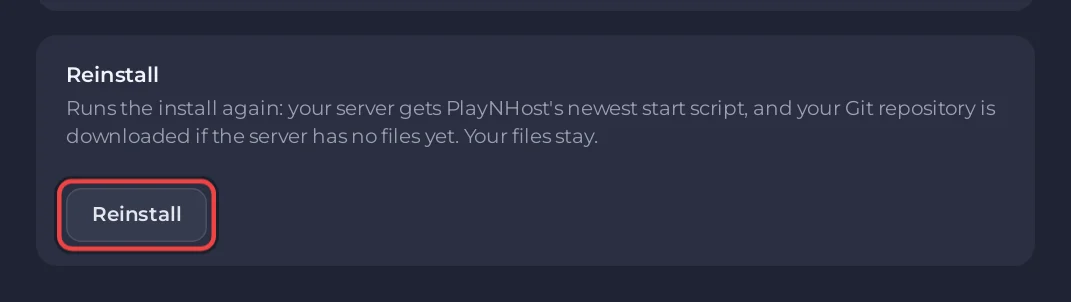
- Reinstall: runs the install again. Your files stay, and the server gets PlayNHost's newest start script; if the server has no files yet, your Git repository is downloaded. It asks Reinstall this server? first, and the bot stops while it runs. Only people with the right to reinstall see it.
Each field saves on its own: change it, then click the Save button that appears next to it. A ready-made bot shows its Runtime with Change what runs, Open Files, its own Settings card, such as an owner ID or a prefix, and Reinstall, which downloads the bot again (at the version in its settings where it has one) and keeps its settings and data.
Environment: variables and secrets
Values your code reads at start, such as an API key, a database password or a log level. Add them one by one with Add variable, or all at once with Paste a .env file. A value ticked Keep this value secret is never shown again. Changes apply the next time the bot starts. See How to set environment variables and secrets.
A ready-made bot shows this pane only when it needs keys of its own, under Credentials.
Restarts: crashes and schedules
- Restart automatically if it crashes: always On. A bot that stops by itself is started again within about a minute. If it crashes again within a minute, it stays stopped.
- Restart every day at a set time: Open Quick Tasks to schedule it. See How to restart your Discord bot on a schedule.
Who can change what
Friends you give access to can open the page. What they can change depends on their permissions: the token, the environment, and the code settings are three separate rights. Without one, its buttons are greyed out, for example with You do not have permission to change the token.
Also on Overview
The bot's card shows its state (Online in Discord, Running, Offline, Token problem, Missing intents), the number of Discord servers it is in, Add to a Discord server, Bot settings and Logs. Until setup is complete, the Set up your bot card walks you through the same panes step by step: How to host a Discord bot 24/7.


