

Three ways get your bot's code onto the server: upload it in Files (zip a folder, then Unzip it there), copy it over SFTP, or let the server download it from GitHub. Whichever you use, the files go in the main folder, and the Entry file on the Bot page, pane Code, must match the file that starts your bot.
What to upload, and what not
| Upload | Leave out |
|---|---|
Your code, package.json or requirements.txt, your .csproj, config and data files | node_modules, venv, .venv, __pycache__, bin, obj, .git, and any .env with your token in it |
The server installs packages by itself when you change them, and builds a .NET project on every start. The token goes on the Discord pane and other keys under Environment: How to set environment variables and secrets.
Way 1: Files in the panel
- On your computer, zip your bot folder (on Windows: right-click, Send to, Compressed (zipped) folder). Folders cannot be uploaded as they are, but a zip can.
- Open your server in the panel, then Files.
- Click Upload and pick the zip, or drag it onto the page.
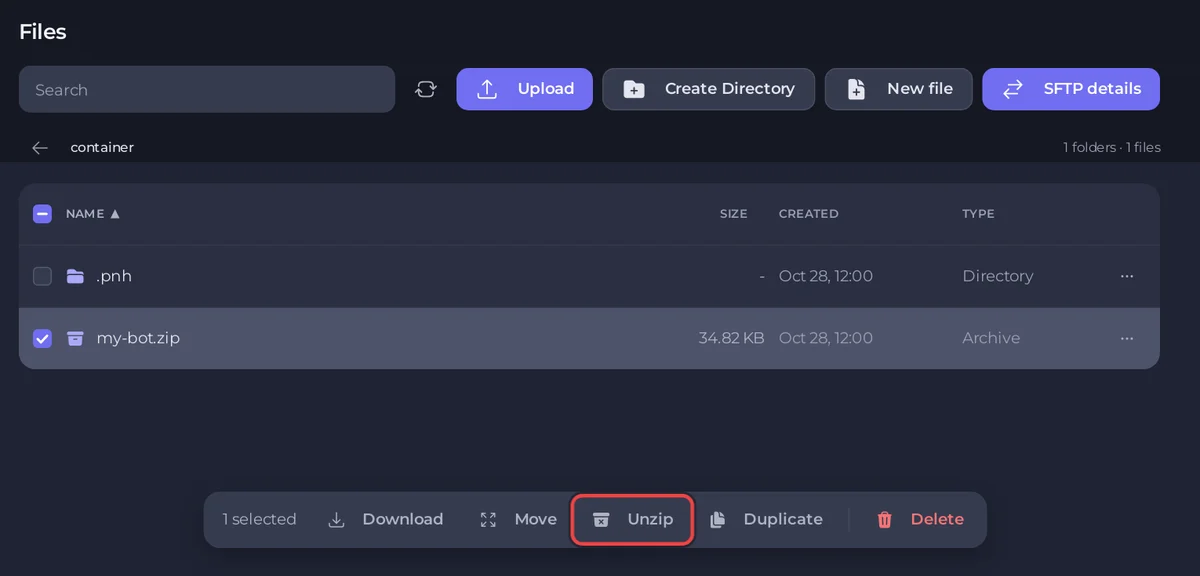
- Tick the box next to the zip. In the bar that appears, click Unzip.
- Open the new files. If they landed inside an extra folder (for example
my-bot/index.js), either move them up with Move, or set Entry file tomy-bot/index.js. With the second choice, your package file must be in the main folder too, so moving up is usually simpler. - Delete the zip.
Single files, such as one bot.py or a bot.jar, upload directly with Upload.
Paste code into a new file
New file opens an editor: paste your code, click Create file, and type the name your Entry file expects (for example bot.py) under File name. To change an existing file, open it, edit, and click Save content. If you copied the code from a chat, delete the ``` lines at the top and bottom first. Left in, they stop the bot with [PlayNHost] bot.py starts with ```, a Markdown code fence copied together with the code.
Way 2: SFTP, for big folders
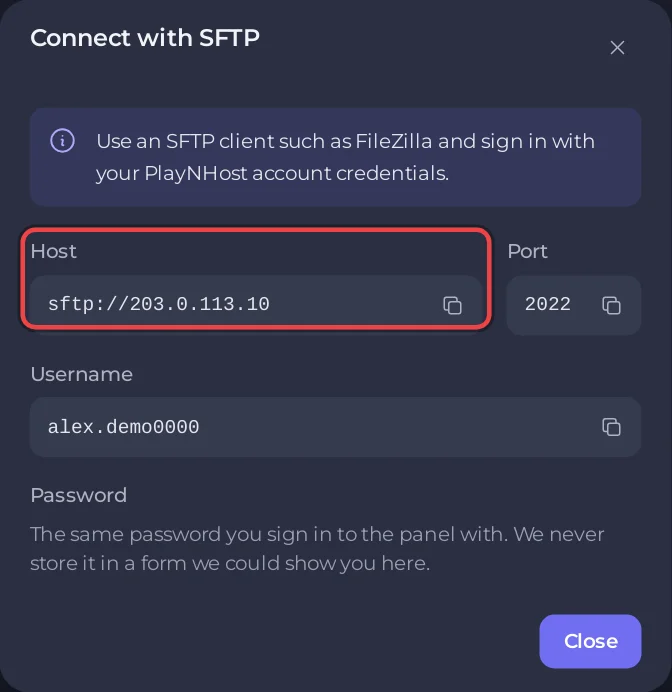
- In Files, click SFTP details. It shows Host, Port and Username. The Password is the one you sign in to the panel with.
- Connect with an SFTP program such as FileZilla or WinSCP, using SFTP (not plain FTP).
- Drag your bot folder's contents into the folder that opens. That is the main folder of the server, the same one Files shows.
More detail: How to connect to your server files with SFTP.
Way 3: download it from GitHub
On the Bot page, pane Code, choose Git repository under Source and fill in Repository. The server downloads your code on the next start, as long as the main folder is empty. Works for Node.js, Python, .NET, Bun and Deno bots. See How to deploy and update your Discord bot from GitHub.
Go and Rust bots can instead download their finished program from a link: Go, Rust.
Then point the Entry file at it
Open the Bot page, pane Code. The Code card says Upload your files in Files. The bot starts from index.js. (or your current entry file). If that is not your file, change Entry file under How it runs and click Save. In the setup card on Overview, a file of the right language with another name is offered for you: Use bot.js as the entry file.
Leave the .pnh folder alone
The main folder holds a .pnh folder with the script that starts your bot. Do not delete or edit it. When you clear the folder to download from Git, keep it.


