

 MINECRAFT HOSTING
 GAME SERVERS
 Game Panel
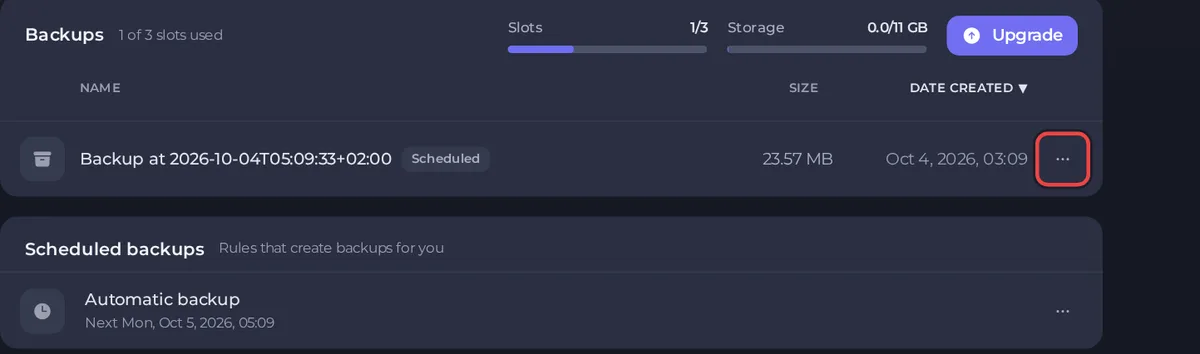
A backup is a saved copy of your server that you can put back later. Take one before you install mods, change versions or try anything risky. Backups live in the Backups page in the left menu.
How many backups you can keep
At the top of the Backups page you see two numbers for your plan: Slots (how many backups you can hold, for example 1/3) and Storage (how much space they may use). When you run out of either, create fewer, delete old ones, or click Upgrade to raise them. See How to change your plan or billing cycle.
Create a backup now
- Open your server in the panel and click Backups in the left menu.
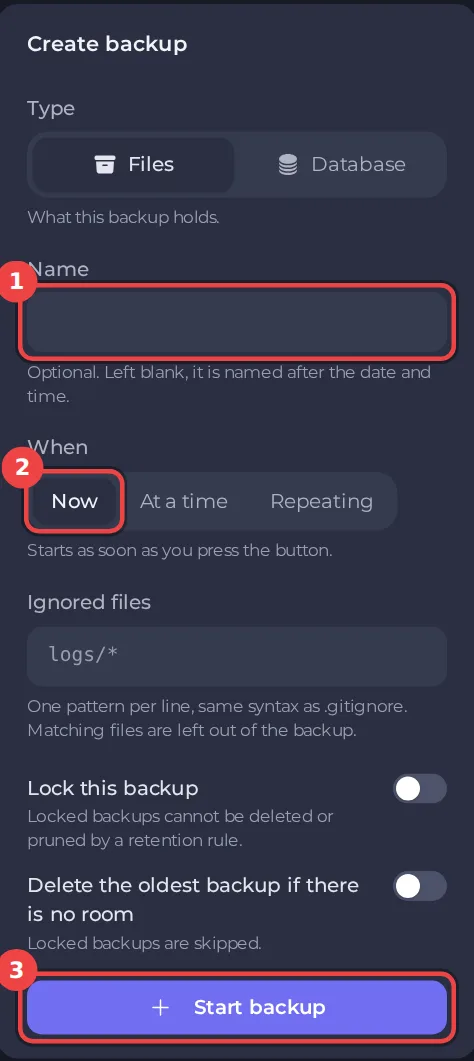
- Under Create backup, choose Type: Files saves your server's files, Database saves a database if you have one.
- Optionally type a Name. Left blank, the backup is named after the date and time.
- Leave When on Now.
- Optionally list Ignored files, one pattern per line, to leave things out. The syntax is the same as
.gitignore. - Turn on Lock this backup if it must never be deleted by accident, or by a retention rule.
- Turn on Delete the oldest backup if there is no room to let a new backup replace the oldest unlocked one, including one you made by hand, when your slots or storage are full. Lock the backups you want to keep.
- Click Start backup. (If you chose At a time or Repeating, the button reads Schedule backup.)
Schedule backups
Under When, choose:
- At a time to run once, on a date and time you pick.
- Repeating to run again and again. You set Every, the Unit (days, for example) and Backups to retain. Older automatic backups are deleted as new ones are made, but locked backups and backups you took yourself are never removed.
Servers whose plan has backup space also come with an Automatic backup schedule. See How to schedule tasks and automatic backups.
Download, lock or delete a backup
Click the ... menu on the backup's row.
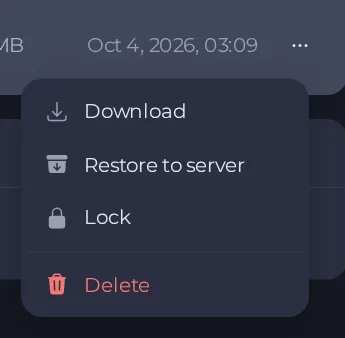
- Download gives you a copy to keep on your own computer.
- Lock protects a backup from deletion. Choose it again to unlock.
- Delete removes the backup for good. You must type
deleteto confirm.
Restore a backup
A restore replaces your server's files with the backup. Anything changed since the backup was taken, including your world, is lost. Take a fresh backup first if you may want the current state back.
- On the Backups page, open the ... menu of the backup you want.
- Choose Restore to server.
- Read the warning. The server stops while files are replaced, players are disconnected, and you cannot use power controls, the file manager or take backups until it finishes.
- If the window offers Delete files that are not in the backup, leave it switched on unless you are recovering a single file. Switching it off can leave a half-updated server. Some backups leave out the game files, and restoring one of those keeps the game files already on your server.
- Click Restore backup, then start the server when it finishes.
Good to know
- Our Terms allow up to 3 active backups per service. Your plan's slots and storage are shown on the Backups page, and the Backup Tier option on your plan raises them.
- A backup is only a safety net if it is somewhere else too. Download the important ones.
- If a backup fails, it is emailed to you whatever your notification settings are. See How to manage notifications and preferences.





