

Bastion is an all-in-one Discord bot: moderation and auto-moderation, levels, welcome messages, starboard, giveaways, polls, music, games and more. Its MongoDB database runs inside your server next to the bot, so it needs a plan with at least 2 GB of memory. All it needs from you is the bot token and three intents switched on.
- In the Discord Developer Portal, create the bot, copy its token, and on the Bot page switch on Presence Intent, Server Members Intent and Message Content Intent.
- In the panel, make the server run Bastion (Change what runs).
- Paste the token in the Set up your bot card on Overview, and invite the bot.
- Press Start bot. Bastion publishes its slash commands and comes online.
Each step in detail below.
Before you start
- Create the bot and copy its token: How to create a Discord bot and get its token.
- On the application's Bot page, switch on all three privileged intents and press Save Changes: Bastion asks Discord for Server Members, Presence and Message Content when it logs in.
- Your plan needs 2 GB of memory or more. On a smaller plan Bastion is not offered: move up on My plan, Change plan.
1. Make the server run Bastion
- Open your server in the panel. On Overview, in the Set up your bot card, click the step What runs. It says "This bot runs Bastion." when the type is already right.
- If not, click Change what runs, choose Bastion, press Next step, tick the confirmation and press Change server type. The install builds Bastion, so it takes a few minutes.
2. Connect it to Discord
- Step Connect to Discord: paste the token in Paste your bot token, press Connect, then Yes, continue if the name and picture are your bot's.
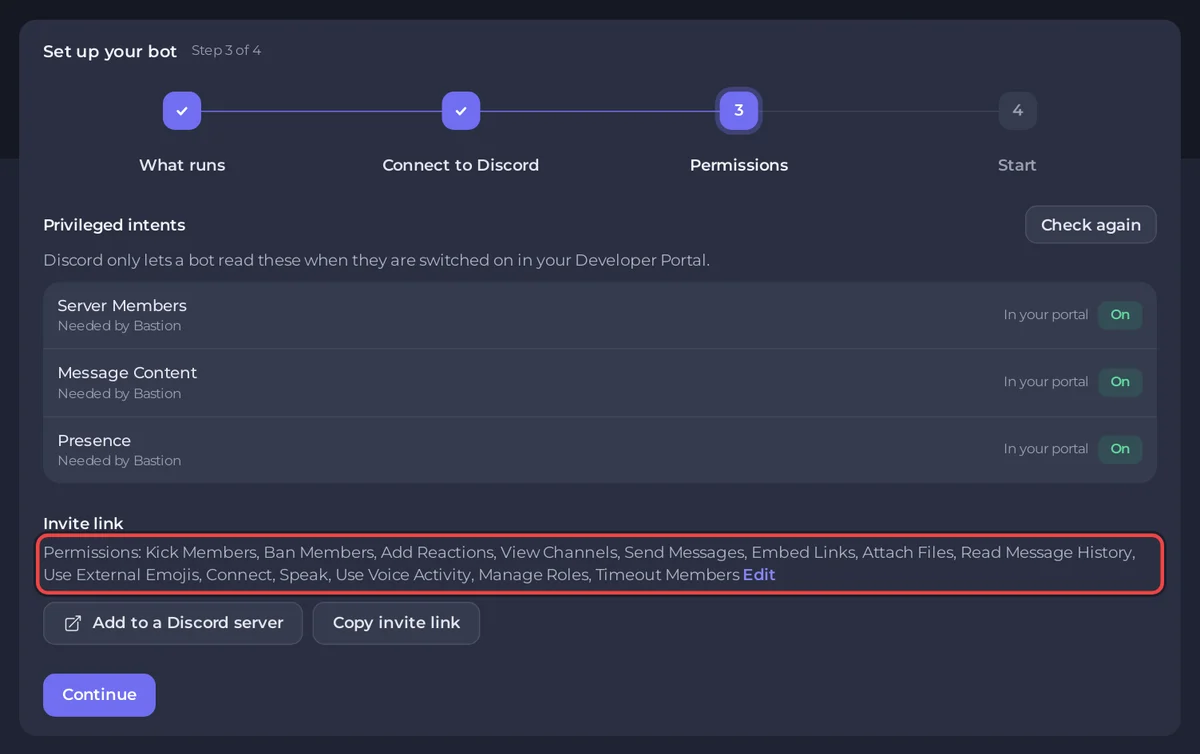
- Step Permissions: the Privileged intents table marks Server Members, Message Content and Presence as Needed by Bastion. Each must show On. After you change them in the Portal, press Check again.
- Under Invite link, press Add to a Discord server. The link already asks for the usual text permissions, Connect, Speak and Use Voice Activity for music, and Kick Members, Ban Members, Timeout Members and Manage Roles for moderation. Invited it before with fewer permissions? Press it again and pick the same server: Discord updates the bot's permissions.
3. Start it
- Press Start bot in the setup card, or Start on Console. After the MongoDB start lines, the console shows:
[PlayNHost] Publishing Bastion's slash commands to Discord
[PlayNHost] Slash commands published
[PlayNHost] Starting your bot- In your Discord server, type
/to see Bastion's commands, such as/polland/giveaway.
You do not need to fill in anything under Code, Settings to start: Bot Client ID (optional) is read from the token.
Settings
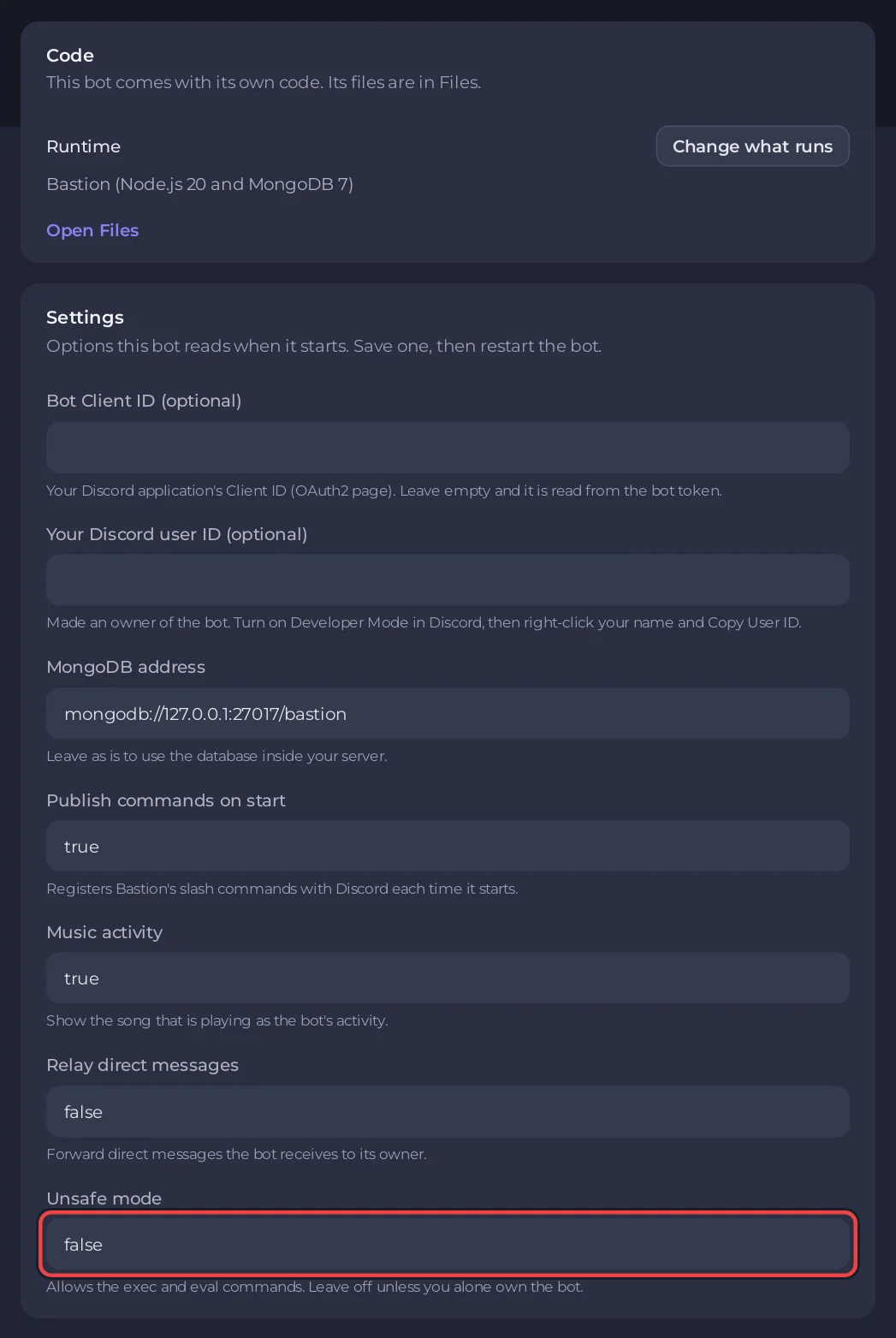
On the Bot tab, Code, the Settings card has these. Press Save after a change, then restart the bot.
| Setting | Default | What it does |
|---|---|---|
| Bot Client ID (optional) | empty | Your application's Client ID. Empty reads it from the token. |
| Your Discord user ID (optional) | empty | Makes you an owner of the bot. |
| MongoDB address | mongodb://127.0.0.1:27017/bastion | Leave as is to use the database inside your server. |
| Publish commands on start | true | Registers Bastion's slash commands with Discord at each start. |
| Music activity | true | Shows the song that is playing as the bot's activity. |
| Relay direct messages | false | Forwards direct messages the bot receives to its owner. |
| Unsafe mode | false | Allows the exec and eval commands, which run code on your server. Leave it off unless you alone own the bot. |
Everything else, such as API keys for Bastion's search and AI commands, is in settings.yaml under Files. Edit it with the bot stopped, then start it.
Console lines you may see
[PlayNHost] Bastion is not set up yet: it needs your Discord bot token.Paste the token on the Bot tab, under Discord, then press Start.
[PlayNHost] The commands could not be published (...). Bastion starts anyway; the full log is .pnh/publish-commands.log.Discord refused the command list, most often because the token is wrong. Open .pnh/publish-commands.log in Files for the full reason. A token problem: press Reset Token in the Portal and paste the new one with Replace token.
[PlayNHost] Bastion is not installed. Reinstall it on the Bot page, Code, then press Start.The bot's files are missing. Press Reinstall on the Reinstall card under Code, confirm, then press Start when it is done.
Good to know
- Memory: MongoDB and Bastion share the plan, so Bastion's JavaScript memory is capped at half of your plan, leaving room for the database. Watch the Usage card on Overview: How much RAM does a Discord bot need?
- The database lives in the
mongodbfolder in Files, so a server backup includes it: How to create, download and restore backups. - The version is fixed at Bastion v10.16.0, the newest release that runs on the server's Node.js 20. Reinstall under Code builds it again and keeps
settings.yamland the database. - What Bastion's music can play depends on what each site allows: Discord music bot not playing: fixes.
Every option of every ready-made bot: How to change a ready-made bot's settings.


