

Game Server Monitor (DiscordGSM) posts a live status message for each of your game servers in a Discord channel: online or offline, map, players and a player list, refreshed every minute, with alerts when a server goes down. It needs your bot token and your Discord server ID; then you add game servers with /addserver in Discord.
- In the Discord Developer Portal, create the bot and copy its token. No privileged intent is needed.
- In the panel, make the server run Game Server Monitor (Change what runs).
- Paste the token in the Set up your bot card on Overview, and invite the bot.
- Put your Discord server ID in Bot, Code, Settings, Your Discord server ID.
- Press Start bot, then use
/addserverin the channel where the status should appear.
Each step in detail below.
1. Make the server run Game Server Monitor
- Create the bot and copy its token: How to create a Discord bot and get its token.
- Open your server in the panel. On Overview, in the Set up your bot card, click the step What runs. It says "This bot runs Game Server Monitor." when the type is already right.
- If not, click Change what runs, choose Game Server Monitor, press Next step, tick the confirmation and press Change server type.
2. Connect it and invite it
- Step Connect to Discord: paste the token in Paste your bot token, press Connect, then Yes, continue.
- Step Permissions: under Invite link, press Add to a Discord server. The link already asks for what the bot uses: Manage Channels, Send Messages, Manage Messages, Embed Links, Use External Emojis, Use External Stickers and Add Reactions.
3. Give it your Discord server ID
The bot's commands appear only in the Discord servers you list. Until there is one, the setup card's last step says "Fill in Your Discord server ID on the Bot page, Code, Settings first. The bot cannot start without it." and keeps Start bot off.
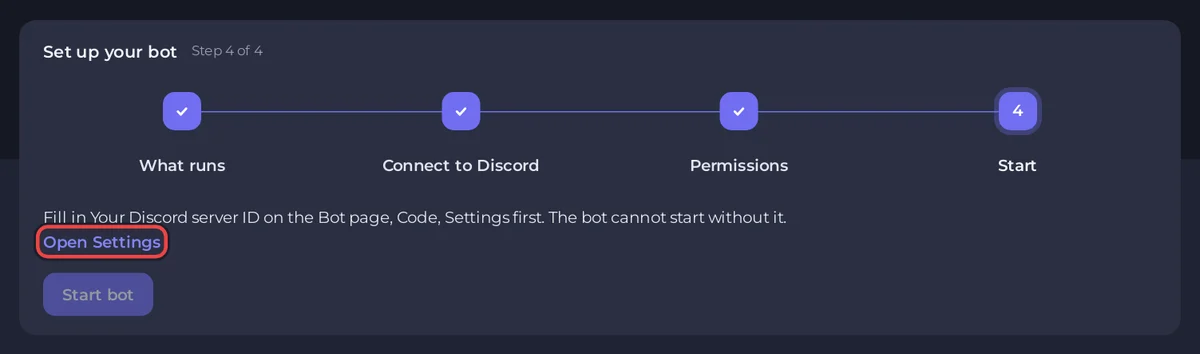
- In Discord, open Settings, Advanced and switch on Developer Mode. Right-click your server's icon and choose Copy Server ID.
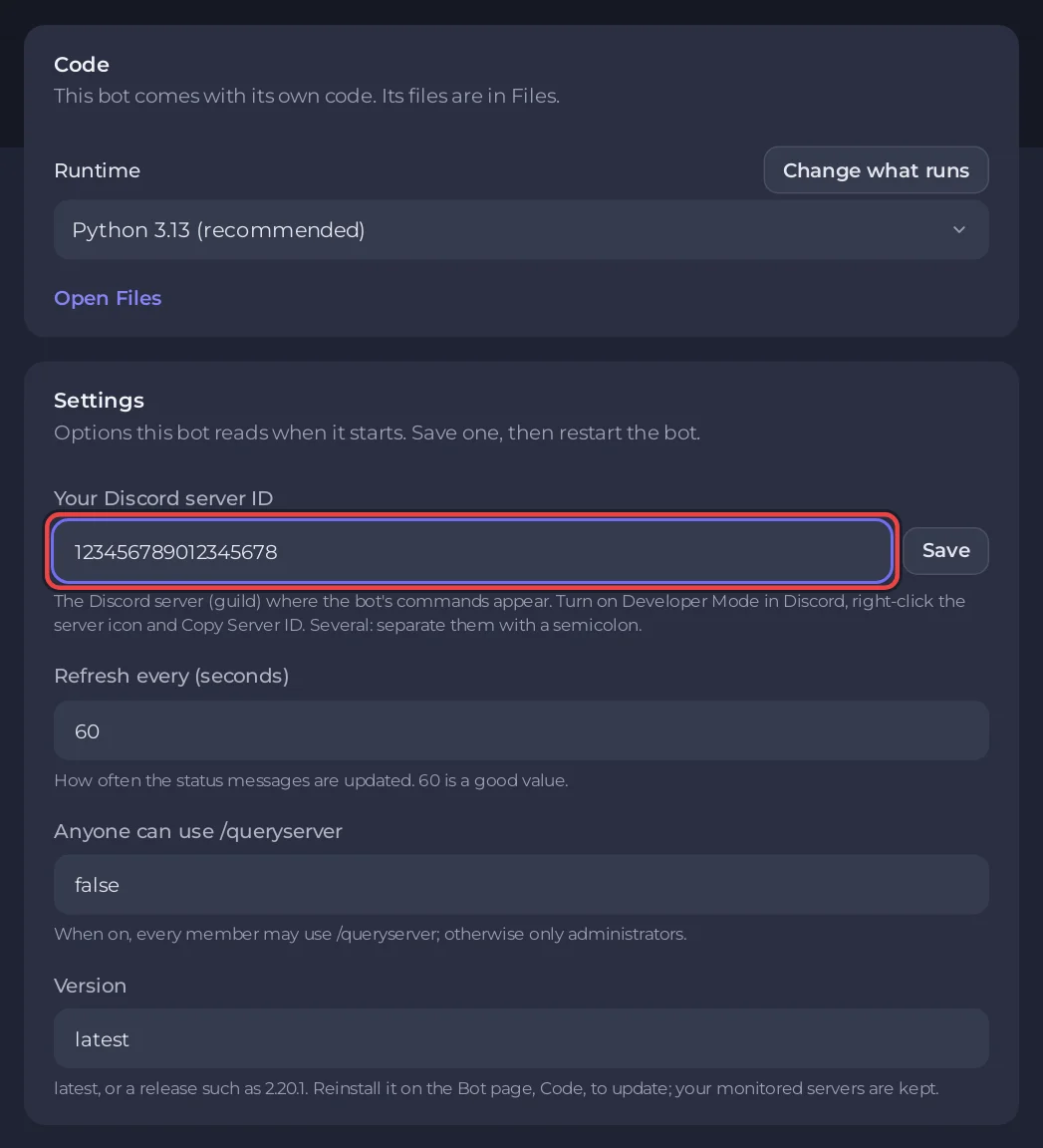
- Press Open Settings in the setup card (or open the Bot tab, Code). On the Settings card, paste the ID in Your Discord server ID and press Save. For several Discord servers, separate the IDs with a semicolon.
4. Start it and add your game servers
- Press Start bot in the setup card, or Start on Console. The first start installs its Python packages, about a minute:
[PlayNHost] Installing Python packages (first start only, about a minute)
[PlayNHost] In your Discord server, use /addserver in a channel to post a live status message for a game server.
[PlayNHost] If the bot stops at once with "Improper token has been passed", the bot token is wrong: replace it on the Bot page.
[PlayNHost] Starting your bot- In Discord, go to the text channel where the status should appear and type
/addserver. Pick the game, then fill in Address (the server's IP address or domain) and Query Port. Only administrators can use it. - The bot posts the status message and updates it every 60 seconds by default (Refresh every (seconds)). Repeat for each game server.
The query port is not always the port players join on: some games answer status queries on a separate port. Check your game server's ports: How to find and change your server's ports and IP address.
Useful commands
| Command | What it does |
|---|---|
/addserver | Post a status message for a game server in this channel |
/delserver | Remove one |
/setalert | Set up the alerts for a server going down |
/changestyle | Change how a status message looks |
/moveup, /movedown | Reorder the status messages |
/queryserver | Look up any server once |
/refresh | Update the messages now |
Settings
| Setting | Default | What it does |
|---|---|---|
| Your Discord server ID | empty | The Discord servers where the commands appear. Required. |
| Refresh every (seconds) | 60 | How often the status messages update, from 30 to 3600. |
| Anyone can use /queryserver | false | true lets every member use it; otherwise only administrators. |
| Version | latest | The release the install takes, for example 2.20.1. Applies with Reinstall. |
Press Save after a change, then restart the bot.
Console lines you may see
[PlayNHost] Game Server Monitor is not set up yet: it needs your Discord bot token and your Discord server ID.The token (Bot tab, Discord) or Your Discord server ID (Code, Settings) is missing.
Improper token has been passed.Discord refused the token. Press Reset Token in the Portal and paste the new one with Replace token on the Bot tab, under Discord.
Good to know
- Your list of monitored servers is kept in the
datafolder in Files. - Updating: press Reinstall on the Reinstall card under Code and confirm. Your monitored servers stay.
- A game server that does not answer status queries shows as offline. If
/addserversays the server "is not queryable", check the address, the query port, and that the game server is running.
Every option of every ready-made bot: How to change a ready-made bot's settings.


