

AI Chat Bot brings AI chat into your Discord server: OpenAI, Claude, Gemini, Grok or DeepSeek, with your own API key. People talk to it with /chat, and each person's conversation is kept across restarts. You pay the AI provider directly for what the bot uses; your PlayNHost plan only hosts the bot. It needs your bot token and an API key from at least one provider.
- In the Discord Developer Portal, create the bot and copy its token, and get an API key from your AI provider.
- In the panel, make the server run AI Chat Bot (Change what runs).
- Paste the token in the Set up your bot card on Overview, and invite the bot.
- Save the API key under Bot, Environment, Credentials, and pick Default model under Code, Settings.
- Press Start bot and type
/chatin Discord.
Each step in detail below.
Before you start
- Create the bot in the Discord Developer Portal and copy its token: How to create a Discord bot and get its token. It works with slash commands, so it needs no privileged intent.
- Create an API key with the provider you want to use, on that provider's own website. Set a spending limit there: every message costs you money on that account.
- If friends should be able to chat with it too, collect their Discord user IDs: in Discord, Settings, Advanced, switch on Developer Mode, then right-click a name and choose Copy User ID. Out of the box only you can chat with it.
1. Make the server run AI Chat Bot
- Open your server in the panel. On Overview, in the Set up your bot card, click the step What runs. It says "This bot runs AI Chat Bot." when the type is already right.
- If not, click Change what runs (or the bot type's name at the top of the page), choose AI Chat Bot, press Next step, tick the confirmation and press Change server type.
2. Paste the token and your API key
- Setup card, step Connect to Discord: paste the token in Paste your bot token, press Connect, then Yes, continue.
- Step Permissions: under Invite link, press Add to a Discord server. The starting permissions (View Channels, Send Messages, Embed Links, Attach Files and a few more) are what this bot uses.
- Open the Bot tab and click Environment. On the Credentials card, press Set next to your provider's key (OpenAI API key, Anthropic API key, Google Gemini API key, xAI API key or DeepSeek API key), paste it and press Save.
- Click Code. On the Settings card, set Default model to the provider you gave a key for and press Save.
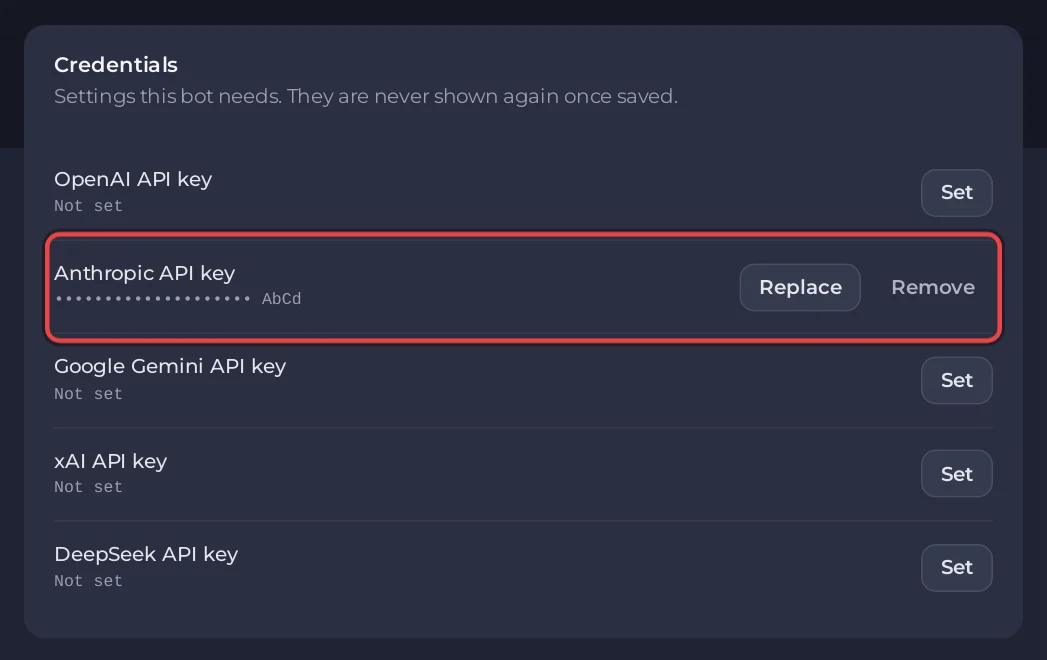
| Your key | Default model |
|---|---|
| OpenAI API key | openai (the default) |
| Anthropic API key | claude |
| Google Gemini API key | gemini |
| xAI API key | grok |
| DeepSeek API key | deepseek |
These names are the model aliases in config.toml. If you leave Default model empty, the bot uses whatever config.toml says. The file the bot ships with says local, a model server on the same machine, which your bot server does not have, so keep a provider name in the field unless you edit config.toml yourself.
3. Start it
- Open Console and press Start. The first start creates
config.tomland installs the bot's Python packages, so it takes a little longer:
[PlayNHost] Created config.toml from the example.
[PlayNHost] Who can chat with the bot: the bot's owner. Change it on the Bot page, Code, Settings (Allowed users).
[PlayNHost] If the bot stops at once with "Bot stopped unexpectedly", the bot token is usually wrong.
[PlayNHost] Starting your bot- In Discord, type
/chatand your message. Replies are private at first;/publicmakes your next replies visible in the channel and/privateswitches back.
4. Choose who may use it
Every answer is billed to your AI account, so out of the box only the owner of the Discord application (or its Developer Team) can chat with the bot. Each time the bot starts, it asks Discord who that is. To change it:
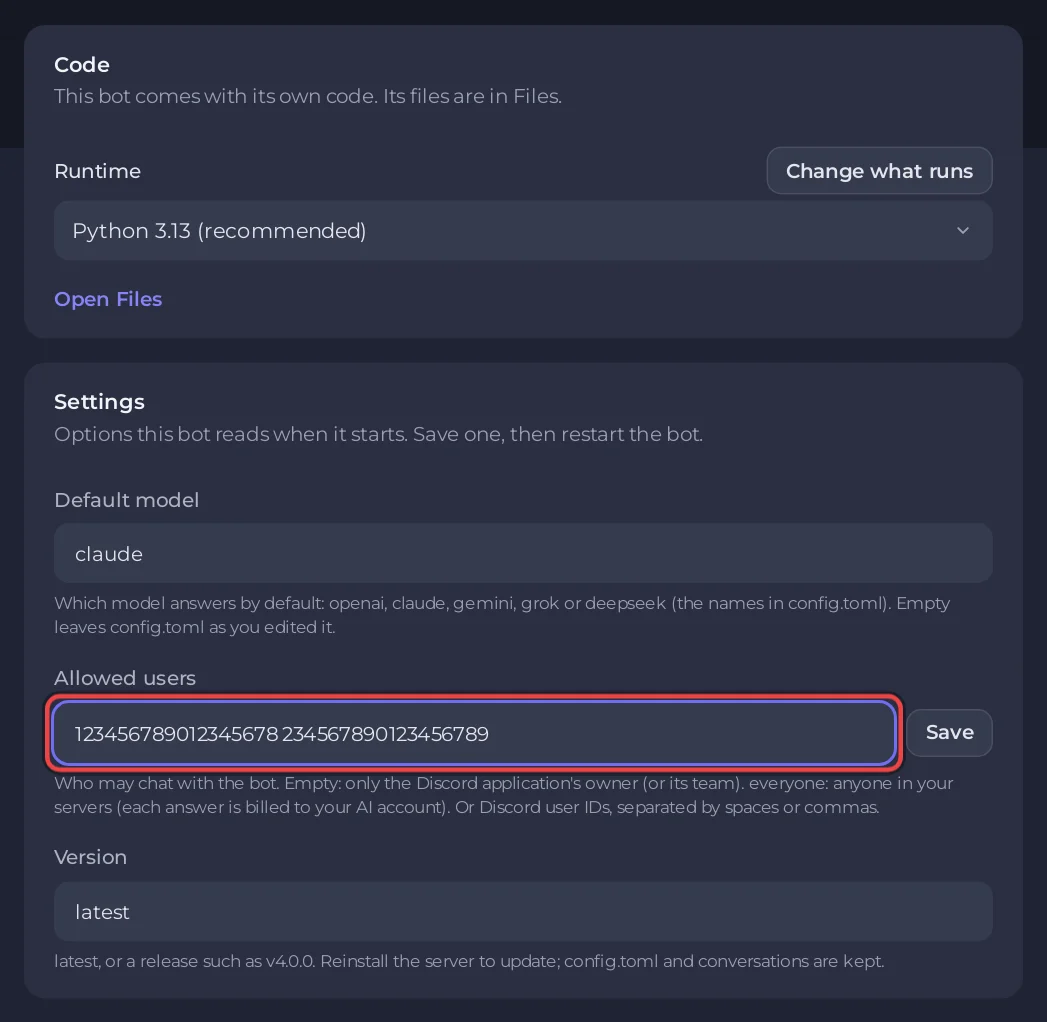
- On the Bot tab, click Code. On the Settings card, find Allowed users.
- Type one of these and press Save:
- nothing: only the application's owner, or its team
everyone: anyone in the Discord servers the bot is in- Discord user IDs, separated by spaces or commas, for example
123456789012345678 234567890123456789. List yourself too.
- Restart the bot. The console says who can chat, for example
[PlayNHost] Who can chat with the bot: 2 user(s) from Allowed users.
No Who can chat with the bot line at all? The bot's start script is written by the install, so a bot set up before Allowed users existed still runs the old one. Press Reinstall on the Reinstall card under Code once, then start the bot again.
If the field is empty and Discord cannot be asked at start, the console says [PlayNHost] Could not ask Discord who owns this bot (...); nobody can chat until you set Allowed users. Put your own user ID in Allowed users and restart.
The panel writes allowed_user_ids and, while Default model is set, default_model into config.toml at every start, so change them on the Settings card, not in the file. Everything else in config.toml is yours to edit under Files.
Commands
| Command | What it does |
|---|---|
/chat | Send a message in your conversation |
/models | List the models set up in config.toml |
/provider | Show or change the model of your conversation |
/private, /public | Choose who sees the replies, each with its own history |
/switchpersona | Change the bot's personality for your conversation |
/reset | Clear your current conversation |
/delete | Delete your private and public history in this channel |
/help | Show every command |
The bot also has image and video commands (/draw, /video, /image_search) that work only with providers and models that support them; /models shows what each model can do. Media can cost much more than text on your provider's bill.
Console lines you may see
[PlayNHost] The AI chat bot is not set up yet: it needs your Discord bot token and an API key from one AI provider.No bot token is saved. Paste it on the Bot tab, under Discord, then press Start.
[PlayNHost] The AI chat bot is not installed. Reinstall it on the Bot page, Code, then press Start.The bot's files are missing. On the Bot tab, Code, press Reinstall and confirm, then press Start when it is done.
Bot stopped unexpectedly. Check runtime configuration and permissions.Most often the bot token is wrong or was reset. Copy a fresh one with Reset Token in the Portal and paste it with Replace token.
Default model alias is not configured.Default model names a model that is not in config.toml. Use one of the five names in the table above, or empty the field.
Good to know
- Conversations are stored on your server in
data/conversations.sqlite3. By default the bot keeps the last 100 turns and forgets a conversation after 30 days without use. Treat backups of it as private. - To reply to every message in a channel without
/chat, add the channel IDs toreply_channelsand your user ID toadmin_user_idsinconfig.toml, and switch on Message Content Intent in the Portal. - The Runtime under Code is Python 3.13 (recommended), Python 3.14 or Python 3.12.
- Version under Settings is read only while the server installs. To update the bot or move to the release in Version, press Reinstall on the Reinstall card under Code and confirm.
config.tomland your conversations stay. Start the bot again when it is done.
Every option of every ready-made bot: How to change a ready-made bot's settings.


