

Discord Tickets is a ready-made ticket bot: members open private ticket channels, your staff answer, claim and close them, and transcripts are kept. You set it up in its own web dashboard. It needs your bot token, your application's Client secret, all three privileged intents, and one redirect link added in the Developer Portal. No code.
- In the Discord Developer Portal, create the bot, copy its token and its Client Secret, and switch on all three privileged intents.
- In the panel, make the server run Discord Tickets (Change what runs).
- Paste the token in the Set up your bot card on Overview, and the client secret under Bot, Environment, Credentials.
- Invite the bot with the Invite link.
- Start it, add the redirect address from the console to the Portal's OAuth2 page, and set the bot up in its dashboard.
Each step in detail below.
Before you start
- Create the bot in the Discord Developer Portal and copy its token: How to create a Discord bot and get its token.
- On the application's Bot page, switch on Presence Intent, Server Members Intent and Message Content Intent, and press Save Changes. The bot asks Discord for all three when it logs in.
- On the OAuth2 page, copy the Client Secret (press Reset Secret if it is hidden). The dashboard sign-in uses it. Keep it private, like the token.
1. Make the server run Discord Tickets
- Open your server in the panel. On Overview, in the Set up your bot card, click the step What runs. It says "This bot runs Discord Tickets." when the type is already right.
- If not, click Change what runs (or the bot type's name at the top of the page), choose Discord Tickets, press Next step, tick the confirmation and press Change server type.
2. Paste the token and the client secret
- Setup card, step Connect to Discord: paste the token in Paste your bot token, press Connect, then Yes, continue.
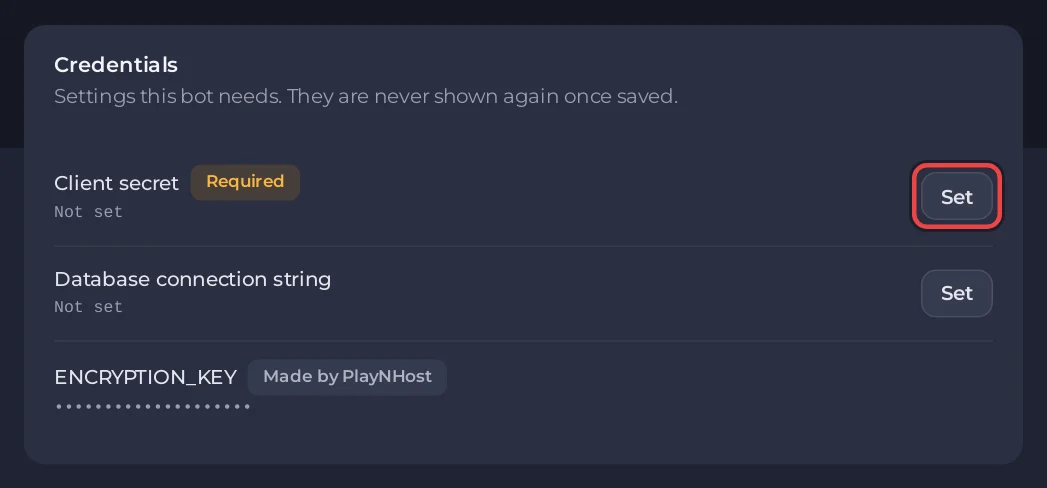
- Open the Bot tab and click Environment (the setup card's last step also links here with Open Environment and keeps Start bot off until the secret is set). On the Credentials card, Client secret shows Required. Press Set, paste the client secret and press Save.
- Leave Database connection string empty for now: the bot then keeps tickets in a file on the server. ENCRYPTION_KEY, marked Made by PlayNHost, is created for you and protects stored ticket content. Never remove it.
3. Check the intents and invite it
- Setup card, step Permissions: the Privileged intents table marks Server Members, Message Content and Presence as Needed by Discord Tickets. Each must show On under In your portal. After you change them in the Portal, press Check again.
- Under Invite link, press Add to a Discord server and pick your server. The link already asks for what a ticket bot needs to create ticket channels and decide who sees them: Manage Channels, Manage Roles and Manage Messages, plus View Channels, Send Messages, Embed Links and a few more.
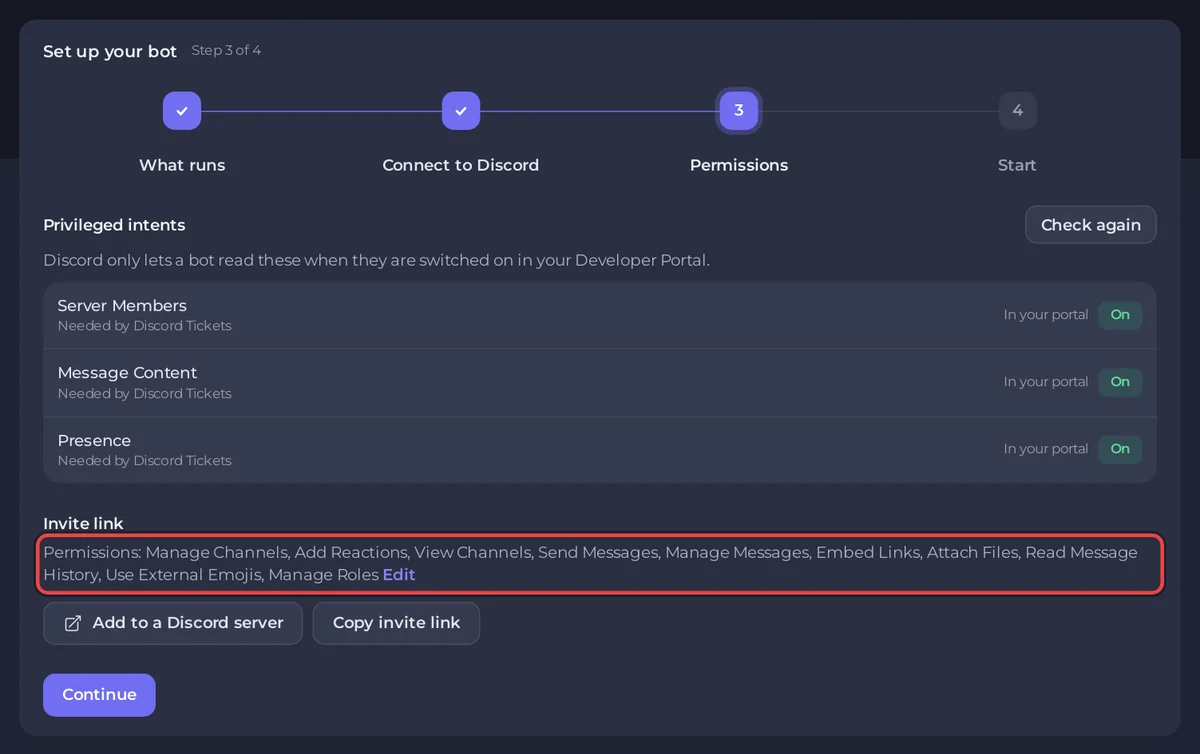
Invited the bot before with fewer permissions? Press Add to a Discord server again and pick the same server: Discord updates the bot's permissions.
4. Start it and add the redirect
- Open Console and press Start. Among the first lines you see these, with your own address (the database step prints a few lines of its own after
Preparing the database):
[PlayNHost] Using a SQLite file (user/database.db). To use your plan's MySQL database instead, create one in Databases and paste its Generic URL (Ready-made config) into Database connection string on the Bot page, Environment. Tickets are not copied between the two.
[PlayNHost] Preparing the database
[PlayNHost] Dashboard: http://203.0.113.10:30500/settings
[PlayNHost] In your Discord application, OAuth2 page, add this redirect: http://203.0.113.10:30500/auth/callback
[PlayNHost] Starting your bot- Copy the redirect address from your console. In the Developer Portal, open OAuth2, press Add Redirect under Redirects, paste it and press Save Changes. Without it, signing in to the dashboard fails.
- A line that says
Warning: The current working directory is not the same as the base directory.is expected on our servers and harmless.
5. Set it up in the dashboard
- Open the Dashboard address from the console in your browser and sign in with Discord.
- Choose your Discord server, then create at least one ticket category: its name, which staff roles see its tickets, and the questions members answer.
- Members open a ticket with
/new, or with a button on a panel message you create in the dashboard. Staff use/claim,/close,/add,/removeand/transcript.
The dashboard is plain http on your server's address and port, so your browser marks it as not secure. To give it a domain with https you need your own proxy in front of it: see Dashboard address below.
Settings
On the Bot tab, Code, the Settings card has these. Press Save after a change, then restart the bot.
| Setting | Default | What it does |
|---|---|---|
| Bot owners (optional) | empty | Discord user IDs, separated by commas, that may manage the bot in every server it is in. Put your own ID here. |
| Dashboard address (optional) | empty | Only if you put your own https proxy or domain in front of the dashboard, for example https://tickets.example.com. Empty uses http:// your server address and port. Change the redirect in the Portal to match. |
| Trust proxy headers | false | true only when the dashboard is behind your own reverse proxy. |
| Publish commands on start | true | Registers the bot's slash commands with Discord each time it starts. |
| Version | latest | Read only while the server installs, so it applies after Reinstall. See Updating below. |
Use your plan's MySQL database instead
- Open Databases in the server menu, press New database, then Create database.
- Click the new database in Your databases. On its Ready-made config card, choose Generic URL under Config for and press Copy. It starts with
mysql://; paste it as it is. - On the Bot tab, Environment, Credentials, press Set next to Database connection string, paste it and press Save.
- Restart the bot. The console now says
[PlayNHost] Using your MySQL database.
If the console then says [PlayNHost] The database could not be prepared, the server may still have the start script from an older install, which reads the copied URL wrongly when the password has special characters. Press Reinstall on the Reinstall card under Bot, Code once (your settings, tickets and encryption key stay), then start the bot again.
Tickets are not copied between the file and MySQL, so choose before your members start using it. More on databases: How to use databases with your server.
Console lines you may see
[PlayNHost] Discord Tickets is not set up yet: it needs your bot token and your application's client secret.The token or the client secret is missing. Paste the token under Bot, Discord and the secret under Bot, Environment, Credentials, then press Start.
[PlayNHost] Discord Tickets is not installed. Reinstall it on the Bot page, Code, then press Start.The bot's files are missing. On the Bot tab, Code, press Reinstall on the Reinstall card and confirm. When the install has finished, press Start.
[PlayNHost] The database connection string is not valid. Open Databases, open your database, copy Ready-made config, Generic URL into Database connection string on the Bot page, Environment, then press Start.Copy Generic URL again from the database's Ready-made config card and press Replace next to Database connection string under Credentials.
[PlayNHost] The encryption key is not ready yet. Press Start again in a minute; if this repeats, contact support.Wait a minute and press Start again. If it comes back, open a ticket.
Good to know
- Discord Tickets cannot send email.
- Your tickets, templates and logs live in the
userandlogsfolders under Files. Back them up before big changes: How to create, download and restore backups. - Updating: the install downloads the newest release from the project's GitHub, or the release in Version such as
v4.0.52. To update, set Version if you want a particular release, then on the Bot tab, Code, press Reinstall on the Reinstall card and confirm. Your settings, tickets and encryption key stay. Start the bot again when it is done. - Want to build your own instead? How to make a ticket bot for Discord (discord.js).
Every option of every ready-made bot: How to change a ready-made bot's settings.


