
Red is a large, general Discord bot: moderation, fun commands, music and many community add-ons called cogs, which you install from inside Discord. To run it, switch on all three privileged intents in the Developer Portal, paste the token on the Bot tab under Discord, pick a prefix and your owner ID under Code, Settings, and start it.
- In the Discord Developer Portal, create the bot, copy its token, and switch on Presence Intent, Server Members Intent and Message Content Intent.
- In the panel, make the server run Red (Change what runs).
- Paste the token in the Set up your bot card on Overview, and invite the bot.
- Check Command Prefix and, if you want, Owner under Bot, Code, Settings.
- Press Start bot and type your prefix and
helpin Discord.
Each step in detail below.
Before you start
- Create the bot in the Discord Developer Portal and copy its token: How to create a Discord bot and get its token.
- On the application's Bot page, switch on Presence Intent, Server Members Intent and Message Content Intent, and press Save Changes. Red refuses to start without all three: Fix "Used disallowed intents".
1. Make the server run Red
- Open your server in the panel. On Overview, in the Set up your bot card, click the step What runs. It says "This bot runs Red." when the type is already right.
- If not, click Change what runs (or the bot type's name at the top of the page), choose Red, press Next step, tick the confirmation and press Change server type. Installing Red takes a few minutes.
2. Connect it to Discord
- Step Connect to Discord: paste the token in Paste your bot token, press Connect, then Yes, continue if the name and picture are your bot's.
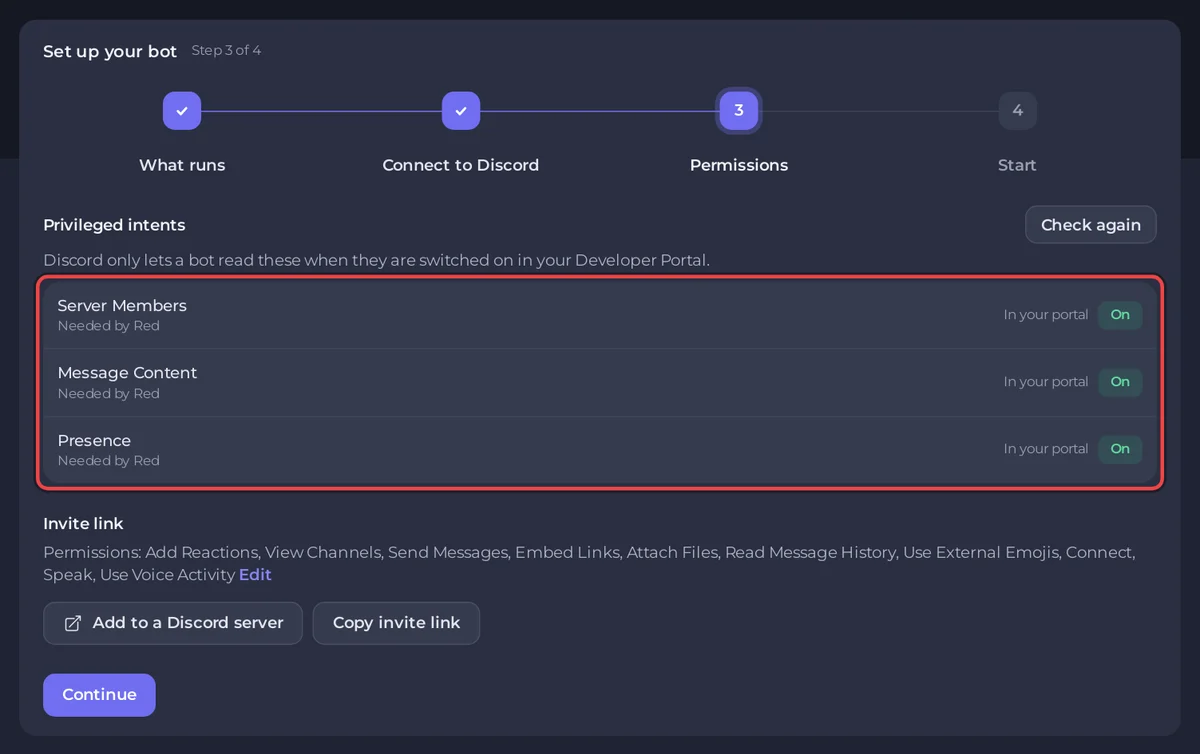
- Step Permissions: the Privileged intents table marks all three Needed by Red. Each must show On under In your portal. After you change them in the Portal, press Check again.
- Under Invite link, press Add to a Discord server. It asks for the usual text permissions plus Connect, Speak and Use Voice Activity. Red's moderation commands need more, such as Kick Members or Ban Members: press Edit, tick only what you will use, and press Save permissions before you invite it.
3. Choose the prefix and the owner
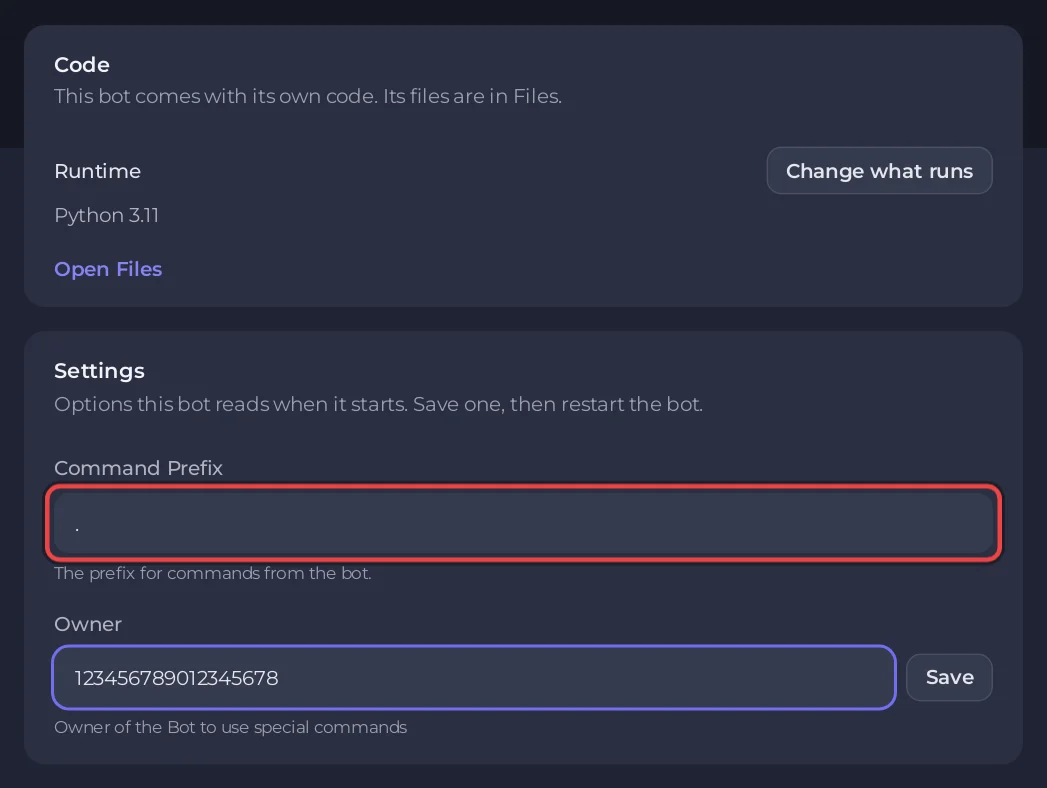
- Open the Bot tab, click Code, and scroll to the Settings card.
- Command Prefix is
.by default, so commands look like.help. To change it, type a new one, such as!, and press Save. - Owner is the Discord user ID that gets Red's owner commands. Leave it empty to use the account that owns the application in the Developer Portal. To set it, copy your ID (in Discord, Settings, Advanced, switch on Developer Mode, then right-click your name and choose Copy User ID), paste it and press Save. Only the number is accepted.
4. Start it
- Open Console and press Start. Red prints a table with its version and prefixes, then a line starting with
Invite URL:. That line means Red is online. - In a channel the bot can see, type your prefix and
help, for example.help.
Who is Red's owner
Red gives owner commands (loading cogs, changing settings for every server) to the user ID in Owner under Code, Settings. When that field is empty, the owner is the Discord account that owns the application in the Developer Portal. If the application belongs to a Developer Team and Owner is empty, Red has no owner and stops with:
Bot doesn't have any owner set!
This can happen when your bot's application is owned by team as team members are NOT owners by default.
Put your own Discord user ID in Owner, press Save, and start Red again. Change Owner later the same way; Red reads it each time it starts, so restart it after a change.
The owner can run commands that reach every file Red can read. Only put an ID there that belongs to you.
Add features with cogs
Red ships with built-in cogs you switch on with load, and installs community cogs with its Downloader. Replace . with your prefix:
.load mod
.load downloader
.repo add <name> <repository link>
.cog install <name> <cog>
.load <cog>
Only install cogs from people you trust: a cog runs with the same access as Red itself. Red's own documentation lists every built-in cog and command.
Play music with Red's Audio cog
Red's music commands are in its built-in Audio cog. Load it once with .load audio (replace . with your prefix). Audio does not stream the music itself: it starts its own Lavalink server, Red's managed node, inside your bot server, and that node needs Java. Red 3.5.24, the version the install puts on your server, needs Java 17 or 21; our Red servers have Java 17, so there is nothing to install.
- Discord voice encryption. Since 2 March 2026 Discord only lets voice clients that support its DAVE encryption into voice channels. Red added DAVE support to Audio in version 3.5.23 (4 March 2026). The install puts the newest Red release from PyPI on your server: 3.5.24 on 6 November 2026.
- The managed node. Red 3.5.24 downloads Red's own Lavalink build, 3.7.13+red.5, a fork of Lavalink 3 made for Red. Red's documentation says an external node must also run Red's build, so Red cannot use a PlayNHost Lavalink plan, which runs Lavalink 4.
- Memory. Red sets its node's maximum Java heap to half of the memory it detects, and inside a bot server it detects the whole machine, not your plan (we checked: a container capped at 512 MiB on our servers reports about 64 GB). Give the node a limit that fits your plan with
.llset heapsize 512M, then.audioset restart. 512M on a 1 GB plan is our suggestion, not a measured limit: it leaves room for Red itself. In our test Red's node alone, started without a heap limit, used 165 MiB at rest on a 1 GB plan, before any music. Red itself, in the same test, reached Discord about 1 second after start using at most 56 MiB (our test token was refused there, so this is before logging in). - What plays. On 6 November 2026 we ran Red 3.5.24's own node with Red's default settings on one of our servers and asked it for 6 YouTube songs and 4 SoundCloud tracks. None of the YouTube songs played: YouTube answered
This video requires login., and Red's documentation has no setting to sign its node in. 1 of the 4 SoundCloud tracks started (we did not check whether it was the full song or a preview); the others failed withInvalid status code for soundcloud stream: 404or a lookup error. Plan on Red for its other features, and test the music you need before you rely on it.
Console lines you may see
Red requires all Privileged Intents to be enabled.One of the three intents is off. Switch it on in the Portal, press Save Changes, and start Red again.
This token doesn't seem to be valid.Discord refused the token. In the Portal press Reset Token, then paste the new one with Replace token on the Bot tab, under Discord.
Please enter a valid token.No token was saved when Red started. Do not type it in the console: stop the server, paste it on the Bot tab, under Discord, and start again.
Good to know
- Red keeps its settings and cog data in files. The
configsfolder in Files opens them. Take a backup before big changes: How to create, download and restore backups. - Red has no Environment section: its token is the only secret it needs.
- Each cog you load uses more memory. Watch the Usage card on Overview: How much RAM does a Discord bot need?
- The install puts the newest Red release from PyPI on the server. To update Red later, press Reinstall on the Reinstall card under Code and confirm; your settings and cog data stay. Start Red again when it is done.
- Music through Red's Audio cog depends on what each site allows: see Play music with Red's Audio cog above and Discord music bot not playing: fixes.