

matterbridge links a Discord channel with rooms on Telegram, Matrix, Slack, IRC, Mattermost and more: what is said in one room appears in the others. You choose the rooms in matterbridge.toml under Files, put the Discord bot token on the Bot tab and, for Telegram, the Telegram bot token under Environment.
Version 1.26.0 is installed; the project has released nothing since 2023, so we offer it as it is.
- In the Discord Developer Portal, create the bot, copy its token, and switch on Server Members Intent and Message Content Intent.
- In the panel, make the server run matterbridge (Change what runs), paste the Discord token in the Set up your bot card and invite the bot.
- For Telegram, create a bot with @BotFather and paste its token under Bot, Environment, Credentials, Telegram bot token.
- Open
matterbridge.tomlin Files, fill in your Discord server ID and the rooms to link, and delete the line that saysPNH_EXAMPLE_CONFIG. - Press Start on Console.
Each step in detail below. The example file links one Discord channel with one Telegram group, the most common case.
1. Discord side
- Create the bot and copy its token: How to create a Discord bot and get its token. On the application's Bot page, switch on Server Members Intent and Message Content Intent and press Save Changes.
- Open your server in the panel. On Overview, in the Set up your bot card, click the step What runs. If it does not say "This bot runs matterbridge.", click Change what runs, choose matterbridge, press Next step, tick the confirmation and press Change server type.
- Step Connect to Discord: paste the token in Paste your bot token, press Connect, then Yes, continue.
- Step Permissions: both intents must show On under In your portal. Under Invite link, press Add to a Discord server. The link includes Manage Webhooks, which lets messages from the other side show with each sender's own name and picture.
2. Telegram side
- In Telegram, talk to @BotFather: send
/newbot, choose a name, and copy the token it gives you. - Still with @BotFather, send
/setprivacy, pick your bot and choose Disable. Otherwise a Telegram bot only sees commands in a group, not ordinary messages. - Add the bot to your Telegram group. To find the group's chat ID (a negative number), add @getidsbot to the group for a moment.
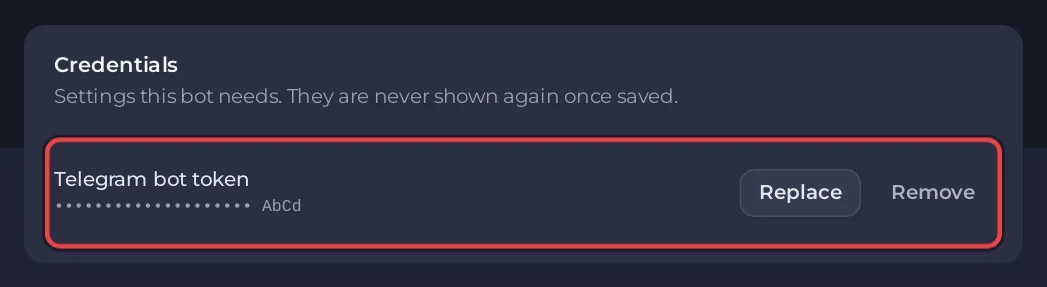
- In the panel, open the Bot tab and click Environment. On the Credentials card, press Set next to Telegram bot token, paste it and press Save.
3. Fill in matterbridge.toml
- Open Files and click
matterbridge.toml. - In
[discord.mydiscord], replaceYOUR_DISCORD_SERVER_IDwith your server ID: in Discord, Settings, Advanced, Developer Mode on, then right-click the server icon and choose Copy Server ID. - Under
[[gateway]], set the Discordchannelto your channel's name without the#, and the Telegramchannelto the group's chat ID. - Delete the first line that contains
PNH_EXAMPLE_CONFIG, and save.
The filled-in parts look like this:
[discord.mydiscord]
Server="123456789012345678"
RemoteNickFormat="[{PROTOCOL}] <{NICK}> "
AutoWebhooks=true
PreserveThreading=true

[telegram.mytelegram]
RemoteNickFormat="<{NICK}> "
MessageFormat="HTMLNick"

[[gateway]]
name="gateway1"
enable=true

    [[gateway.inout]]
    account="discord.mydiscord"
    channel="general"

    [[gateway.inout]]
    account="telegram.mytelegram"
    channel="-1001234567890"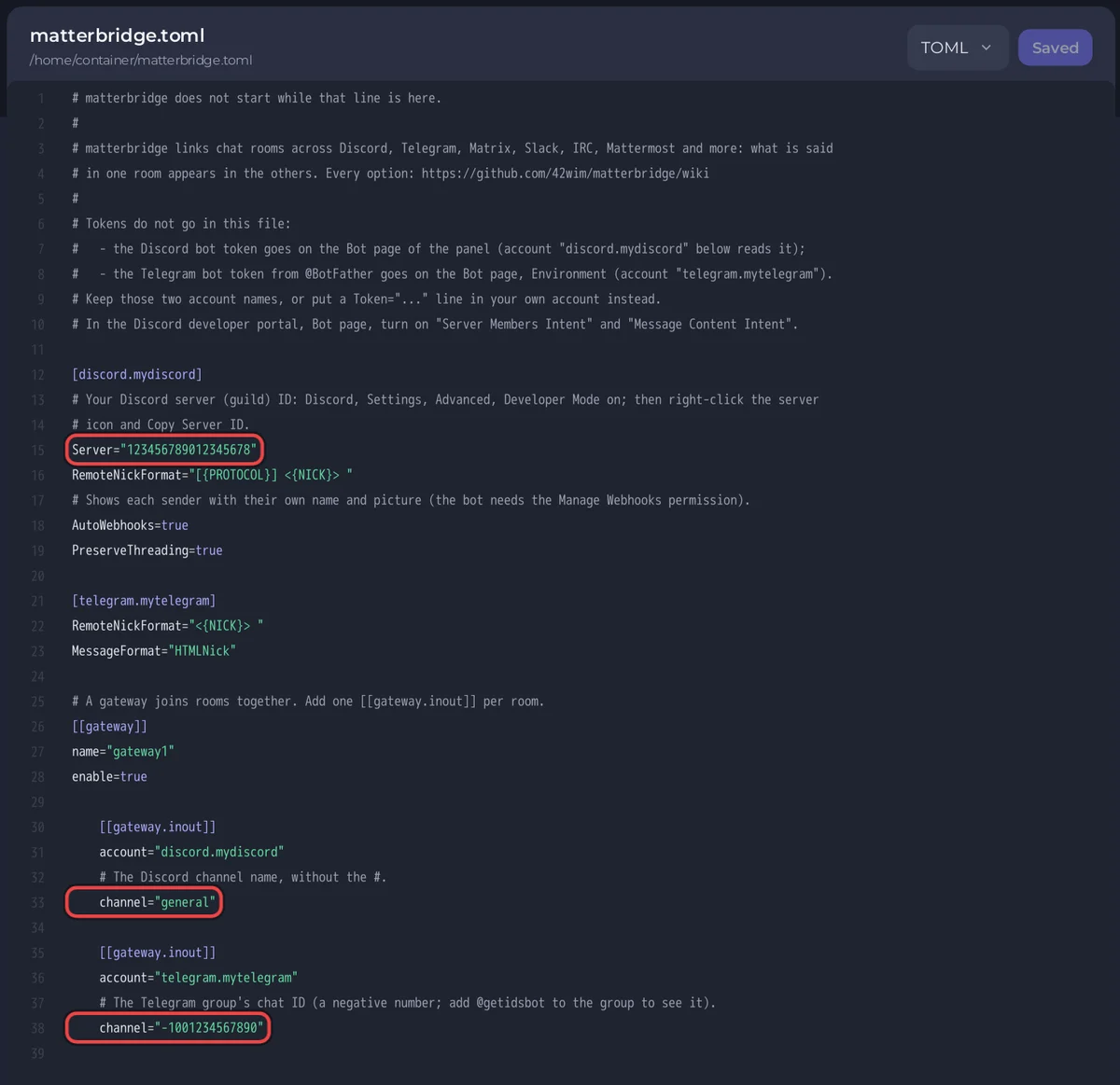
Keep the account names discord.mydiscord and telegram.mytelegram: that is how the two tokens you saved in the panel reach matterbridge, so they never have to be written in the file.
4. Start it
Open Console and press Start. When the file is ready you see the version line, then:
[PlayNHost] Starting your botWrite a message in the Discord channel; it appears in the Telegram group with the sender's name, and the other way round.
Matrix or Slack instead of Telegram
The panel has a credentials field for Telegram only. For other networks, add an account section to matterbridge.toml with its login in the file itself, then add that account to the gateway. Anyone with access to your server's files can read it, and backups include it.
- Matrix: make a separate Matrix account for the bridge, not your own. Add
[matrix.mymatrix]withServer="https://matrix.org"(your homeserver),LoginandPassword, then a[[gateway.inout]]withaccount="matrix.mymatrix"andchannel="#yourroom:matrix.org". Encrypted rooms are not supported. - Slack: matterbridge 1.26.0 connects to Slack with a token of a dedicated Slack user. Slack's token rules have changed since that release, so follow matterbridge's own wiki for Slack and test it before you rely on it.
Every option of every network is on matterbridge's wiki (github.com/42wim/matterbridge/wiki). Restart the bot after each change to the file.
Console lines you may see
[PlayNHost] matterbridge is not set up yet: matterbridge.toml is still the example.The PNH_EXAMPLE_CONFIG line or YOUR_DISCORD_SERVER_ID is still in the file. Finish step 3, then press Restart.
[PlayNHost] Created matterbridge.toml from the example.There was no matterbridge.toml, so a fresh example was written. Fill it in as in step 3.
[PlayNHost] matterbridge is not installed. Reinstall it on the Bot page, Code, then press Start.The program is missing. Press Reinstall on the Reinstall card under Bot, Code and confirm. Your matterbridge.toml stays.
Good to know
- Debug log under Bot, Code, Settings logs every message matterbridge relays. Turn it on only while you look for a problem: type
1, press Save, restart;0turns it off. - matterbridge only connects out to the chat networks. It opens no port and needs no domain.
- Writing your own Telegram, Slack or Matrix bot instead? How to host a Telegram, Twitch, Slack or Matrix bot.


