The panel builds your bot's invite link for you once the token is saved and checked. Open the Bot page, pane Discord, and click Add to a Discord server. You need the Manage Server permission on the Discord server you add it to.
Invite the bot from the panel
- Open your bot server in the panel and go to the Bot page, pane Discord.
- Scroll to Invite link. The line under it lists what the bot asks for, for a bot with your own code by default Permissions: Add Reactions, View Channels, Send Messages, Embed Links, Attach Files, Read Message History, Use External Emojis.
- Click Add to a Discord server. Discord opens in a new tab. Pick the server and click Authorize.
- To send the link to someone else, click Copy invite link.
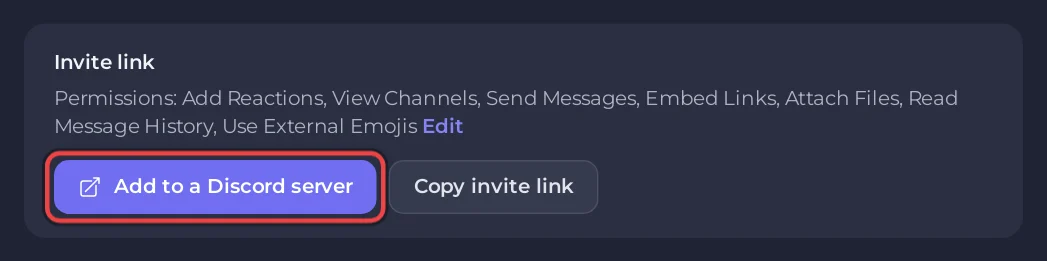
The same Add to a Discord server button sits on the bot's card on Overview. If you see The invite link appears once your bot token is saved and checked., paste the token first: How to create a Discord bot and get its token.
The link always carries the bot and applications.commands scopes, so slash commands are allowed from the first invite.
Change the permissions the link asks for
- Next to the permission list, click Edit.
- Tick what your bot needs. The boxes are grouped in General, Text, Voice and Advanced. A music bot needs Connect and Speak under Voice.
- Click Save permissions. The invite button works again once the change is saved, so the link you copy is always the one you saved.
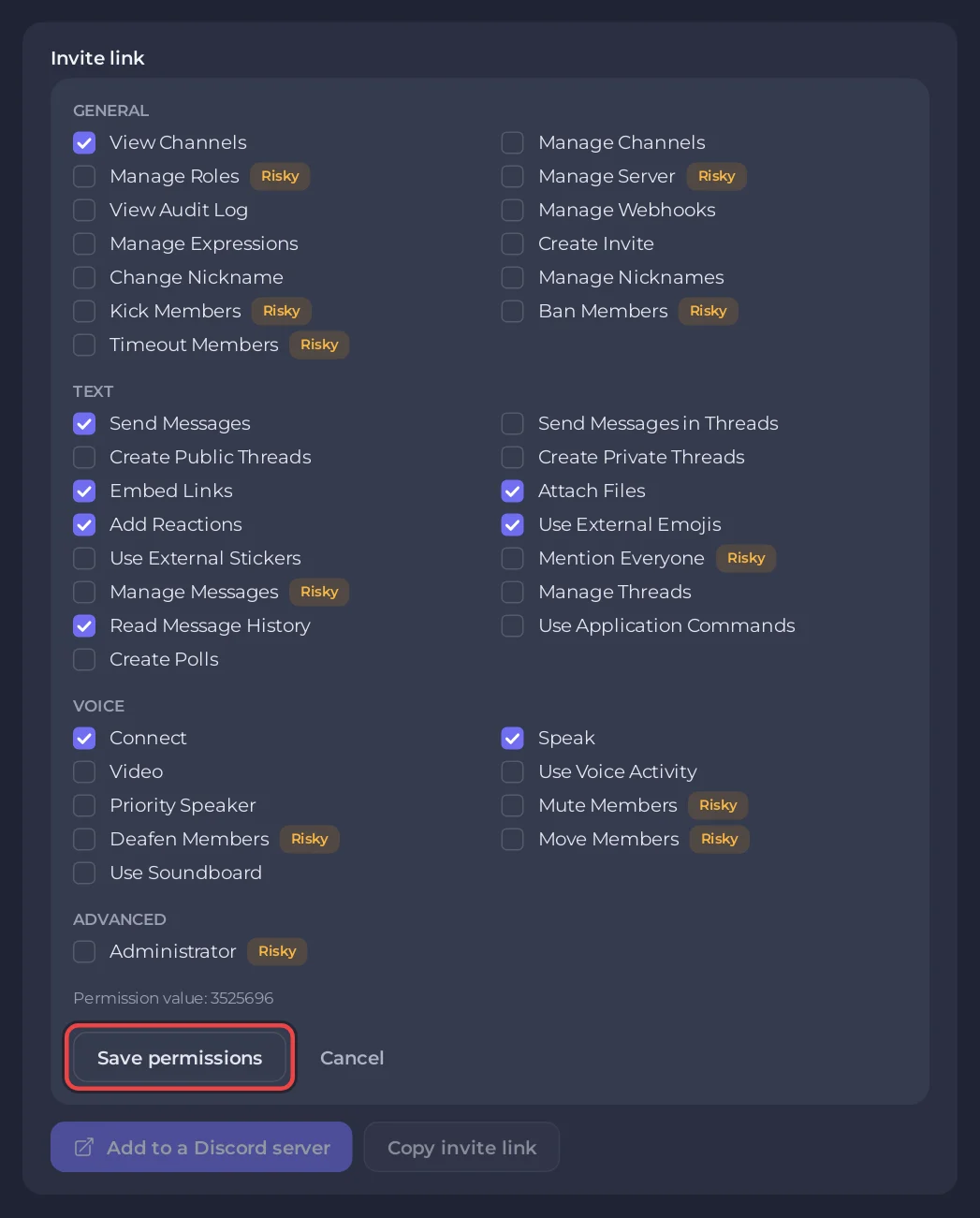
Permissions marked Risky, such as Administrator, Manage Roles or Ban Members, give the bot more power than most bots need. If the token ever leaks, whoever has it gets that power too. Tick them only when your code really uses them.
Already invited? Change permissions in Discord
A new link does not change a bot that is already in a server. In Discord, open Server Settings, Roles, pick the bot's role and change its permissions there. Keep the bot's role above any role it has to give, take or moderate.
The bot joined but shows offline
Being in the member list does not mean it is running. The bot shows online only while your server is started and your code has logged in. Look at the chip on the bot's card on Overview: Online in Discord means the console showed a login line. If it says Offline, Token problem or Missing intents, see Why your Discord bot keeps stopping.
The bot is online but does nothing
- Slash commands missing: your code must register them with Discord. See Discord bot online but not responding.
- No reply to prefix commands: your code needs the Message Content intent, switched on in the Developer Portal.
Missing PermissionsorMissing Accessin the console: the bot's role or a channel override blocks it. See Common Discord bot errors and what they mean.