

To start a Palworld server on PlayNHost, click Start on the server's Overview page and wait for the badge to say Online. The Console shows Running Palworld dedicated server on followed by the port when Palworld is ready for players, usually within a minute of the update check.
Start it
- Open your server in the panel. The badge near the name says Offline.
- Click Start. The badge changes to Starting.
- Open the Console tab to watch what the server does.
- Wait for the line
Running Palworld dedicated server on. The badge then says Online and players can join.
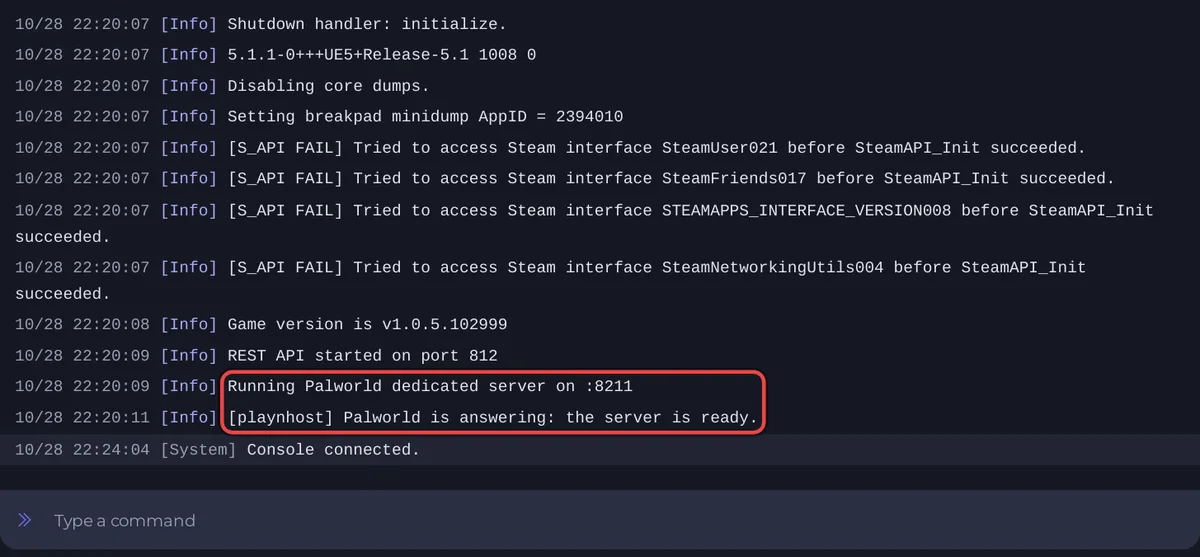
What the Console shows on a Palworld start
Every start runs the same steps, in this order:
Checking for game server updates...: with Auto Update on (the default), the server asks Steam for the newest Palworld build and downloads it if there is one. When there is nothing new, Steam answersSuccess! App '2394010' already up to date.- The settings tool copies your Game Settings (name, passwords, player limit, crossplay) into the game's settings file. Lines start with
Updating key:. Password values are shown as(hidden), so they never appear in the Console. - Palworld loads. It prints
Game version isand the version, for examplev1.0.5.102999. Running Palworld dedicated server onand the port: the server is ready.- A few seconds later,
[playnhost] Palworld is answering: the server is ready.This line comes from the panel's own tools. From then on the Active players card on the Overview page shows who is on.
A few lines in the middle look like errors, for example dlopen failed trying to load: steamclient.so and Tried to access Steam interface ... before SteamAPI_Init succeeded.. They appear on every healthy start. See Palworld console lines that look like errors but are normal.
How long the first start takes
The game files are already installed when you get the server, so the first start is not a big download. On PlayNHost's test server (Palworld 1.0.5, a new world, October 2026), Palworld loaded in well under a minute. A start takes longer when Steam has a Palworld update to download first. Palworld writes its world within a minute of its first start, and the Worlds page shows it from then on.
What a new server already has
- Server Name:
A PlayNHost Palworld Server. Change it before you invite anyone: How to change your Palworld server name and description. - Server Password: empty, so anyone who finds the server can join. Set one: How to set a password on your Palworld server.
- Admin Password: a random password made for your server only. You can read it under Settings, Game Settings. It unlocks admin commands in the game, and the panel's Console and Stop button use it too: How to become admin on your Palworld server.
- Max Players: the number of slots your plan includes.
- Crossplay Platforms:
Steam,Xbox,PS5,Mac, all four. - Gameplay rules: Palworld's own defaults. Change them with a preset or one by one: How to use presets on your Palworld server.
- A Daily restart schedule under Quick Tasks, already switched on. It restarts the server early every morning while it is running, after warning players 10, 5 and 1 minutes before, so it picks up Palworld updates: How to restart your Palworld server with warnings.
- No admins, bans or whitelist yet.
Next steps
If the badge never reaches Online, see Palworld server problems and fixes and How to fix a server that will not start.


