

 MINECRAFT HOSTING
 GAME SERVERS
 Game Panel
Most of what you want to change on a Rust server is on one page of the panel.
Open Game Settings
- Open your server in the panel and click the Settings tab.
- Click Game Settings.
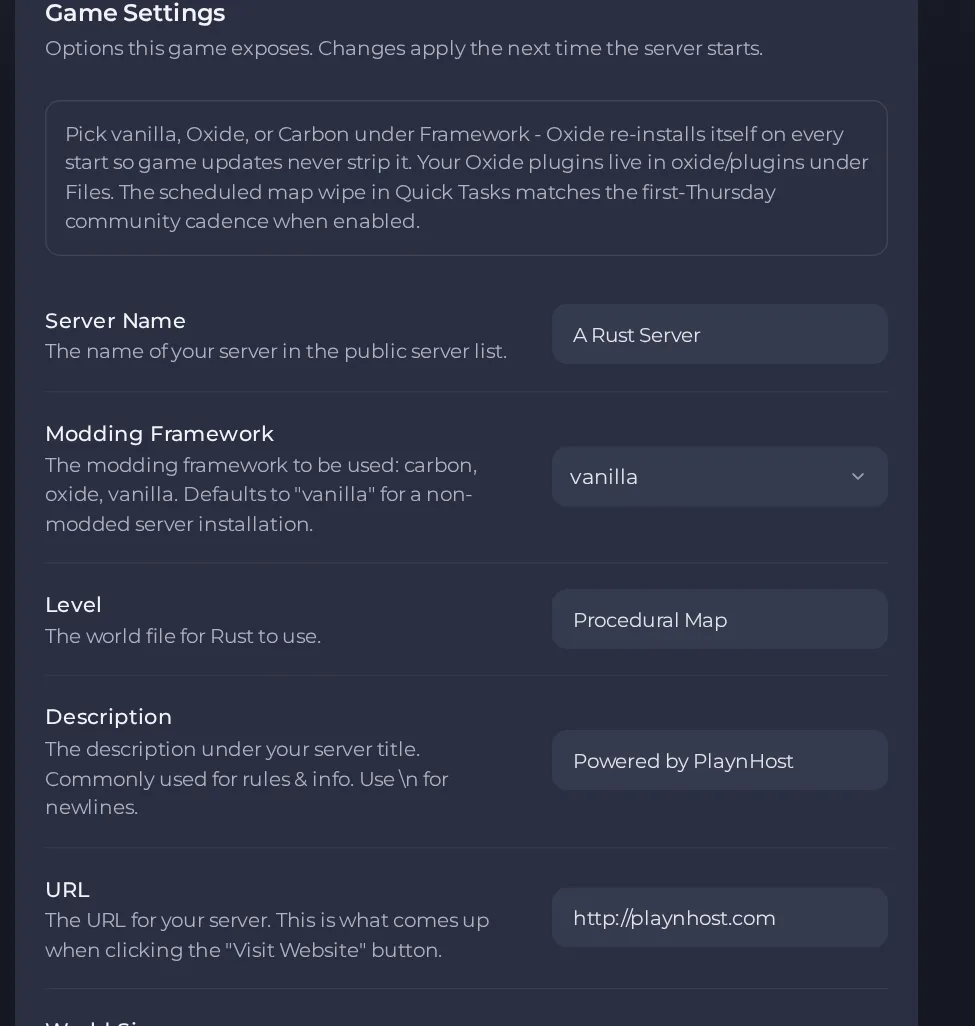
- Change a value and click outside the field, or press Enter. The panel saves it. Switches save as soon as you flip them.
- Restart the server so the change takes effect. See How to start, stop, restart and force-stop your server.
Options most owners change first
- Server Name. The name shown in the public server list, up to 60 characters. No double quotes anywhere, and the name cannot end with a backslash.
- Description. Text shown under the server title, usually rules and info; use \n for a new line. No double quotes anywhere, and it cannot end with a backslash.
- URL. The address opened by the Visit Website button on your server listing.
- Server Image. Header image for the top of your server listing, given as a link.
- Server Logo. The circular logo shown in the Rust+ companion app, given as a link.
- World Size. Size of a procedural map from 1000 to 6000; larger maps take longer to generate and use more memory and disk. Changing it abandons the current map and players start on an empty one, so back up first.
- World Seed. A number from 1 to 2147483647. Left empty, every PlayNHost server generates the same default map, so set your own number for a unique world. Changing it abandons the current map and players start on an empty one, so back up first.
- Custom Map URL. A direct download link to a custom map file; when filled in, World Size and World Seed are not used, the current world is abandoned, and an invalid link makes the server crash. Back up first.
- Level. Leave on Procedural Map unless support tells you otherwise. No double quotes anywhere, and it cannot end with a backslash.
- Save Interval. Seconds between automatic saves (default 60).
- Modding Framework. Choose Vanilla (no mods), Oxide or Carbon; the chosen framework is fetched at server start.
- RCON Password. Required: the server will not start without one. Letters, numbers, dots, dashes and underscores only, up to 64 characters.
- Auto Update. Checks for a Rust update at every start; leave it on unless you are deliberately holding a build.
- Additional Arguments. Extra startup options added after the panel's own; Rust keeps the first value it sees, so repeating something the panel already sets (ports, player limit, world size, seed, identity) has no effect.
- Max Players. Set by your plan and not editable; it cannot be raised through Additional Arguments.
Settings are read when the server starts, so restart after changing them. Changing World Size or World Seed generates a new world on the next start while the old map files stay on disk until you wipe. Back up first, because players start on an empty map; change them as part of a map wipe.
Every option is listed in Rust server settings: every option explained.





