

Copy your address from the Play with friends card on your server's Overview page. In Minecraft Java Edition, choose Multiplayer, then Add Server, paste the address and click Done, then join. The address looks like address:port: always give players the whole thing, port included.
Get the address
- Open your server in the panel. It must be running. If it is stopped, click Start and wait for the
Doneline in the Console: see How to start your Minecraft server for the first time. - On the Overview page, find the Play with friends card.
- Click the copy icon on the Java Edition row. The Join button on the server card at the top of the page copies the same address.
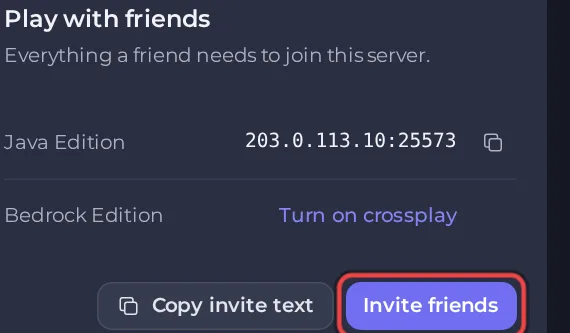
The card also shows the Version your server runs (Pick this version in the Minecraft Launcher.), and a Modpack row if one is installed. Copy invite text copies all of it as one message for a chat.
Join from Java Edition (PC and Mac)
These are the steps the panel gives your friends:
- Open Minecraft and choose Multiplayer.
- Add Server, paste the address, then Done.
- Join. Your friends do the same.
Each player can type any name for the server in their own list. It is only a label on their computer. What everyone sees under it is your message of the day: see How to style your Minecraft server list entry with the MOTD and icon editor.
Join from a phone, tablet or Windows (Bedrock)
Bedrock Edition players can join a Java server only when crossplay is on. The card then shows a Bedrock address and a Bedrock port: in Minecraft they choose Play, then the Servers tab, then Add Server, and type the address and the port in their own boxes. Without crossplay the card shows Turn on crossplay.
Xbox, PlayStation and Switch have no Add Server button, so they cannot join by address. The full steps for each device are in How to join your Minecraft server from a phone, tablet or console.
The game version must match
Players need the same Minecraft version as the server. A different one is turned away with Outdated client (the player's game is older) or Outdated server (the server is older than the player's game).
- Read the version on the Version row of the Play with friends card.
- In the Minecraft Launcher, open Installations, choose New installation and pick that version. This is the fix the panel's own join check gives.
If your server has the ViaVersion plugin (the setup adds it when it picks a version older than the newest), players on newer versions can join too: see How to let older and newer Minecraft versions join with ViaVersion. To move the server to another version instead, see How to change your Minecraft version or server type. Details: Players see Outdated client or Outdated server on your Minecraft server.
If your server runs mods, the card says which loader it uses: If its mods add new blocks or items, friends need the same loader and the same mods. With a modpack, friends install the pack first.
Check the whitelist
If the whitelist is on, only players on it can join, and the card says The whitelist is on, so only players on it can join. Minecraft 26.3 and newer turn the whitelist on in a new file, but the setup writes your answer to Who can join? over it, so a server set up as Anyone with the address is open.
Add your friends on the Players page, or send them an invite link so they add themselves. See How to invite friends to your Minecraft server with an invite link and How to set up a whitelist and ban players on your Minecraft server.
Online mode
Online mode checks that every player signs in with a real Minecraft account. Leave it on. With it off, anyone can join under any name, including yours, and get that player's rights. See Online mode and offline mode on a Minecraft server.
If a player cannot join
Run Can my friends join? on the Overview page first. It tests your server from outside and names the fix. See How to find out why friends cannot join your Minecraft server.
- The connection times out: the server is stopped or still starting, or the port was left off the address. Copy the whole address again.
Outdated clientorOutdated server: the versions differ, see above.You are not white-listed on this server: add the player to the whitelist. See Players see You are not white-listed on this server.The server is full: raise the player limit, see How to change the player limit on your Minecraft server.- Missing mods: every player needs the same mods as the server.
- The player was banned: see How to kick, ban and unban players on your Minecraft server.
Still stuck? Open a ticket with the result of the check and what the player sees on screen.


