

Your Minecraft server starts by itself when you finish the setup. It is ready when the Console shows a line that starts with Done and ends with For help, type "help". The first start takes longer than later ones, because the server is installed and the world is generated.
Before the first start
A new Minecraft server opens with a short setup, and it does not start until you click Finish Setup. If you have not done it yet, see How to set up your new Minecraft server.
Watch it start
- Open your server in the panel and click the Console tab.
- While the server software installs, the page says
This server is currently running its installation process and most actions are unavailable.Wait for it to finish. - The panel's own lines come first, for example
PlayNHost server is starting...andLaunching Minecraft on PlayNHost:. - Minecraft then loads and generates the new world.
- The server is ready when it prints a line like:
Done (12.3s)! For help, type "help"The number is how many seconds it took. From that moment players can join.
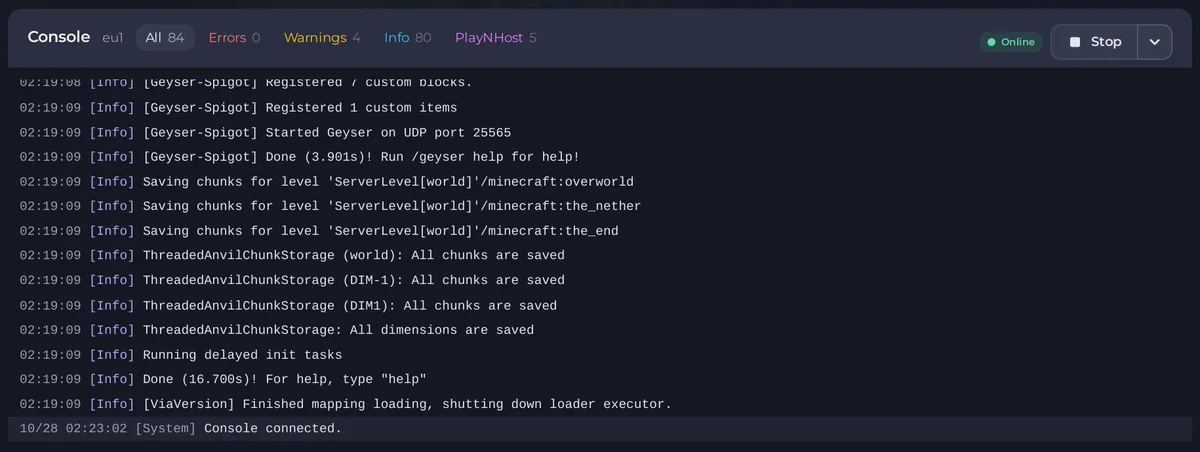
If you pressed Start yourself, wait for the same Done line. Do not click Kill while the world is being generated: the panel warns that killing a server can lose data.
How long it takes
The first start downloads and installs the server software, then generates a new world, so it takes a few minutes. Later starts reuse the world and are much quicker. An Amplified world or a big modpack makes the first start slower.
The Get your server ready card
For the first 30 days, the Overview page shows the server owner a Get your server ready card with four items that tick themselves:
- Server software chosen: done by the setup.
- Friends can join: ticks when anyone with the address can join, or when friends are on the whitelist. Add friends opens the Players page.
- A backup is saved: Back up now makes the first backup, so there is a copy before anyone builds.
- First player joined: Copy address copies the address. In Minecraft choose Multiplayer, Add Server, then paste it.
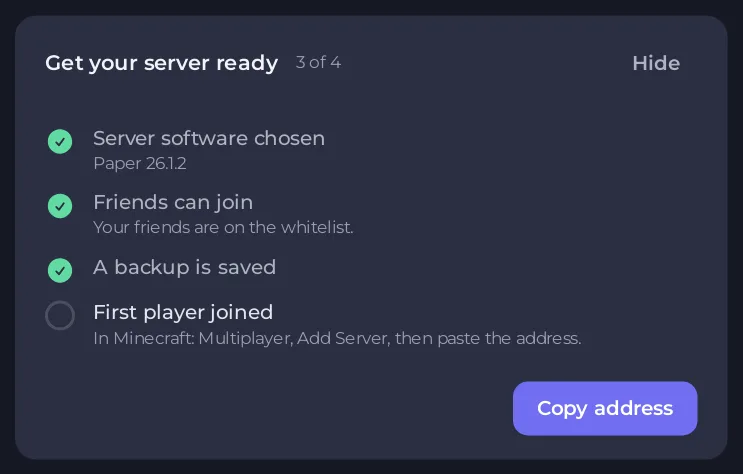
Click Hide to remove the card for good.
What a new server already has
- The server type and version you chose, for example Paper on the newest version.
- The world settings from the setup: seed, world type, difficulty and game mode.
- Who can join: open to anyone with the address, unless you chose Only players I add (the whitelist is on).
- You as an operator and on the whitelist, if you typed your Minecraft name in the setup.
- View distance and simulation distance sized for your plan, if you left Tune for my plan on.
If it does not reach Done
- The Console stops with an error. If the panel recognises the cause, the Overview page shows a Why your server stopped card with the cause and a fix: How to see why your Minecraft server stopped.
- It starts and stops again. See Minecraft server problems and fixes.
- Players cannot join although it says Done. Run Can my friends join? on the Overview page: How to find out why friends cannot join your Minecraft server.
Next steps
- Join your server.
- Make yourself an operator, if you did not type your name in the setup.
- Invite your friends.
- Change the settings.


