

Online mode makes your Minecraft Java server check that every player signs in with a real Minecraft account. Keep it on. With it off, anyone can join under any name, including yours or an operator's, and get that player's rights. The one reason to turn it off is a server behind your own Velocity or BungeeCord proxy, which checks accounts before players arrive.
Where it is
- Open your server in the panel and click the Settings tab.
- Under Config files, click Server Properties (Java).
- Find Online mode. It is on by default.
Why it stays on
- Anyone could be you. Without the account check, a stranger can join with your name, or an operator's, and get their rights: commands, bans, everything.
- Mojang's rules. The panel quotes Mojang's usage guidelines: access to a server
must only be granted to users who have a genuine paid-for version of Minecraft. - The whitelist cannot help. With online mode off, a name is not proof of who someone is, so a whitelist only stops people who do not know a listed name.
Turn it off behind your own proxy
If this server sits behind your own Velocity or BungeeCord proxy, the proxy checks every account, and this server must have online mode off to accept the players it forwards.
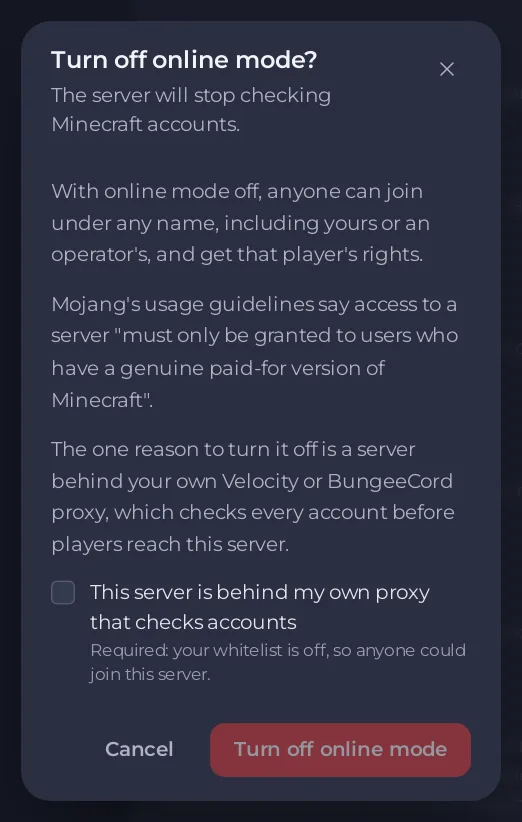
- Switch Online mode off. The switch does not move yet: a window Turn off online mode? opens. It says
The server will stop checking Minecraft accounts., with the risk and Mojang's rule. - The panel checks this server's own settings for a proxy. If it finds one, the window says
This server is set up to accept players from aVelocity or BungeeCordproxy. - If it finds none, tick This server is behind my own proxy that checks accounts. While the whitelist is off, this box is required:
Required: your whitelist is off, so anyone could join this server. - Click Turn off online mode.
- Click Save & restart.
While online mode is off, the settings page starts with a warning: Online mode is off. Anyone can join under any name, including yours, and get that player's rights. The Can my friends join? card shows Anyone can join under any name, including yours.
Setting up the proxy itself: How to build a Minecraft network with Velocity or BungeeCord.
Turn it back on
Switch Online mode on and click Save & restart. No window opens for that.
Bedrock players
Crossplay installs Floodgate, which lets Bedrock players join with their Microsoft account, without owning Java Edition, while online mode stays on. See How to let Bedrock players join your Java server with Geyser.
Good to know
- Every change to online mode is recorded in Activity, with the reason the panel accepted it off.
- The panel cannot stop someone editing
server.propertiesby hand in Files, so only give Files permissions to people you trust: How to let a friend help run your Minecraft server.


