

Click Edit slots on the Active players card on your server's Overview page, type the number of players and click Update. The panel writes it to Minecraft's Max players setting and restarts the server so it applies.
Change it with Edit slots
- Open your server in the panel and go to the Overview page.
- On the Active players card, click Edit slots. The pencil on the Slots row of the server card opens the same window.
- The window Edit Player Slots tells you what your plan allows:
Your plan does not cap player slots.orYour plan allows up toa number of players. - Type the number, or use the arrows, and click Update.
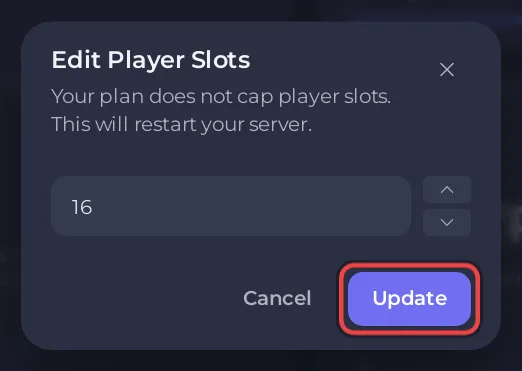
The window warns This will restart your server. The server restarts straight away to use the new limit, so warn your players first.
You need the Rename server permission. Without it the change is refused.
Change it in Server Properties
The same number is the Max players setting:
- Open the Settings tab and click Server Properties (Java) under Config files.
- Change Max players. If your plan caps player slots, the box does not go above the cap.
- Click Save & restart, or Save only to apply it at the next start.
Both ways change the same setting. See Minecraft server properties explained.
When the server is full
A player who joins a full server is turned away with The server is full. Can my friends join? on the Overview page shows Your server is full with how many are on, and Open Settings to raise the limit.
Good to know
- Minecraft's own default is 20 players.
- More players need more of the server. If the server lags with many players on, see How to reduce lag on your Minecraft server and How much RAM does a Minecraft server need?.


