

Your Enshrouded world is the thing you cannot get back if it is lost, so back it up before you change settings, upload a world or update. Use Backups in the left menu, start a backup with Files selected, and restore it with Restore to server.
Before you back up: stop the server so the backup holds the latest save. Stopping from the panel makes the server save the world first. See How to start, stop, restart and force-stop your server.
Where the world is stored
Open the Files tab and look in the savegame folder in the server's main folder:
world0.ksdis your world. The game writes it every few minutes while players are on and again when the server stops.- The
backupfolder holds the game's own last ten copies of the world,world0.ksd.backup-0toworld0.ksd.backup-9. You can step back to one of them without a backup: see How to rewind your Enshrouded world.
Characters are stored on each player's own computer, not on the server. The server's settings file, enshrouded_server.json, is in the main folder, and the logs are in the logs folder.
Make a backup
- Open your server in the panel and click Backups in the left menu.
- Under Create backup, leave Type on Files.
- Click Start backup.
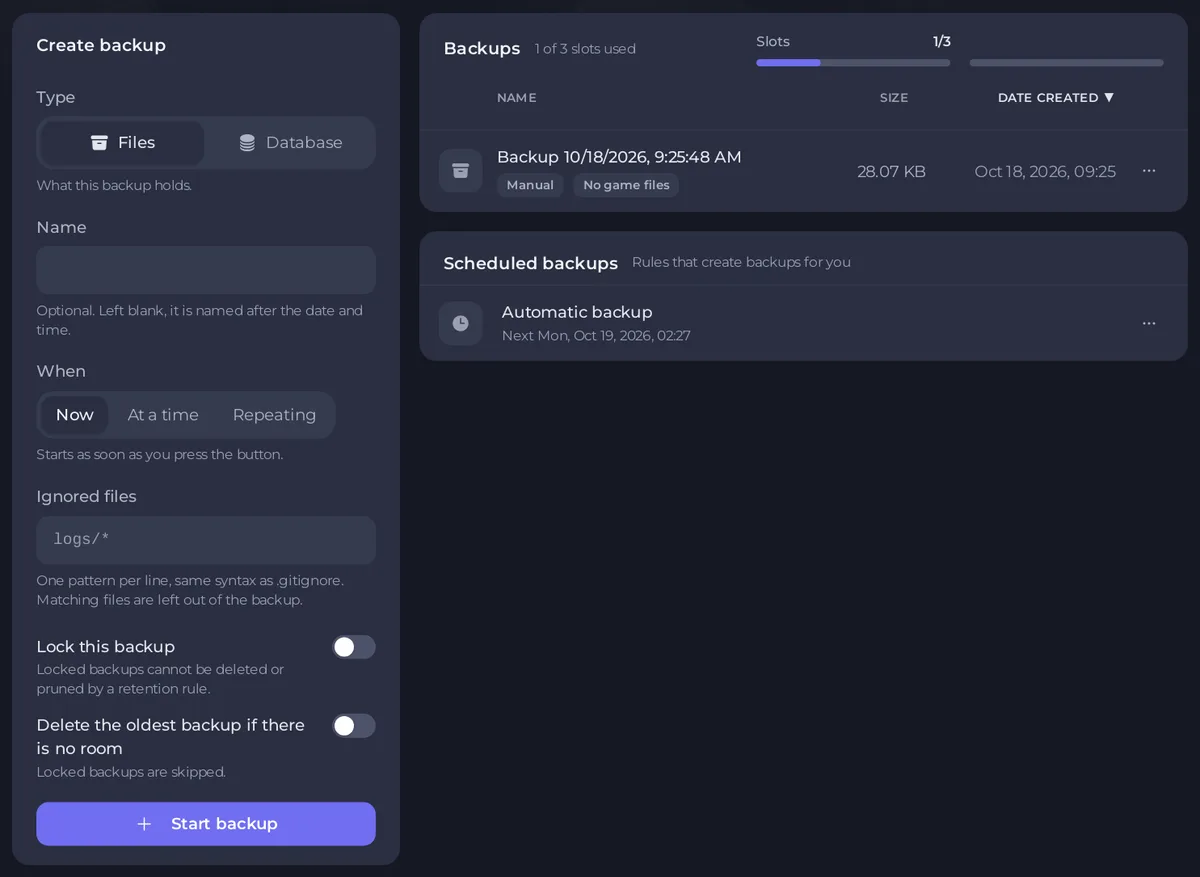
- To keep a copy outside PlayNHost, open the ... menu of the backup and choose Download.
See How to create, download and restore backups for scheduling, locking and limits.
What a backup holds
A backup of your Enshrouded server holds the savegame folder with your world and its ten copies, enshrouded_server.json with your passwords, permissions, gameplay settings and ban list, the logs folder, your mods folder, and the world-before-rewind folder with the world kept by your last rewind or upload. It leaves out the game's own files and the mod loader itself, because installing, updating or the next start puts them back. That keeps a backup small.
Stop the server before a backup you want to rely on, so the world in it is the one the game saved as it stopped. See How to restore only some files for the labels a backup can show.
Restore a backup
A restore replaces the current files with the backup, and anything changed since is lost. Take a fresh backup of the current state first if you may want it back.
- On the Backups page, open the ... menu of the backup and choose Restore to server.
- Read the warning. The server stops while the files are replaced. The window also says that the backup holds your saves and settings, not the game files, and that the game files already on your server are kept.
- Click Restore backup, then start the server when it finishes.
The game's own files stay on the server. Only your world and settings are put back. A restore does not delete files that are not in the backup, so open Files and the savegame folder afterwards: it should hold world0.ksd and the backup folder, and no other file whose name starts with world0.ksd. Move any such file out of savegame, because the game can load it instead of your world.
To put back only the world, or only your settings, see How to restore only the world or only the settings of your Enshrouded server. To step back a few minutes, for example after losing a base, use a rewind instead: How to rewind your Enshrouded world.
Good to know
- Servers whose plan has backup space come with an Automatic backup schedule that runs every night. To change its time, use Edit on it under Scheduled backups on the Backups page. See How to schedule tasks and automatic backups.
- To keep a copy of only the world on your PC, Download on the Worlds page is quicker: see How to download your Enshrouded world.
- Lock the backups you want to keep, so they are not removed to make room.
- To bring a world from another computer, see How to upload your own Enshrouded world.