

 MINECRAFT HOSTING
 GAME SERVERS
 Game Panel
Quick Tasks is where you run actions with one click and set them to repeat on a timer. It replaces the manual chores most server owners forget: restarting overnight, announcing to players, or taking a daily backup.
Open Quick Tasks
- Open your server in the panel.
- Click Quick Tasks in the left menu.
The page has three parts: Pinned tasks, All tasks and Schedules.
Run a task once
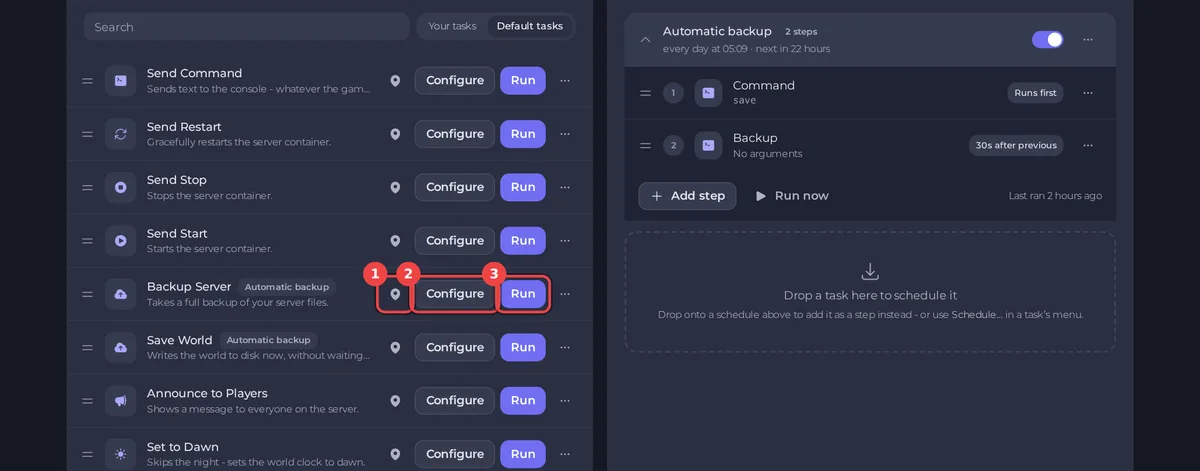
Under All tasks, Default tasks lists what the panel offers for your game. Every game gets power tasks (Send Start, Send Stop, Send Restart) and Send Command. Many games also get tasks such as Backup Server, Save World and Announce to Players. The exact list depends on the game.
- Find the task you want.
- Click Run to run it now, or Configure to change what it does first. For example, set the text of an announcement.
Pin a task to your Overview
Click the pin on a task to add it to Pinned tasks. Pinned tasks appear as one-click buttons on your server's Overview page. You can pin up to six.
Build a schedule
A schedule runs its steps in order, on a timer.
- Drag a task into the area labelled Drop a task here to schedule it to start a new schedule, or open a task's menu and choose Schedule. To add a step to an existing schedule, drop the task onto it.
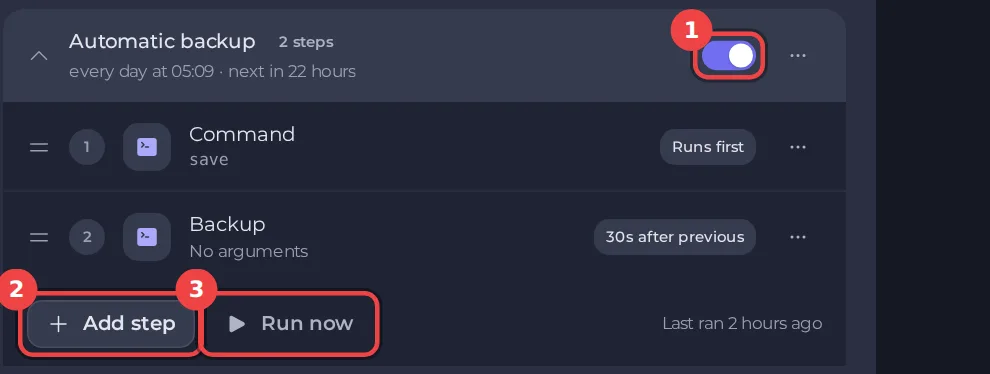
- Use Add step to add more steps. Steps run in order, and a step can wait a number of seconds after the one before it, for example 30 seconds.
- Set when the schedule runs, for example every day at a given time.
- Use the switch to enable the schedule, or turn it off to pause it without deleting it.
- Click Run now to test it.
The automatic backup on your server
Servers whose plan has backup space come with an Automatic backup schedule. It runs every night, at a time that differs from server to server. For most games it has one step, a backup. For some games, such as Terraria, it first saves the world with a command and takes the backup 30 seconds later. You can see the next run time on the schedule, switch it off, or change its steps.
When your backup space is full, the oldest unlocked backup is removed to make room, and that includes backups you made by hand. Lock the ones you want to keep. See How to create, download and restore backups.
Ideas for schedules
- A daily restart at a quiet hour: one step, Send Restart.
- A warning before restarts: Announce to Players, then Send Restart two minutes later.
- A backup before the restart: Backup Server, then Send Restart a minute later. Remember that every backup uses a slot, so lock the ones you want to keep.
If a schedule fails
When a scheduled task fails to run, you are emailed whatever your notification settings are. See How to manage notifications and preferences.





