%7B.s%7Banimation%3Ab%201.5s%20ease-out%20both%7D.d%7Banimation-delay%3A.16s%7D%7D%40keyframes%20b%7B0%25%7Bfill%3A%23F4F6FA%7D18%25%7Bfill%3A%23FFE08A%7D34%25%2C70%25%7Bfill%3A%23FF8A1F%7D80%25%7Bfill%3A%23FFE08A%7D100%25%7Bfill%3A%23FF8A1F%7D%7D%3C%2Fstyle%3E%3Cg%20transform%3D%22translate(143%20428.93)%20scale(3.885906)%22%3E%3Cg%20transform%3D%22translate(0%202)%22%20fill%3D%22%23706EF0%22%3E%3Cpath%20d%3D%22M0%200%20H48%20A40%2040%200%200%201%2048%2080%20V100%20H0%20Z%22%2F%3E%3Cpath%20transform%3D%22translate(91.75%200)%22%20d%3D%22M0%200%20L48%200%20L48%2050%20L76%2050%20L76%20100%20L0%20100%20Z%22%2F%3E%3Cpath%20transform%3D%22translate(173%200)%22%20d%3D%22M0%20100%20L58%20-4%20L116%20100%20Z%22%2F%3E%3Cpath%20transform%3D%22translate(264.25%200)%22%20d%3D%22M0%200%20L104%200%20L76%2050%20L76%20100%20L28%20100%20L28%2050%20Z%22%2F%3E%3Cg%20transform%3D%22translate(375%200)%22%3E%3Cpath%20d%3D%22M0%200%20L50%2038%20L50%200%20L100%200%20L100%20100%20L0%20100%20Z%22%20fill%3D%22%23F4F6FA%22%2F%3E%3Crect%20class%3D%22s%22%20x%3D%2247%22%20y%3D%2263%22%20width%3D%2219%22%20height%3D%2230%22%2F%3E%3Crect%20class%3D%22s%20d%22%20x%3D%2274%22%20y%3D%2263%22%20width%3D%2219%22%20height%3D%2230%22%2F%3E%3C%2Fg%3E%3Cpath%20transform%3D%22translate(484.75%200)%22%20d%3D%22M0%200%20L48%200%20L48%2037%20L52%2037%20L52%200%20L100%200%20L100%20100%20L52%20100%20L52%2063%20L48%2063%20L48%20100%20L0%20100%20Z%22%2F%3E%3Cpath%20transform%3D%22translate(588.5%200)%22%20d%3D%22M0%2050%20A53%2053%200%201%200%20106%2050%20A53%2053%200%201%200%200%2050%20Z%22%2F%3E%3Cpath%20transform%3D%22translate(698.25%200)%22%20d%3D%22M25%200%20H102%20V50%20H77%20A25%2025%200%200%201%2077%20100%20H0%20V50%20H25%20A25%2025%200%200%201%2025%200%20Z%22%2F%3E%3Cpath%20transform%3D%22translate(804%200)%22%20d%3D%22M0%200%20L90%200%20L90%2050%20L69%2050%20L69%20100%20L21%20100%20L21%2050%20L0%2050%20Z%22%2F%3E%3C%2Fg%3E%3C%2Fg%3E%3C%2Fsvg%3E)


Open the Worlds page and click Download on the Your world card. Your browser downloads the server's world, the file world0.ksd from the savegame folder, to your computer. Your world is yours: keep it safe, or upload it again later.
Download it
- Open your server in the panel and click Worlds in the left menu.
- On the Your world card, check Last saved. The download is the world as the game last saved it.
- Click Download. The button shows that it is working, then your browser saves the file.
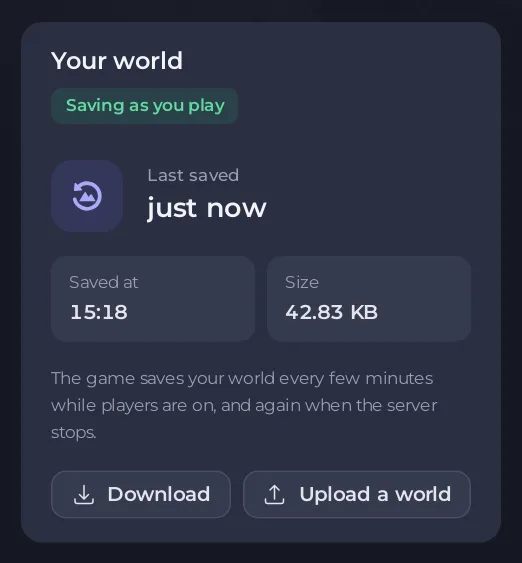
The game saves every few minutes while players are on, and again when the server stops. For a copy with every last change in it, stop the server first, wait until it says Offline, then download. See How to start, stop, restart and force-stop your server.
What to do with the file
- Keep it safe: rename it on your PC, for example
autumn-base.ksd, so you know which world it is. The name does not matter when you upload it again. - Play it again on the server later: use Upload a world on the same page. See How to upload your own Enshrouded world.
- Swap worlds: download this one, then start a new one or upload another. See How to swap, keep or delete a world on your Enshrouded server.
If there is no Download button
- There is no world yet: the server has not saved a world. Start it and let the game save once.
- Your role cannot read files: the button needs Read contents. Ask the server's owner, or see How to let a friend help run your Enshrouded server.
- The button is greyed out while the page follows a rewind or an upload. Wait until it is done.
Good to know
- The download is only the world. Characters are kept on each player's own computer. Your settings, passwords and mods are in a backup: see How to back up and restore your Enshrouded world.
- You can also download
world0.ksdfrom thesavegamefolder in Files with Download file.





