

To change the settings of a The Bus server on PlayNHost, open Settings, then Game Settings, change a field, press Enter and click Restart now. Five settings live there: Admin Password, Maximum Players, Show In Server List, Server Name and Server Password. The panel writes them into TheBus/Settings/ServerSettings.cfg before every start.
How do I change a setting?
- Open your server in the panel and click the Settings tab.
- Click Game Settings in the Server Settings list.
- Change the field. A text field saves when you press Enter or click outside it; a switch saves when you click it.
- The panel shows "Saved. The server must restart before these take effect." Click Restart now, or let the change apply at your next restart.
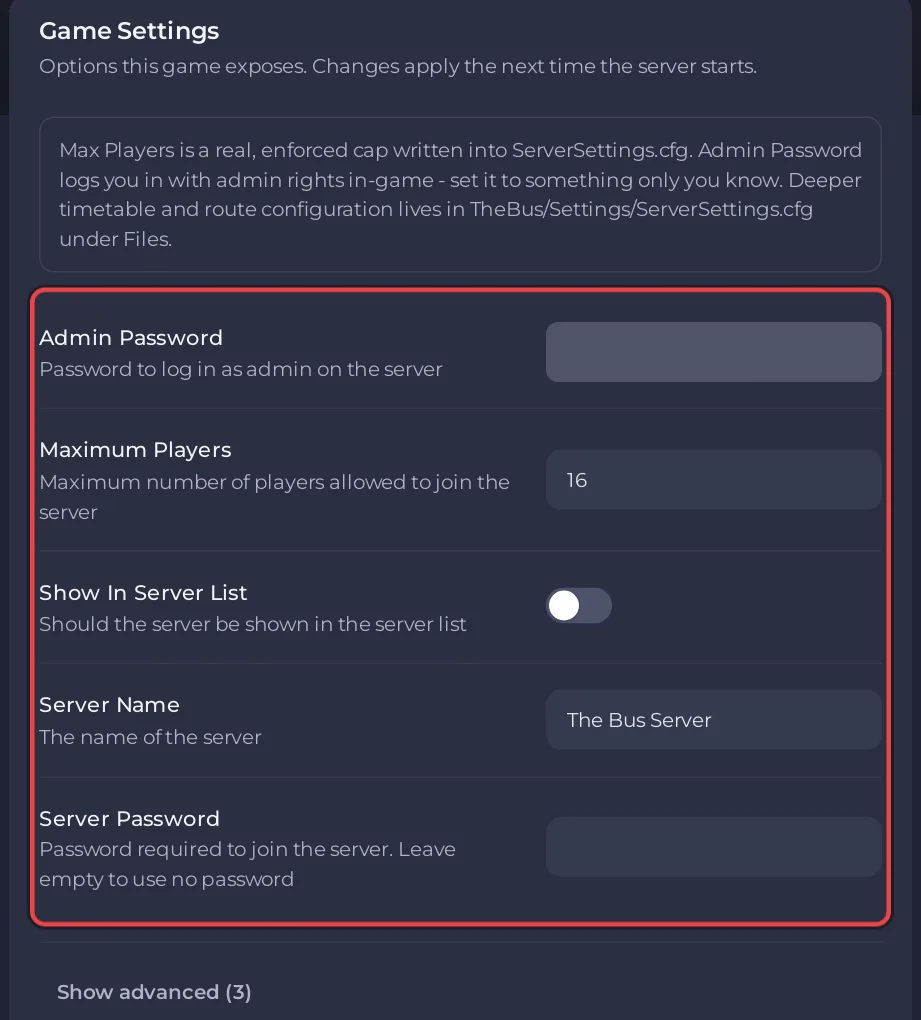
The box at the top of the card is the panel's own note for The Bus: "Max Players is a real, enforced cap written into ServerSettings.cfg. Admin Password logs you in with admin rights in-game - set it to something only you know."
What does each setting do?
| Setting | What it does | On a new server |
|---|---|---|
| Admin Password | Opens the Admin Menu in the game's pause menu with admin rights. At least 8 characters. | A starting value you did not choose: change it first |
| Maximum Players | How many players can be on the server at once, from 1 up to your plan's limit | Your plan's player count |
| Show In Server List | Lists the server in The Bus's public server list | Off |
| Server Name | The name players see in the server list | The Bus Server |
| Server Password | The password players type to join. Empty means no password. | Empty |
Each setting has its own guide:
- How to set the admin password on your The Bus server
- How to change player slots on your The Bus server
- How to make your The Bus server public or private
- How to set a password on your The Bus server
The Server Name in Game Settings is the name in the game. The name at the top of your server's Overview page is the panel's own label for the server; renaming it there does not change the name players see.
What is under Show advanced?
Click Show advanced (3) to see three settings that decide how the server installs and updates: Auto Update, Beta ID and Beta Password. The panel warns: "Changing them can stop the server installing correctly." Leave them as they are unless you want the beta: How to update your The Bus server.
Why did a setting change back after a restart?
Before every start, the panel writes Server Name, Server Password, Admin Password, Show In Server List and Maximum Players into ServerSettings.cfg. The Bus's Admin Menu can change the same values in the game, and the developer's changelog says Admin Menu changes are stored in the server settings, but the panel's values replace them at the next start. Change these five in the panel.
Everything else in ServerSettings.cfg, such as the map, weather, operating plan and fleet, is not touched by the panel at start. Change those in the Admin Menu or in the file's own card further down the Settings page: How to change the map, weather and operating plan of your The Bus server.
Who can change settings?
You, and people you invited under Team & Roles whose role can change startup settings: How to invite friends and give them access.


