

To add mods to a The Bus server on PlayNHost, subscribe to them in the Steam Workshop on your own PC, then upload the downloaded mod folders into TheBus/Mods on your server and restart. The server does not download Workshop mods by itself. The developer's guide says mods in that folder "are always activated on servers if they are compatible".
How do I add a mod?
- On your PC, open the The Bus Workshop and click Subscribe on the mod. Steam downloads it.
- On your PC, open your Steam library folder, then
steamapps/workshop/content/491540. Your subscribed mods are there, each in its own folder. - In the panel, click the Files tab and open
TheBus. If there is noModsfolder, click Create Directory, typeModswith a capital M and click Create. Open
Modsand upload the mod's folder:- With SFTP: click SFTP details, connect with an SFTP client such as FileZilla and drag the whole folder into
TheBus/Mods. Steps: How to connect to your server files with SFTP. - In the browser: the file manager cannot upload folders ("Folder uploads are not supported at this time."), so zip the folder on your PC first. Click Upload, pick the zip, then tick the zip in the list and click Unzip. Delete the zip afterwards.
- With SFTP: click SFTP details, connect with an SFTP client such as FileZilla and drag the whole folder into
- In the panel, click the arrow next to Stop and choose Restart. The mod is active when the server is Online again.

The developer's dedicated server guide gives the same steps: "Copy any mods that you want to run on the server into that folder. Mods are always activated on servers if they are compatible." It names the Workshop folder on your PC as "SteamLibrary/steamapps/workshop/content/491540".
What is on the Modding tab?
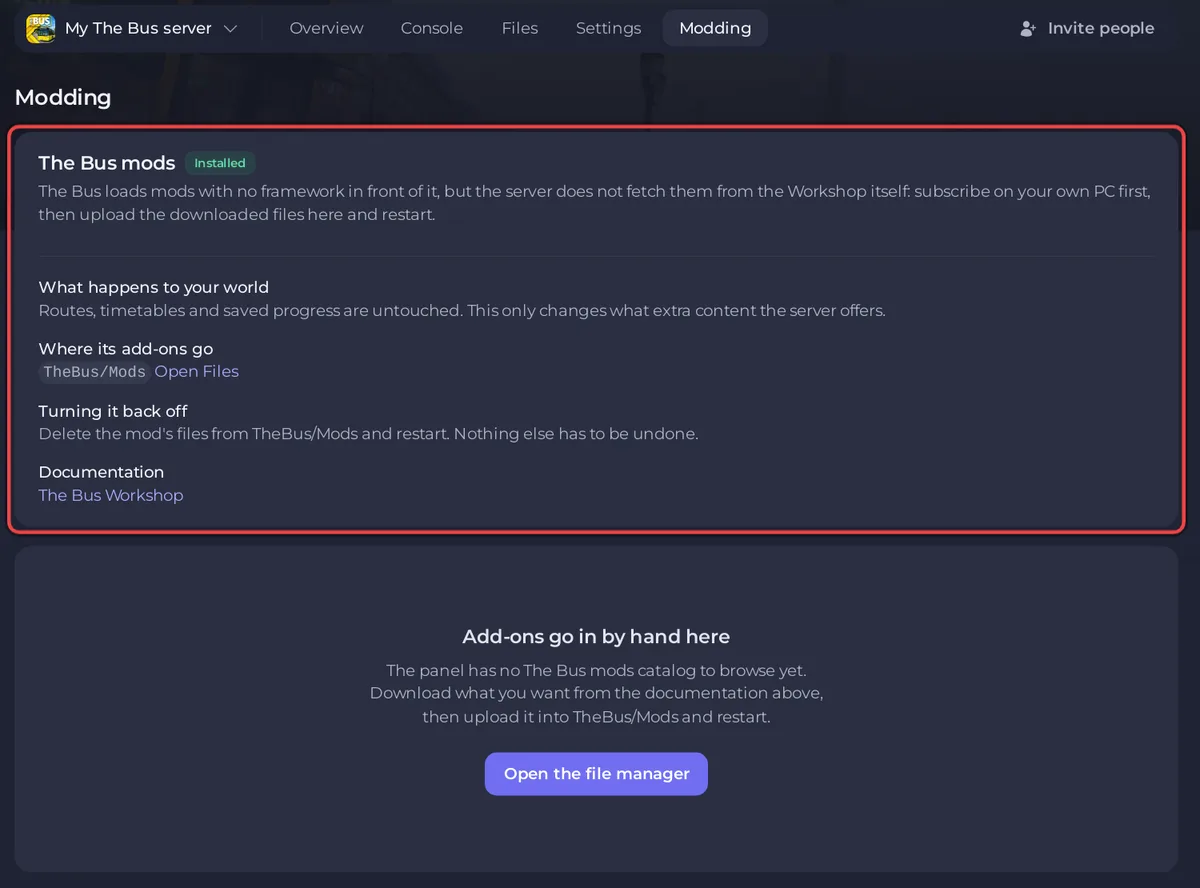
The Modding tab has a card called The Bus mods. It sums up the same process: "subscribe on your own PC first, then upload the downloaded files here and restart." It shows where mods go (TheBus/Mods), says "Routes, timetables and saved progress are untouched", and links to the The Bus Workshop. The panel has no catalogue of The Bus mods to browse, so every mod goes in by hand.
Do players need the mod too?
It depends on the mod's flag. The developer's guide describes three:
| Flag | What players need |
|---|---|
| Client and Server | The mod on both the server and every player's PC, or they cannot connect |
| Client | Players may use it on their own at any time; once it is on the server, every player must install it |
| Server | Only the server needs it; it is switched off on players' PCs before they join |
A client mod you add to the server therefore becomes required for everyone. Tell your players which Workshop items to subscribe to.
Can I add my own operating plans and fleets?
Yes. The developer's changelog for Update 3.0 says "Operating Plans and Fleets can now be loaded from the mods folder." Upload them into TheBus/Mods, restart, and choose them in the Admin Menu: How to change the map, weather and operating plan of your The Bus server.
How do I remove a mod?
Delete the mod's folder from TheBus/Mods under Files and restart. The card's own advice: "Nothing else has to be undone." Players who installed the mod only for your server can unsubscribe.
How do I update a mod?
Steam updates the mod on your PC. Upload the new version over the old folder in TheBus/Mods (delete the old folder first so no old files stay behind) and restart.
Questions people ask
Do mods work for console players? No. The developer's release FAQ says modding is on PC only, and multiplayer is PC only too.
Are my mods in my backups? Yes. TheBus/Mods is part of every backup: How to back up and restore your The Bus server.
Players cannot join after you added a mod? See The Bus server problems and fixes.


