

To change the player slots of a The Bus server on PlayNHost, click the pencil on the Slots row of the Overview page, pick a number up to your plan's limit and click Update. The server restarts with the new limit. The same number is the Maximum Players setting, which the panel writes into ServerSettings.cfg as a real, enforced cap.
How do I change the slots?
- Open your server in the panel. The Overview page opens.
- On the server card, click the pencil next to Slots.
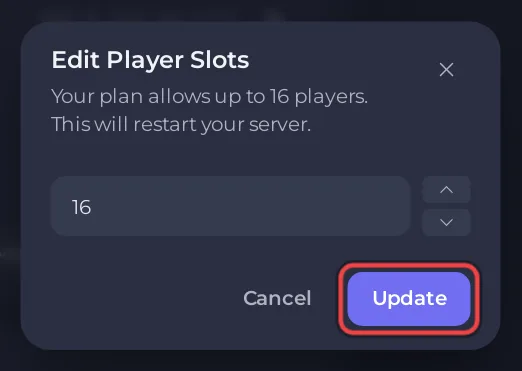
- In Edit Player Slots, type the number or use the arrows. The window says "Your plan allows up to" your plan's number of players and "This will restart your server."
- Click Update. The server restarts and comes back with the new limit.
Can I change it under Settings instead?
Yes. Maximum Players under Settings, Game Settings is the same number. Type it, press Enter and click Restart now: How to change your The Bus server settings.
What limits the number?
Your plan. The panel accepts a number from 1 up to your plan's player count. A number outside that range is refused with: "Your plan allows between 1 and {cap} player slots.", with your plan's number in place of {cap}. The plans and their player counts are on the The Bus server hosting page. If you want more players than your plan allows, the My plan page in the left menu shows your plan.
Is the limit really enforced?
Yes. The panel writes Maximum Players into TheBus/Settings/ServerSettings.cfg as maxPlayerCount before every start, and the game reads it from there. A change in the game's Admin Menu is replaced by the panel's value at the next start.
More about player numbers and plans: How many players can a The Bus server have?


