

 MINECRAFT HOSTING
 GAME SERVERS
 Game Panel
You never need to share your password to let a friend help run your server. Invite them instead. They get their own sign-in and only the access you choose.
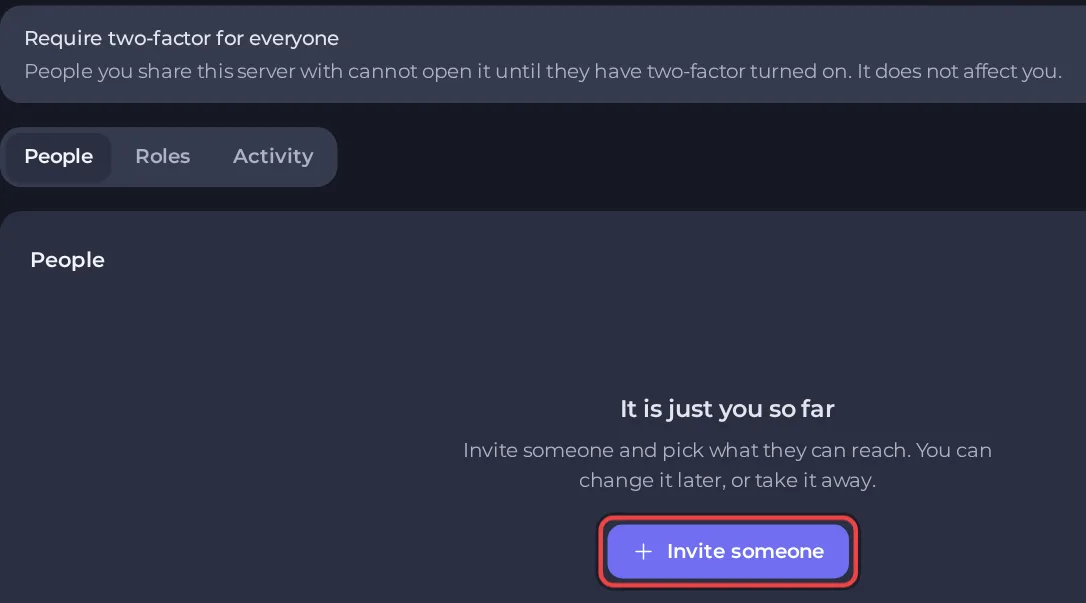
Invite someone
- Open your server in the panel and click Team & Roles in the left menu. On a desktop you can also use Invite people at the end of the tab row.
- Click Invite someone.
- Enter their Email address and choose a Role (see below).
- Click Add another to invite more people at once, then Send invitation.
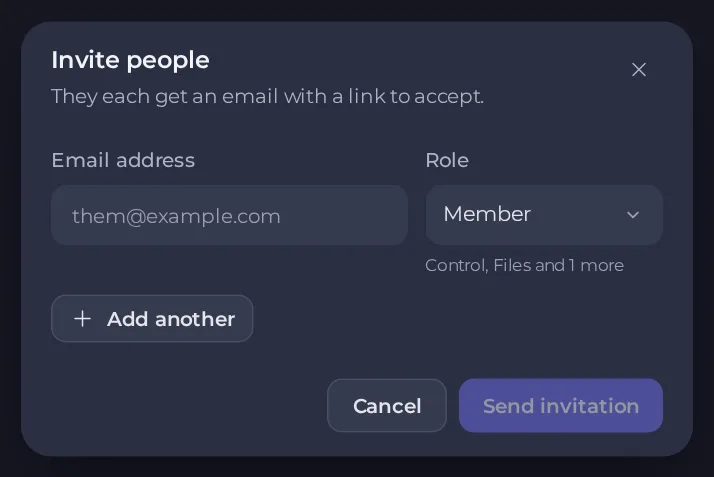
Each person gets an email with a link to accept.
Choose a role
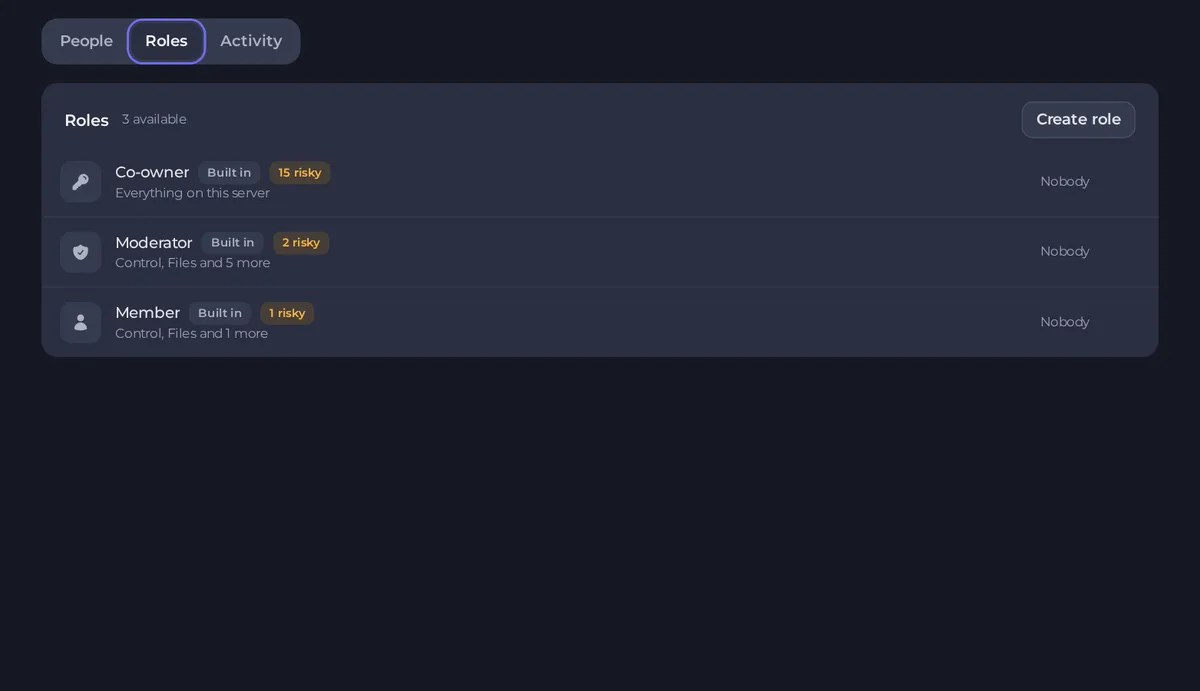
Roles decide what a person can do. Three are built in.
| Role | What it is for |
|---|---|
| Co-owner | Everything on this server. |
| Moderator | Control, Files, and viewing ports, databases, schedules and backups, plus switching setups. Good for trusted helpers. |
| Member | Control (console, start, stop, restart), browsing files and SFTP, and switching setups. It cannot open or edit files in the panel. |
Open the Roles tab to see them and who holds each one.
Create your own role
- On the Roles tab, click Create role.
- Name it and pick a starting point: Viewer (watch the console, change nothing), Moderator, Builder (create and edit files and create backups, but no deleting, restoring or downloading, and no team or settings), or Custom (start from nothing).
Tick what the role may do. The areas are:
- Control: use the console, start, stop and restart
- Files: read, write and delete server files
- Backups: create, download and restore
- Team: invite and manage people
- Settings: startup, ports and server options
- Setups: switch between alternate setups of the server
- Databases: connection details and passwords
- Schedules: automated tasks
- Activity: who did what on this server
- Click Create role.
Some permissions are marked as risky, because they can change or delete a lot. Give those only to people you trust.
Require two-factor for your team
On Team & Roles, turn on Require two-factor for everyone. People you share the server with cannot open it until they have two-factor authentication on. It does not affect you. See How to set up two-factor authentication.
Change or remove someone's access
The People tab lists everyone who has access, where you manage their roles. The Activity tab on this page shows recent activity, and the full log is on the server's Activity page. See How to see what happened on your server.
Good to know
- Billing stays with you. People you invite cannot see your invoices or change your plan.
- To let someone else receive invoices, open a ticket and we will set up a billing contact.





