

To change the map, weather or operating plan of a The Bus server on PlayNHost, open the Admin Menu in the game's pause menu as an admin and pick the new values there: the game saves them to the server's ServerSettings.cfg. You can also edit the same keys in the panel, under Settings, in the TheBus/Settings/ServerSettings.cfg card, then click Save & restart.
How do I change them in the game?
- Join your server and open the pause menu.
- Open the Admin Menu and type your Admin Password if the game asks for it. You need the password you set under Settings, Game Settings: How to set the admin password on your The Bus server.
- Change the map, operating plan, weather or fleet.
The developer's dedicated server guide says the Admin Menu configures "everything from Server Name to the Map and Operating Plan used on the server". The developer's changelog adds "Allow changing fleet through admin panel" and "Changes in the admin panel are now stored to serversettings", so these choices stay after a restart.
The Admin Menu is the better place for the map, operating plan and fleet, because it shows the options your game really has. The developer does not publish a list of valid values for the file.
How do I change them in the panel?
- Open your server in the panel and click the Settings tab.
- Under Config files in the left list, click
TheBus/Settings/ServerSettings.cfg. - Change a value. A switch turns a true or false setting on or off; other values are text fields.
- Click Save & restart to apply the change now, or Save only to apply it at the next start. Revert throws away changes you have not saved.
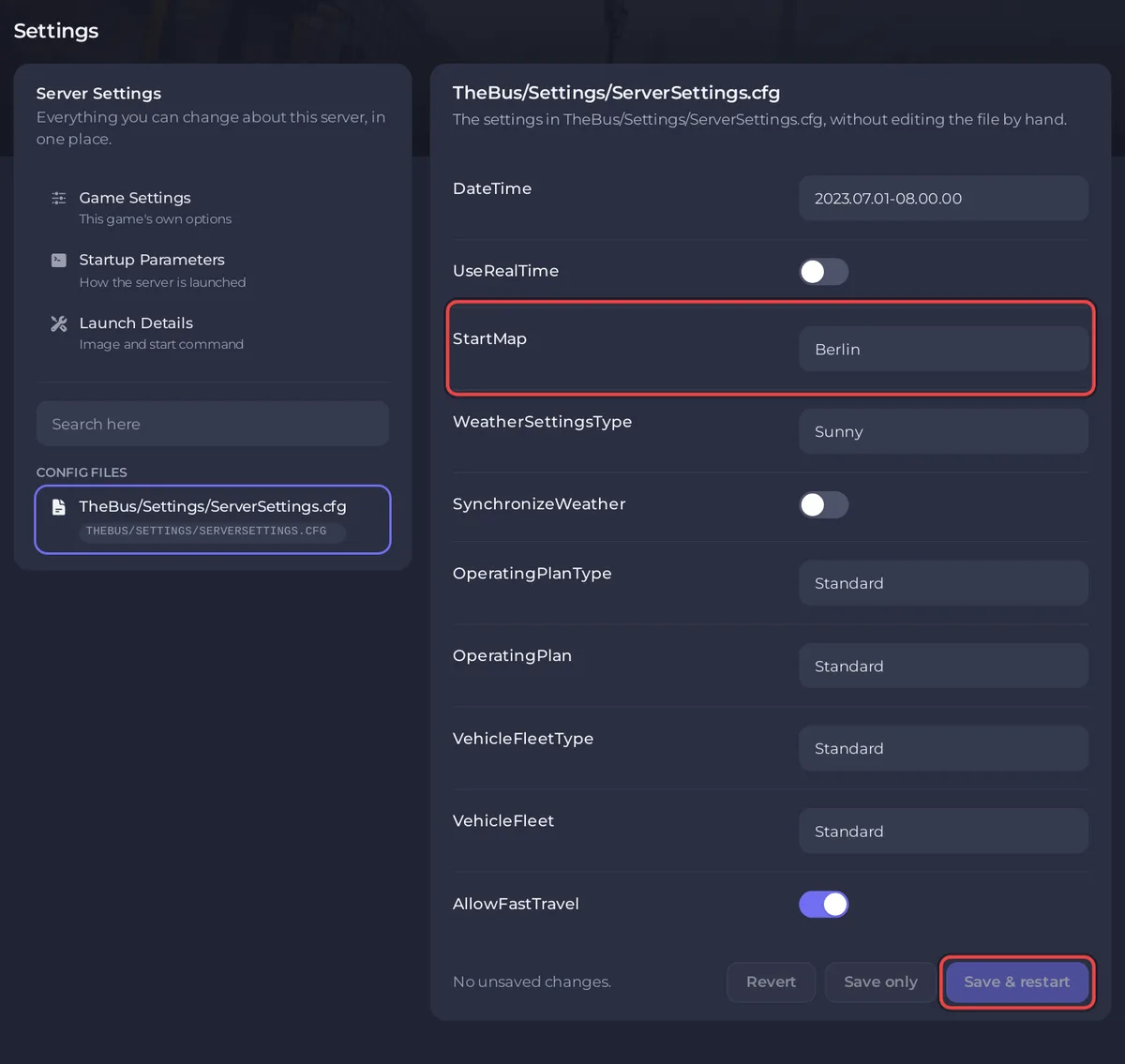
The card says "The settings in TheBus/Settings/ServerSettings.cfg, without editing the file by hand." It shows the keys of the file under their own names, without explanations, because the file has none.
What is in the ServerSettings.cfg card?
These rows, with the values a new PlayNHost server starts with:
| Row | New server value |
|---|---|
| DateTime | 2023.07.01-08.00.00 |
| UseRealTime | off |
| StartMap | Berlin |
| WeatherSettingsType | Sunny |
| SynchronizeWeather | off |
| OperatingPlanType | Standard |
| OperatingPlan | Standard |
| VehicleFleetType | Standard |
| VehicleFleet | Standard |
| AllowFastTravel | on |
Server name, passwords, the public list switch and the player limit are not in this card. The panel writes those five from Game Settings before every start, so they are edited there: How to change your The Bus server settings.
The Bus's Steam page lists weather and time synchronization with "the current values in Berlin" as a game feature. The developer does not document what each key in this file does, so this guide does not describe them one by one: when in doubt, make the change in the Admin Menu.
Can I use a custom operating plan or fleet?
Yes, as a mod. The developer's changelog says "Operating Plans and Fleets can now be loaded from the mods folder". Put the files in TheBus/Mods on your server and restart, then pick them in the Admin Menu: How to add mods to your The Bus server.
Questions people ask
Can I play the Hamburg City map on my server? The developer's Hamburg City FAQ says the map is playable in multiplayer and that "All players must own the same DLCs to use them together." The developer's beta notes for Update 1.2 (13 August 2026) list "Fixed Hamburg not working properly on servers". PlayNHost has not tested a DLC map on a The Bus server.
My change did nothing. A change in the card only applies when the server starts. If you clicked Save only, restart the server.


