

 MINECRAFT HOSTING
 GAME SERVERS
 Game Panel
Most of what you want to change on a Satisfactory server is on one page of the panel.
Open Game Settings
- Open your server in the panel and click the Settings tab.
- Click Game Settings.
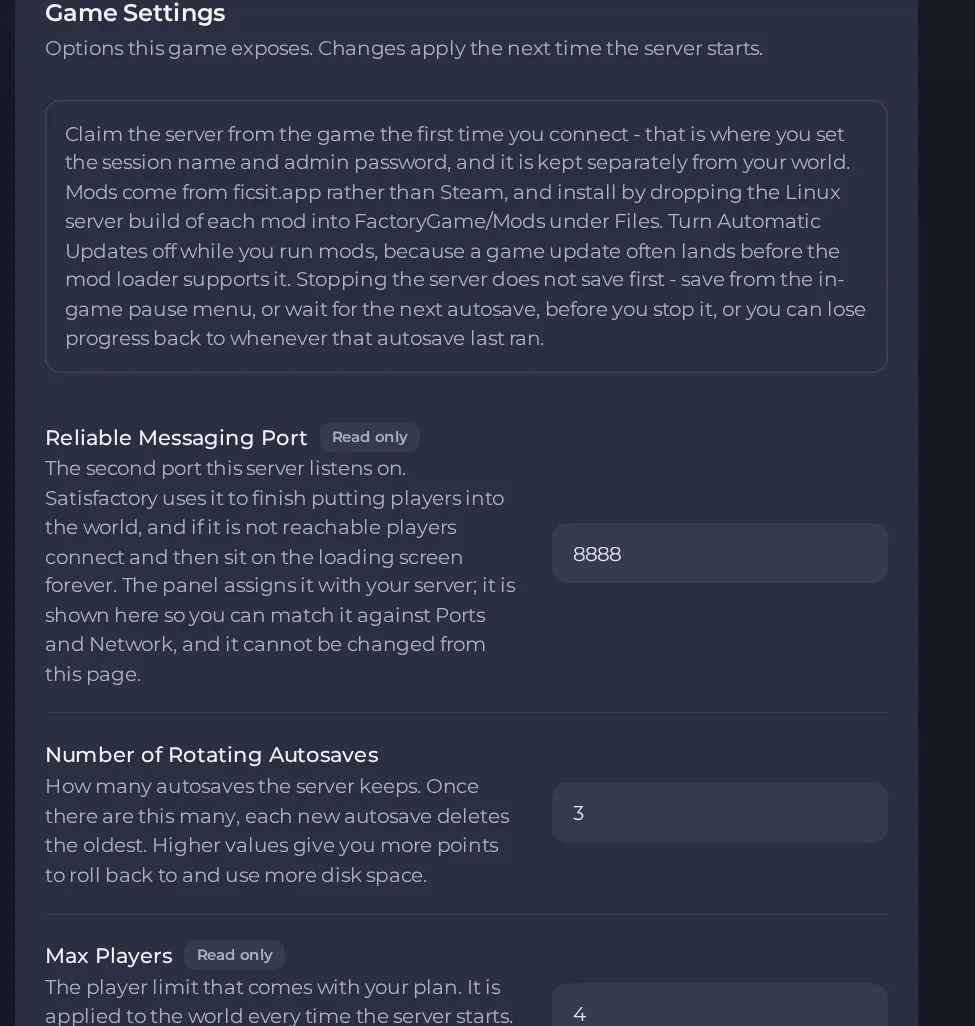
- Change a value and click outside the field, or press Enter. The panel saves it. Switches save as soon as you flip them.
- Restart the server so the change takes effect. See How to start, stop, restart and force-stop your server.
Options most owners change first
- Max Players. Comes with your plan and cannot be edited here. It is applied every time the server starts, and the game is tuned for four players, so bigger groups may run rough.
- Number of Rotating Autosaves. How many autosaves are kept before the oldest is deleted. More gives more rollback points and uses more disk space.
- Client Initial Connection Timeout. Seconds the server waits for a player who is still joining. Raise it for players on slow connections.
- Client Established Connection Timeout. Seconds before a quiet, already-joined player is disconnected. Raise it for unstable connections.
- Automatic Updates. Installs the newest game version at each start. Turn it off while running mods, because a game update often arrives before the mod loader supports it.
- Game Branch. Leave on the default for the normal release. Experimental gets upcoming changes early and can break saves and mods.
- Validate Server Files. Re-checks and repairs game files on the next start, adding several minutes to that one start. Only works while Automatic Updates is on.
- ficsit.app mods. Comma separated Mod References from ficsit.app, for example RefinedPower, LoadBalancers.
These settings are applied when the server starts, so restart after changing them. Server name, player password, autosave interval and auto pause are set in the game instead, from the server's settings in Server Manager.
Every option is listed in Satisfactory server settings: every option explained.





