

 MINECRAFT HOSTING
 GAME SERVERS
 Game Panel
Almost everything you want to change about how your game runs is on one page: Settings. You do not need to find or edit configuration files by hand. The panel writes your choices into the game's files for you.
Open Settings
- Open your server in the panel.
- Click the Settings tab.
The page has a menu called Server Settings with three sections.
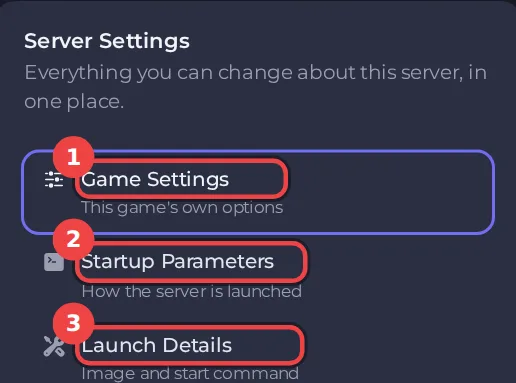
- Game Settings are the options this game offers: server name, passwords, difficulty, world options and so on. They differ for every game, so each game's guide in this knowledge base lists them.
- Startup Parameters are the values the server is launched with. Games built on Java can take extra launch options here. For other games it says the start command is fixed and built from your Game Settings.
- Launch Details show the exact start command, which you cannot edit, and the runtime image the server starts in. The image can only be changed where several are offered, and most people never need to.
If the game keeps options in files that you may want to edit directly, they are listed under the menu. Games that keep everything in Game Settings say No config files for this game, and any files they do write can be edited in Files.
Change a game setting
- Click Game Settings.
- Find the option. Most options have a short description that says what they do and which values are allowed.
- Type the new value, or choose one from the list.
- For text and number fields, click outside the field or press Enter. The panel saves the value as soon as you do. Switches and drop-down lists save the moment you change them. If a value is not allowed, an error tells you what is expected and the old value stays.
- A Restart now banner appears after you save, saying the server must restart before the change takes effect. Restart the server. See How to start, stop, restart and force-stop your server.
Some options are tucked away behind a Show advanced button at the bottom of the list. Open them only if you know what they do.
Good to know
- Changes apply the next time the server starts. A running server keeps its old values until you restart it. Some options say Applies on reinstall. Those are read while the server installs, so a restart will not apply them.
- Change settings here and not in the game's files. The panel writes your Game Settings into the game's files every time the server starts, so a manual edit to those files can be overwritten.
- Console commands are temporary. A setting changed with a console command usually lasts only until the next restart. The value in Game Settings is the one that stays.
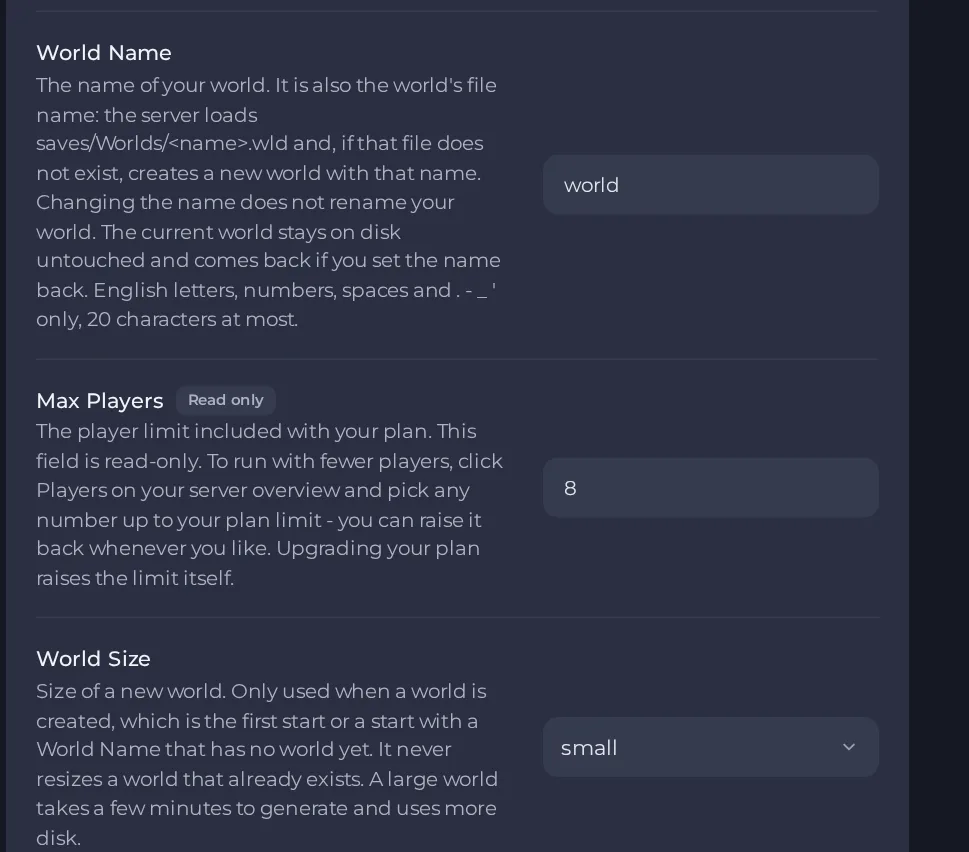
- Some options only matter once. For example, world size and seed apply when a world is created and never change a world that exists.
- Some options are set by your plan. A read-only field, such as the player limit, is controlled by your plan. See How to rename your server and change player slots.
If the server will not start after a change
Open the Console and look for errors. Put the last value back and start again. See How to fix a server that will not start.





