%7B.s%7Banimation%3Ab%201.5s%20ease-out%20both%7D.d%7Banimation-delay%3A.16s%7D%7D%40keyframes%20b%7B0%25%7Bfill%3A%23F4F6FA%7D18%25%7Bfill%3A%23FFE08A%7D34%25%2C70%25%7Bfill%3A%23FF8A1F%7D80%25%7Bfill%3A%23FFE08A%7D100%25%7Bfill%3A%23FF8A1F%7D%7D%3C%2Fstyle%3E%3Cg%20transform%3D%22translate(143%20428.93)%20scale(3.885906)%22%3E%3Cg%20transform%3D%22translate(0%202)%22%20fill%3D%22%23706EF0%22%3E%3Cpath%20d%3D%22M0%200%20H48%20A40%2040%200%200%201%2048%2080%20V100%20H0%20Z%22%2F%3E%3Cpath%20transform%3D%22translate(91.75%200)%22%20d%3D%22M0%200%20L48%200%20L48%2050%20L76%2050%20L76%20100%20L0%20100%20Z%22%2F%3E%3Cpath%20transform%3D%22translate(173%200)%22%20d%3D%22M0%20100%20L58%20-4%20L116%20100%20Z%22%2F%3E%3Cpath%20transform%3D%22translate(264.25%200)%22%20d%3D%22M0%200%20L104%200%20L76%2050%20L76%20100%20L28%20100%20L28%2050%20Z%22%2F%3E%3Cg%20transform%3D%22translate(375%200)%22%3E%3Cpath%20d%3D%22M0%200%20L50%2038%20L50%200%20L100%200%20L100%20100%20L0%20100%20Z%22%20fill%3D%22%23F4F6FA%22%2F%3E%3Crect%20class%3D%22s%22%20x%3D%2247%22%20y%3D%2263%22%20width%3D%2219%22%20height%3D%2230%22%2F%3E%3Crect%20class%3D%22s%20d%22%20x%3D%2274%22%20y%3D%2263%22%20width%3D%2219%22%20height%3D%2230%22%2F%3E%3C%2Fg%3E%3Cpath%20transform%3D%22translate(484.75%200)%22%20d%3D%22M0%200%20L48%200%20L48%2037%20L52%2037%20L52%200%20L100%200%20L100%20100%20L52%20100%20L52%2063%20L48%2063%20L48%20100%20L0%20100%20Z%22%2F%3E%3Cpath%20transform%3D%22translate(588.5%200)%22%20d%3D%22M0%2050%20A53%2053%200%201%200%20106%2050%20A53%2053%200%201%200%200%2050%20Z%22%2F%3E%3Cpath%20transform%3D%22translate(698.25%200)%22%20d%3D%22M25%200%20H102%20V50%20H77%20A25%2025%200%200%201%2077%20100%20H0%20V50%20H25%20A25%2025%200%200%201%2025%200%20Z%22%2F%3E%3Cpath%20transform%3D%22translate(804%200)%22%20d%3D%22M0%200%20L90%200%20L90%2050%20L69%2050%20L69%20100%20L21%20100%20L21%2050%20L0%2050%20Z%22%2F%3E%3C%2Fg%3E%3C%2Fg%3E%3C%2Fsvg%3E)


The Console tab shows what your Rust server prints and lets you type commands. Click in the box that says Type a command, type the command and press Enter. The server must be running.
Open it
- Open your server in the panel and click the Console tab.
- Read the output. The tabs All, Errors, Warnings and Info filter it. Lines from the panel's own start tools begin with
[PlayNHost], and the tab PlayNHost shows them once there are some. - Type a command in Type a command and press Enter.
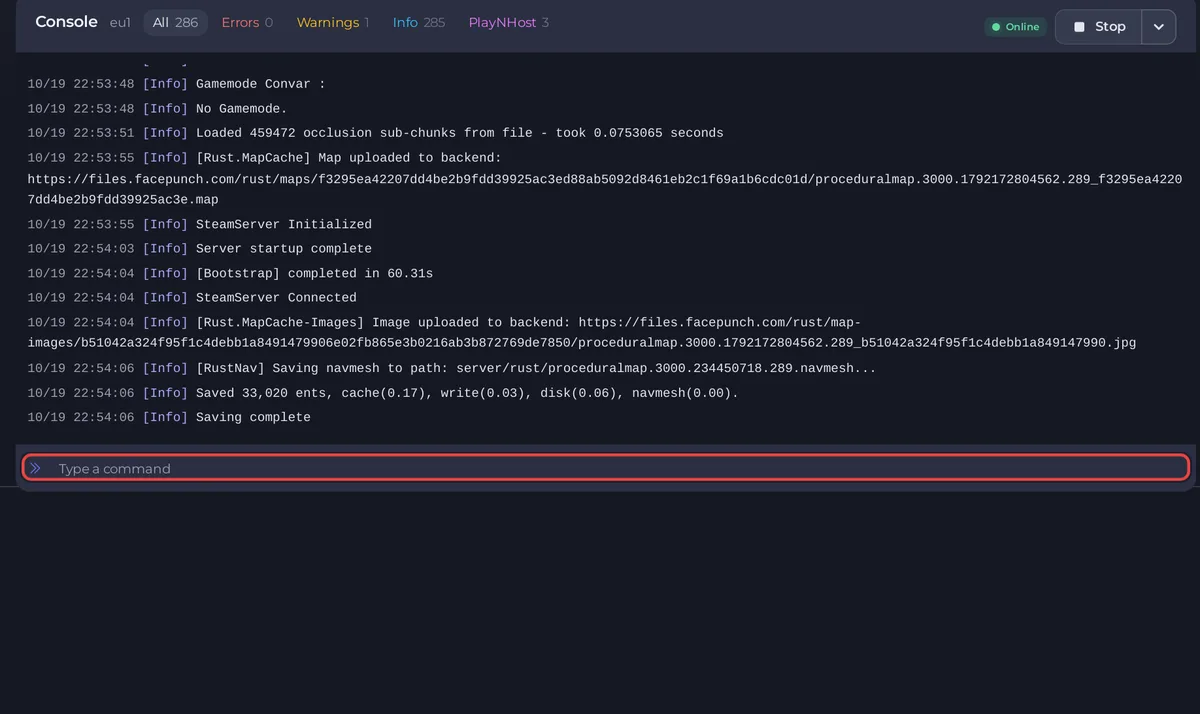
The server must be running for a command to reach the game. You need the console permission: How to let a friend help run your Rust server.
Commands that work on Rust
| Command | What it does |
|---|---|
say <message> | Sends a message to every player's chat, for example say The server restarts in 5 minutes. |
status | Shows the server's name, build and map, and a table of the players who are on, with their ping and time connected. |
serverinfo | Shows players, entity count, server frame rate, uptime and the Rust build. |
server.save | Saves the world now. The Console shows Saving complete. |
server.seed | Shows the seed of the map the server runs. |
users | Lists the connected players with their SteamIDs. |
ownerid <SteamID64> "<name>" | Gives that player owner rights. |
moderatorid <SteamID64> "<name>" | Gives that player moderator rights. |
removeowner <SteamID64> | Takes owner rights away. |
removemoderator <SteamID64> | Takes moderator rights away. |
kick <SteamID64> "<reason>" | Removes a player. They can come back. |
banid <SteamID64> "<name>" "<reason>" | Bans a player. |
unban <SteamID64> | Lifts a ban. |
server.writecfg | Writes the owner, moderator and ban lists to their files. |
These are Rust's own server commands. The panel itself uses say, the owner and moderator commands, server.writecfg, kick, banid and unban when it wipes, updates, adds admins, kicks, bans and lifts bans. Kicking and banning an online player is quicker from the ... menu on their row on the Active players card or the Live map. For the steps, see How to become admin on your Rust server, How to kick, ban and add admins on your Rust server and How to unban a player on your Rust server.
Messages to all players are explained in How to send a message to every player on your Rust server, and the numbers serverinfo shows in How to check entity count and server FPS on your Rust server.
Plugin commands
With Oxide running, oxide.version shows the version and oxide.plugins lists the plugins. With Carbon, use c.version and c.plugins. Permissions and reloading: How to change plugin settings and permissions on your Rust server.
Save a command on Quick Tasks
On Quick Tasks, the Send Command task does not send anything the first time. Run opens Configure task, where you type the command in Command and click Save task. Saving stores it under Your tasks and does not send it. From then on Run sends it. You can pin it to Overview from the same window. See How to schedule tasks and automatic backups.
Stop the server
Use Stop at the top of the page rather than typing a command. It asks Rust to shut down cleanly, which saves the world. See How to start, stop, restart and force-stop your server.
In the game
An owner can open the game's own console with F1 and type the same commands. For your own tools, see How to connect your own RCON tool to your Rust server.
Good to know
- You never type the RCON password to use the Console tab. Only outside tools need it.
- General guide: How to use the console and run commands.





