%7B.s%7Banimation%3Ab%201.5s%20ease-out%20both%7D.d%7Banimation-delay%3A.16s%7D%7D%40keyframes%20b%7B0%25%7Bfill%3A%23F4F6FA%7D18%25%7Bfill%3A%23FFE08A%7D34%25%2C70%25%7Bfill%3A%23FF8A1F%7D80%25%7Bfill%3A%23FFE08A%7D100%25%7Bfill%3A%23FF8A1F%7D%7D%3C%2Fstyle%3E%3Cg%20transform%3D%22translate(143%20428.93)%20scale(3.885906)%22%3E%3Cg%20transform%3D%22translate(0%202)%22%20fill%3D%22%23706EF0%22%3E%3Cpath%20d%3D%22M0%200%20H48%20A40%2040%200%200%201%2048%2080%20V100%20H0%20Z%22%2F%3E%3Cpath%20transform%3D%22translate(91.75%200)%22%20d%3D%22M0%200%20L48%200%20L48%2050%20L76%2050%20L76%20100%20L0%20100%20Z%22%2F%3E%3Cpath%20transform%3D%22translate(173%200)%22%20d%3D%22M0%20100%20L58%20-4%20L116%20100%20Z%22%2F%3E%3Cpath%20transform%3D%22translate(264.25%200)%22%20d%3D%22M0%200%20L104%200%20L76%2050%20L76%20100%20L28%20100%20L28%2050%20Z%22%2F%3E%3Cg%20transform%3D%22translate(375%200)%22%3E%3Cpath%20d%3D%22M0%200%20L50%2038%20L50%200%20L100%200%20L100%20100%20L0%20100%20Z%22%20fill%3D%22%23F4F6FA%22%2F%3E%3Crect%20class%3D%22s%22%20x%3D%2247%22%20y%3D%2263%22%20width%3D%2219%22%20height%3D%2230%22%2F%3E%3Crect%20class%3D%22s%20d%22%20x%3D%2274%22%20y%3D%2263%22%20width%3D%2219%22%20height%3D%2230%22%2F%3E%3C%2Fg%3E%3Cpath%20transform%3D%22translate(484.75%200)%22%20d%3D%22M0%200%20L48%200%20L48%2037%20L52%2037%20L52%200%20L100%200%20L100%20100%20L52%20100%20L52%2063%20L48%2063%20L48%20100%20L0%20100%20Z%22%2F%3E%3Cpath%20transform%3D%22translate(588.5%200)%22%20d%3D%22M0%2050%20A53%2053%200%201%200%20106%2050%20A53%2053%200%201%200%200%2050%20Z%22%2F%3E%3Cpath%20transform%3D%22translate(698.25%200)%22%20d%3D%22M25%200%20H102%20V50%20H77%20A25%2025%200%200%201%2077%20100%20H0%20V50%20H25%20A25%2025%200%200%201%2025%200%20Z%22%2F%3E%3Cpath%20transform%3D%22translate(804%200)%22%20d%3D%22M0%200%20L90%200%20L90%2050%20L69%2050%20L69%20100%20L21%20100%20L21%2050%20L0%2050%20Z%22%2F%3E%3C%2Fg%3E%3C%2Fg%3E%3C%2Fsvg%3E)


Type say and your message in the Console tab and press Enter, for example say The server restarts in 5 minutes. Everyone on the server sees it in the chat. The panel sends its own wipe and update warnings the same way.
Send it now
- Open your server in the panel and click the Console tab. The server must be running.
- Click in Type a command.
- Type
sayand a space, then your message, and press Enter.
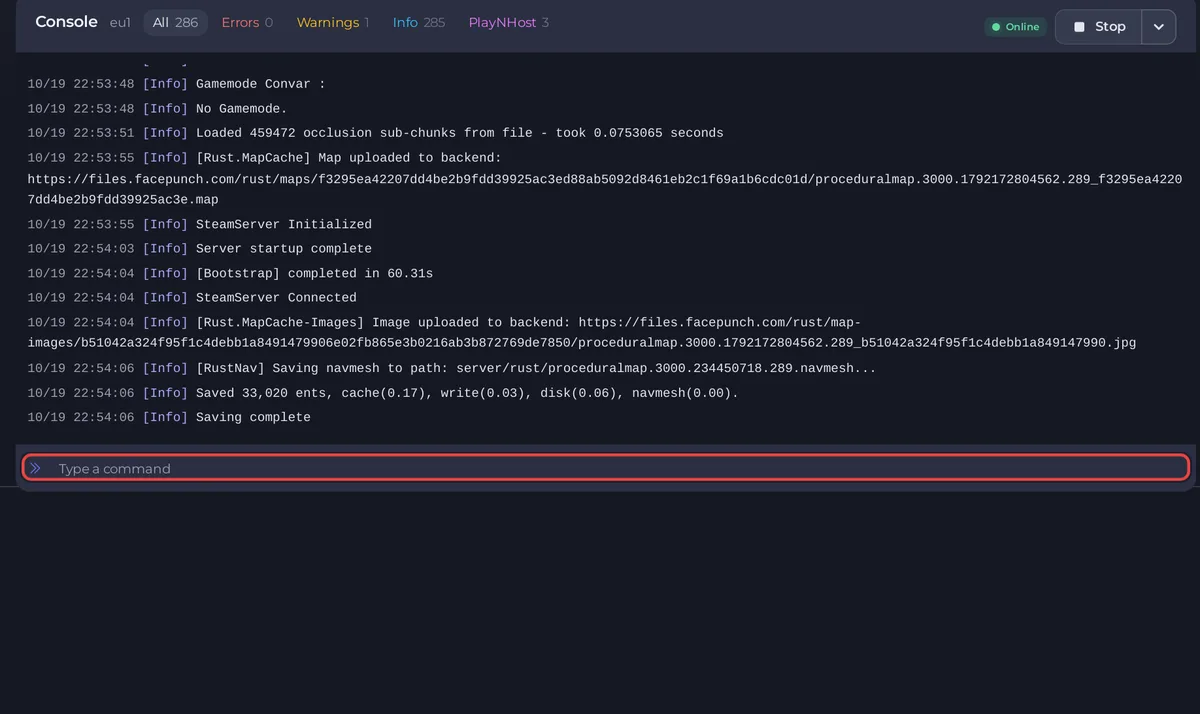
The game shows it in every player's chat, from the server.
Save it as a one-click task
For a message you send often, such as your Discord link or the rules:
- Click Quick Tasks in the left menu.
- Under All tasks, open Default tasks and find Send Command. Click Run. The window Configure task opens.
- In Command, type the whole line, for example
say Join our Discord: your link. The window says it isSent to the console exactly as written. - Give it a Name, and switch on Pin to overview if you want it on your Overview page.
- Click Save task. This stores it under Your tasks and does not send it yet.
- From then on, Run on the task sends the message.

Send it on a schedule
- On Quick Tasks, open the menu of your saved task and choose Schedule….
- Give the schedule a Name and click Next step.
- Choose Repeats and set How often, for example Every hour with Minutes past the hour set to 0.
- Keep Enabled on and click Schedule.
See How to schedule tasks and automatic backups for every option.
Good to know
- Messages warn players before a restart you make by hand: How to restart your Rust server on a schedule.
- The ready-made wipe schedules send their own warnings 10, 5 and 1 minutes ahead: How to set up automatic wipes on your Rust server.
- Sending commands needs the Use the console permission: How to let a friend help run your Rust server.
- More commands: How to use the Console and commands on your Rust server.





