

 MINECRAFT HOSTING
 GAME SERVERS
 Game Panel
The console is the live text output of your game server, with a box to type commands into it. It is how you see that the server started properly, why something failed, and who joined.
Open the console
- Open your server in the panel.
- Click the Console tab. A smaller copy of the console also appears on the Overview page, with an Open console button.
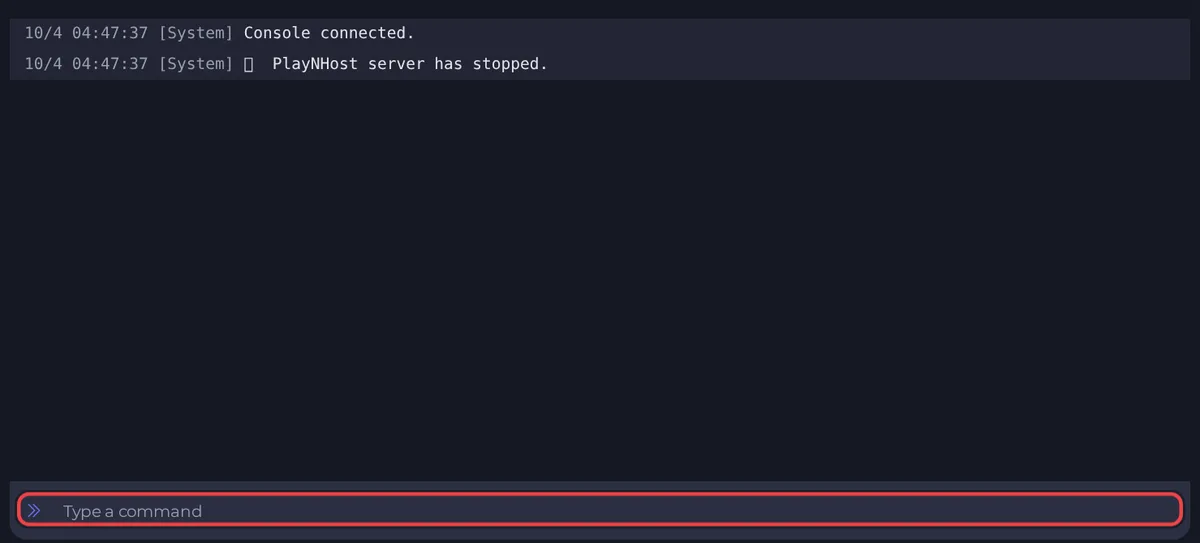
The first line, Console connected., only means your browser is connected to the console. A game prints its own lines once the server is started. When the server is offline the console may only show that line.
Read the output
Each line starts with a timestamp. At the top you can filter what you see:
- All shows everything.
- Errors shows lines the panel recognises as errors, for example lines containing words such as ERROR.
- Warnings shows lines it recognises as warnings.
- Info shows the rest.
For some games extra tabs such as Players, Chat and Commands appear once matching lines are seen. The small console on the Overview page has no filter tabs.
Each filter shows how many lines it holds, so a number beside Errors is a quick sign something needs a look. Use the search icon to find a word in the output, and the expand icon to enlarge the console.
Run a command
- Make sure the server is Online. Commands only work while the game is running.
- Click the box that says Type a command.
- Type the command exactly as the game expects it, without any slash if the game does not use one, and press Enter.
Which commands exist depends entirely on the game. Common ones are saving the world, announcing a message, kicking or banning a player, and changing a setting for the current session. Your game's guide in this knowledge base lists the ones that matter, and the game's own wiki lists the rest.
Console changes are temporary
Changing something with a command usually lasts only until the next restart. The value in Settings, under Game Settings, is the one that stays, because the panel writes it into the game's files every time the server starts. If you want a change to be permanent, make it there. See How to change your server settings.
Run commands without typing
For things you do often, use Quick Tasks. A task can send a command with one click, or on a timer. See How to schedule tasks and automatic backups.
When you contact support
Copy the last 50 to 100 lines of the console into your ticket. It is the single most useful thing you can send. See How to open a support ticket. The ticket form can also attach the most recent console output for you.
Good to know
- People you invite can use the console only if their role allows it. See How to invite friends and give them access.
- Anything typed into the console is recorded in the server's activity log.





