

To back up a RimWorld Open World server on PlayNHost, open Backups and click Start backup in the Create backup card. The backup holds the whole server folder: accounts, colony saves, settlements, factions, the world and your settings. The game also makes its own copy every 6 hours under Backups, and the Backup Data task on Quick Tasks makes one on demand.
Take a panel backup
- Open your server in the panel and click Backups in the left menu.
- In the Create backup card, give it a Name if you like, then click Start backup. The backup appears in the list when it is done.
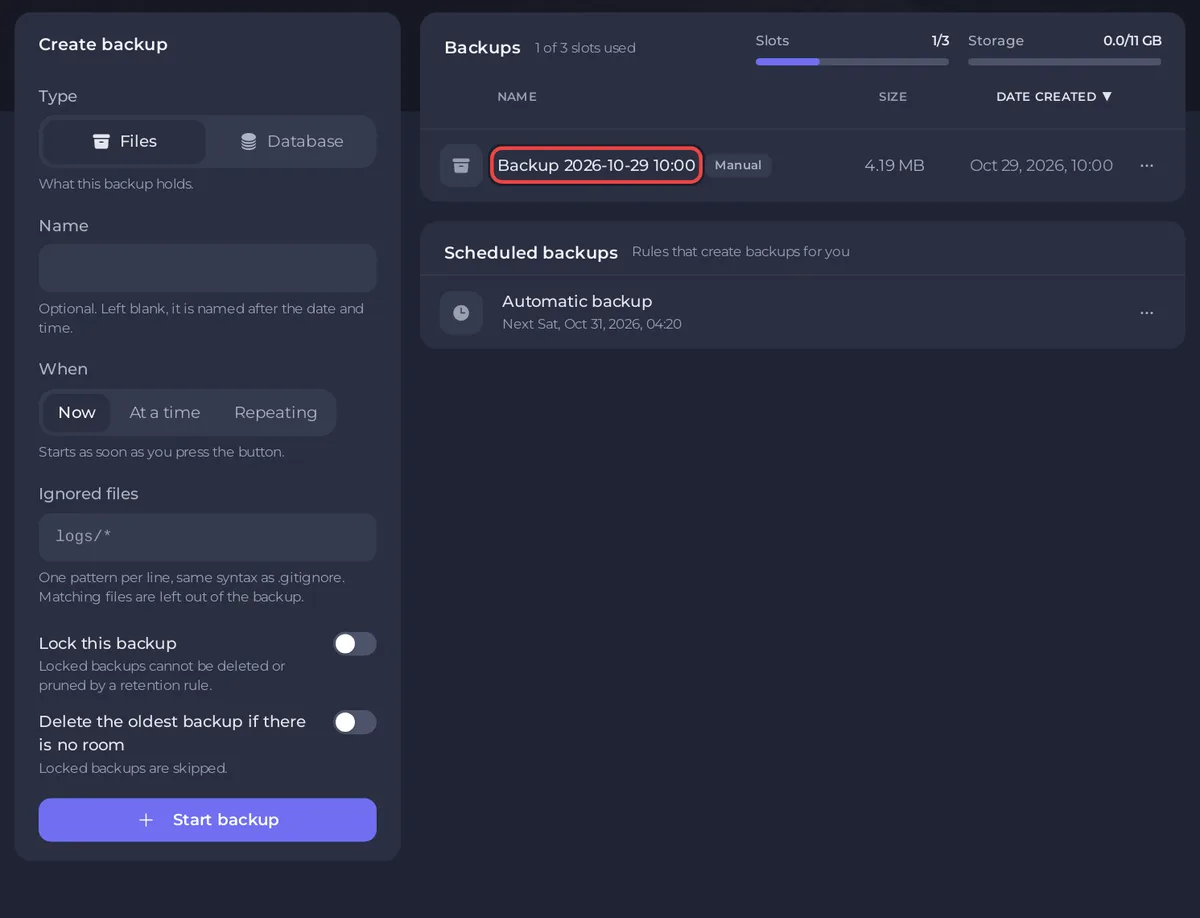
For a backup that is sure to match, stop the server first: Stop sends the game's shutdown command, which saves player files before it quits. Turn on Lock this backup for one you want to keep for good, such as a clean world right after you generated it.
When your plan includes backups, the Automatic backup schedule also "Takes a full backup of your server every night". Its time can be changed on Backups, under Scheduled backups, with Edit. More: How to create, download and restore backups.
Take the game's own backup (Backup Data)
- Click Quick Tasks in the left menu.
- Under All tasks, find Backup Data: "Uses the server's own backup command - player info, saves, world data, settlements and factions into a timestamped folder under Backups."
- Click Run. The server must be Online.
- The Console prints
Backed up save!, and a new folder named likeBackup Date 2026-10-30 Time 06.15.02appears underBackupsin Files.
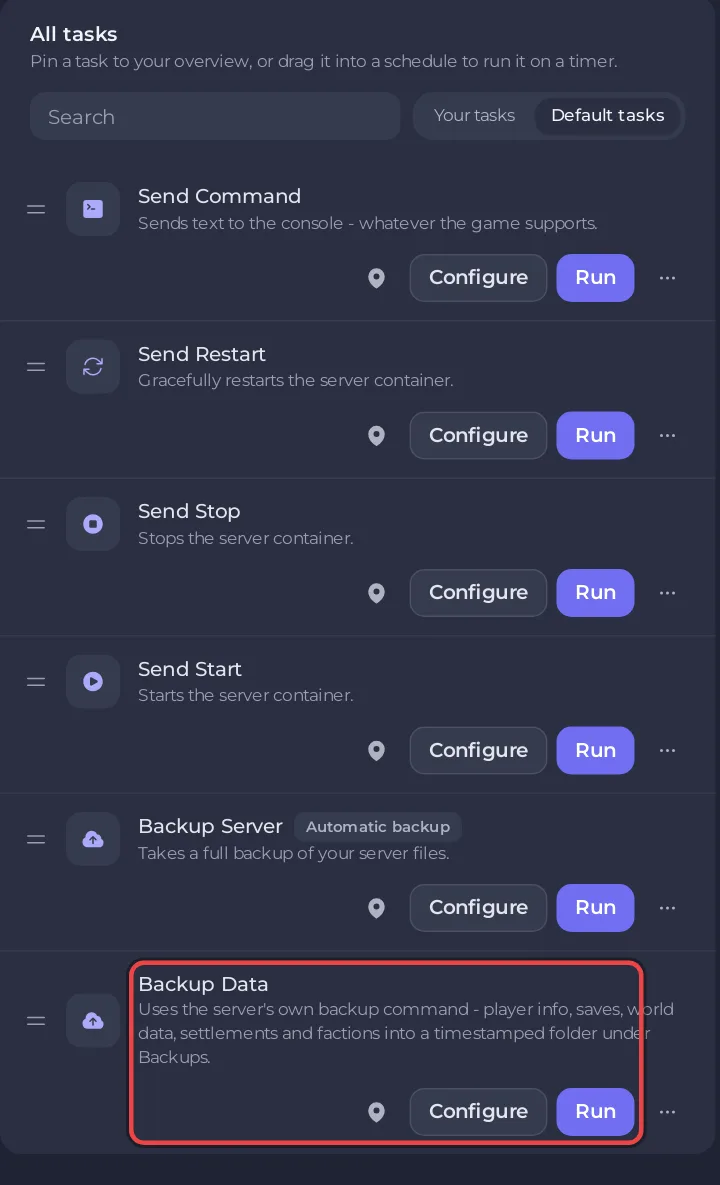
Typing backup in the Console does the same. To run it every day, open the task's options menu and choose Schedule…. See How to schedule tasks and automatic backups.
The game backs up every 6 hours by itself
Open World server v1.0.4 copies Players, Saves, Settlements, Factions, Data and Logs into a new Backup Date ... Time ... folder every 6 hours while it runs. It never deletes old ones. Over weeks, that is many full copies, and each panel backup includes them all.
Every now and then, delete the old folders:
- Click the Files tab and open
Backups. - Select the folders you no longer need, keeping the newest few.
- Click Delete and confirm.
Restore a panel backup
- On Backups, open the menu of the backup and choose Restore to server.
- Read the warning: "This puts your server back the way it was when the backup was taken."
- Leave Delete files that are not in the backup on, so accounts and colonies made after the backup are removed too.
- Click Restore backup. The server stops while the files are replaced.
- Start the server and wait for
Server Launchedin the Console.
The server's accounts, colony saves, settlements and factions are now as they were in the backup. Tell your players before you restore, so nobody is surprised.
To get back only some files, such as one player's save, see How to restore only some files or one area of your map from a backup.
Restore one of the game's own backups
- Click Stop and wait for Offline.
- In Files, open
Backupsand the dated folder you want. It holdsPlayers,Saves,Settlements,Factions,DataandLogs. - Replace the folders of the same names at the top of your server with those. With many files, SFTP is quicker: How to connect to your server files with SFTP.
- Start the server.
Data includes Config.json, which the panel rewrites from Game Settings at every start, so your current settings stay.
What is in each folder?
| Folder | Holds |
|---|---|
Players | One file per account: username, a hash of the password, admin and ban state |
Saves | Each player's colony save, stored on the server |
Settlements | Where each colony sits on the world map |
Factions | Open World factions and their buildings |
Data | Settings, whitelist, difficulty, World.json (the world settings) and WorldGenData/BaseGame.zipx (the world) |
Mods enforced, Mods whitelisted, Mods blacklisted | Your mod lists (not in the game's own backups) |
Related: How to wipe or reset a colony on your RimWorld Open World server and How to move your RimWorld Open World server to PlayNHost.


