

 MINECRAFT HOSTING
 GAME SERVERS
 Game Panel
SFTP lets a program on your computer, such as FileZilla or WinSCP, work directly with your server's files. It is the best way to upload a big world, a whole mod folder or many files at once, because the browser file manager is better for quick edits.
Get your SFTP details
- Open your server in the panel and click the Files tab.
- Click SFTP details.

- Note the Host, Port and Username. (The SFTP details button is shown to people whose role includes creating files, so a limited helper may not see it. See How to invite friends and give them access.) The window also explains the password: it is the same password you sign in to the panel with. For safety, we never show it here.
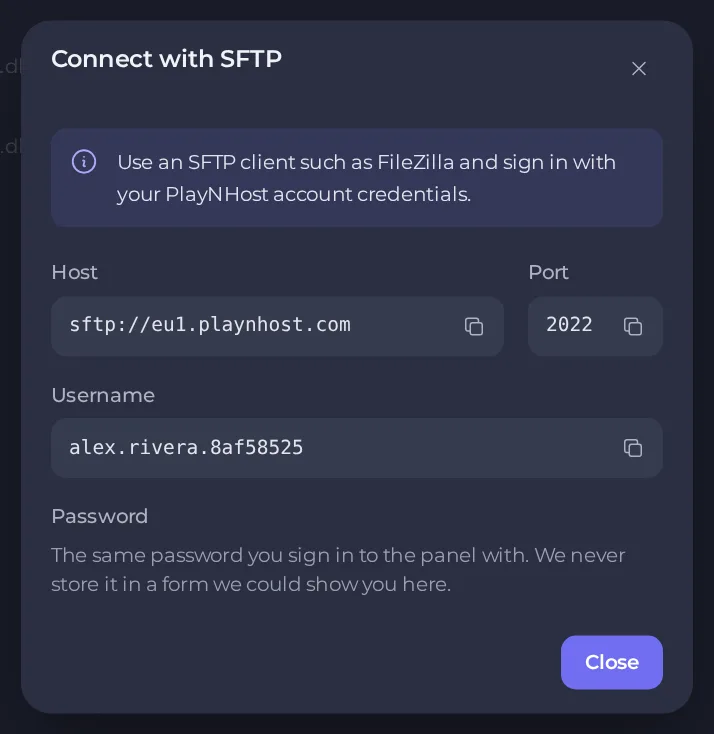
The port is shown in the window, and on our current servers it is 2022, not the usual 22. The username combines your account name and the server's short ID, so each server has its own.
Connect with FileZilla
- Open FileZilla and choose File, then Site Manager, then New site.
- Set Protocol to SFTP - SSH File Transfer Protocol.
- Enter the Host, Port, and User from the panel. Set Logon Type to Normal and enter your panel password.
- Click Connect and accept the host key prompt the first time.
- Your server's files appear on the right. Drag files between your computer on the left and the server on the right.
Connect with WinSCP
- Open WinSCP and choose New Session.
- Set File protocol to SFTP.
- Enter the Host name, Port number, User name and your panel password.
- Click Login.
Sign in with an SSH key instead of a password
If you prefer not to type your password, add a public SSH key to your account. Open Account, then API and SSH keys, give the key a name, paste the public key and click Save. Then choose your private key in FileZilla or WinSCP instead of a password. See How to create API keys and add SSH keys.
Tips
- Stop the server before uploading a world. Changing world files while the game runs can corrupt them.
- Keep the original files on your computer until you have checked the server starts.
- If you cannot connect, check the port and username are exactly as shown in the panel, and that you are using your current panel password.
- If the host name in the panel starts with
sftp://, leave that part out of FileZilla's host box.





