

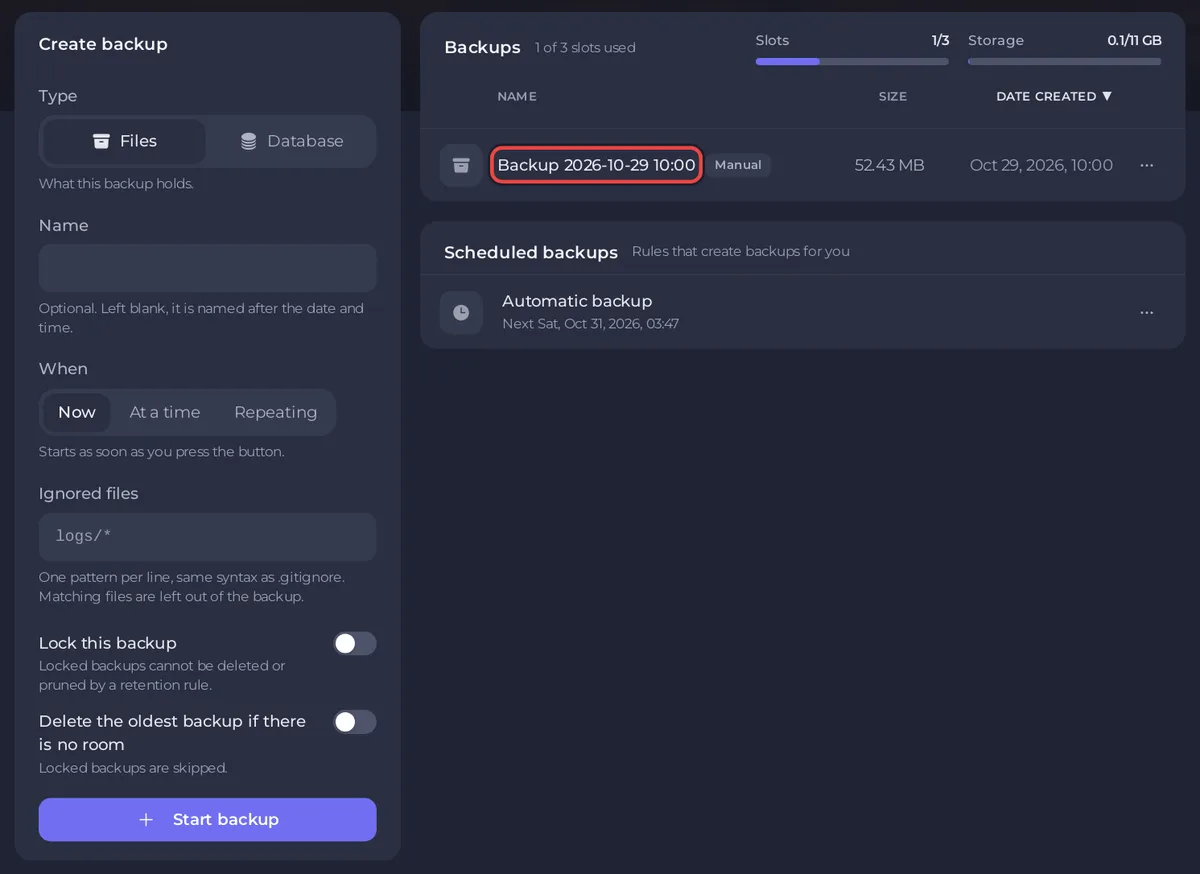
To back up an open.mp server on PlayNHost, open Backups and click Start backup in the Create backup card. The backup holds the whole server folder: gamemodes, scriptfiles, plugins, config.json and bans.json. To go back, choose Restore to server in a backup's menu. When your plan includes backups, an Automatic backup also runs every night.
Take a backup now
- Open your server in the panel and click Backups in the left menu.
- In the Create backup card, leave Type on Files. Give it a Name if you like; left blank, it is named after the date and time.
- Click Start backup. The backup appears in the list with its size when it is done.
Most gamemodes write player data to scriptfiles as they go. For a backup that is sure to match, stop the server first, or take it at a quiet hour.
Turn on Lock this backup for a backup you want to keep for good: "Locked backups cannot be deleted or pruned by a retention rule."
What does an open.mp backup hold?
Everything in your server folder, for example gamemodes, filterscripts, scriptfiles, plugins, components, config.json, bans.json and log.txt. Nothing is left out, so a restore needs nothing else. Leave Ignored files empty: a wrong pattern can leave your players' data out.
A MySQL database you created under Databases is not in the files. Back it up separately: choose Database as the Type and pick it under Choose a database. The panel dumps it and keeps it with your other backups. See How to use databases with your server.
How does the Automatic backup work?
It is a schedule the panel sets up for you when your plan has backup slots. It "Takes a full backup of your server every night", at a time the panel picks for your server between 02:20 and 06:20 Central European time, also when the server is stopped. When your backup allowance is full, the oldest unlocked backup makes room for the newest.
To change its time, open Backups, find it under Scheduled backups and click Edit. More: How to schedule tasks and automatic backups.
Restore a backup
- On Backups, open the menu of the backup and choose Restore to server.
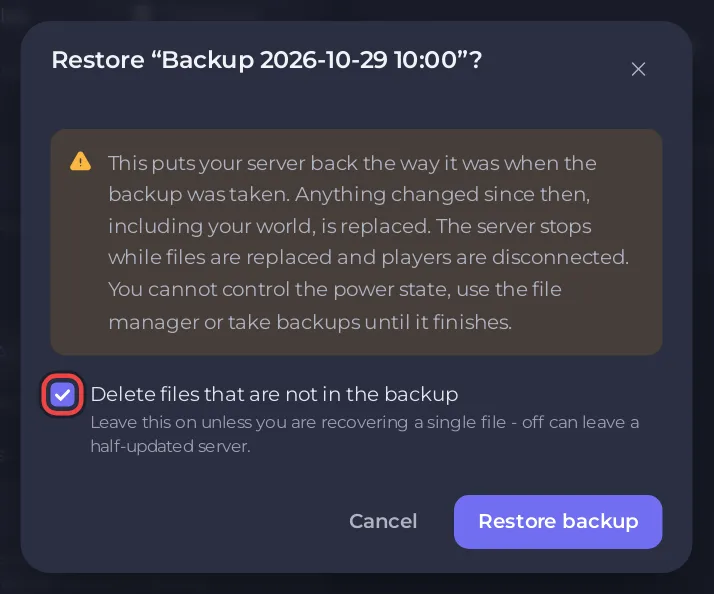
- Read the warning: "This puts your server back the way it was when the backup was taken. Anything changed since then, including your world, is replaced."
- Leave Delete files that are not in the backup on, unless you only want some files back.
- Click Restore backup. The server stops while the files are replaced, and players are disconnected.
- Start the server and check the Console for
Legacy Network started on port.
Take a fresh backup before you restore if you might want today's state back. To get only one file back, such as bans.json or one account in scriptfiles, see How to restore only some files or one area of your map from a backup.
How do I keep a copy on my PC?
Choose Download in a backup's menu. You get the whole server folder as one archive, which also works to move your server elsewhere. The general guide: How to create, download and restore backups.
Related: How to upload your own gamemode to your open.mp server and How to update your open.mp server.


