

To change the name or the join password of an open.mp server on PlayNHost, open Settings, click config.json under Config files, edit Name or Password and click Save & restart. Player slots are changed on Overview, with the pencil on the Slots row, up to the number your plan includes.
Change the server name
- Open your server in the panel and click Settings in the left menu.
- In the list on the left, under Config files, click
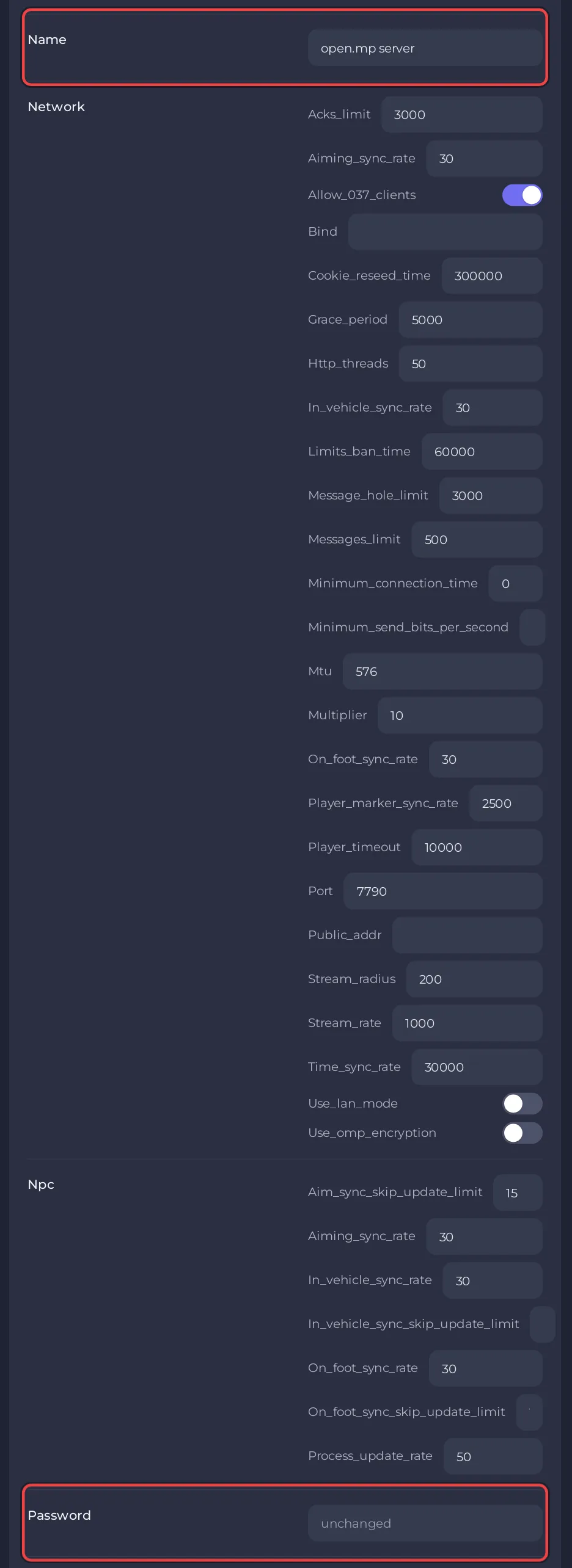
config.json. A card titledconfig.jsonopens: "The settings in config.json, without editing the file by hand." - Find Name and type the name players should see in the launcher and when they connect. A new server is called
open.mp server. - Click Save & restart. The panel says "Saved, and the server is restarting to apply the changes." Click Save only instead to apply it at the next start.
The Server Name row on the server card on Overview is a different name: it renames the server in your panel only. Players never see it.
Set or remove a join password
- Open the same
config.jsoncard under Settings, Config files. - Type a password in Password. The field hides what you type.
- Click Save & restart.
From then on the open.mp launcher asks every player "This server is protected, please enter password." To open the server to everyone again, empty Password and save and restart.
To set a password only until the next restart, type password and the new password in the Console. The server answers Setting server password to: and the password. password 0 removes it until the next restart, and password alone shows the current one. These commands come from open.mp's server guide.
Change the player slots
- On Overview, find the server card, with the game logo and Join, and click the pencil on the Slots row ("Change the player slot count").
- The Edit Player Slots window says "Your plan allows up to" your plan's number of players, and that "This will restart your server."
- Type a number, or use Increase and Decrease, and click Update. The server restarts with the new limit.
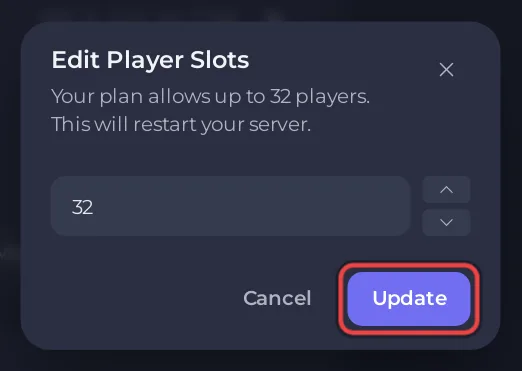
The panel writes this number into max_players in config.json before every start, so changing max_players by hand in the file has no effect. Under Settings, Game Settings, the same number shows as Max Players with a Read only badge. NPC bots, if your gamemode uses them, take slots from the same limit.
Questions people ask
Can I have more slots than my plan includes? No. The Edit Player Slots window stops at your plan's number, which the storefront lists for each open.mp plan.
Why is my change not showing? Changes to config.json apply at the next start. Click Save & restart, or restart the server yourself.
Other config.json options, such as the language, website and Discord invite the launcher shows, are in open.mp config.json settings reference. To keep players out for good, see How to kick, ban and unban players on your open.mp server.


