%7B.s%7Banimation%3Ab%201.5s%20ease-out%20both%7D.d%7Banimation-delay%3A.16s%7D%7D%40keyframes%20b%7B0%25%7Bfill%3A%23F4F6FA%7D18%25%7Bfill%3A%23FFE08A%7D34%25%2C70%25%7Bfill%3A%23FF8A1F%7D80%25%7Bfill%3A%23FFE08A%7D100%25%7Bfill%3A%23FF8A1F%7D%7D%3C%2Fstyle%3E%3Cg%20transform%3D%22translate(143%20428.93)%20scale(3.885906)%22%3E%3Cg%20transform%3D%22translate(0%202)%22%20fill%3D%22%23706EF0%22%3E%3Cpath%20d%3D%22M0%200%20H48%20A40%2040%200%200%201%2048%2080%20V100%20H0%20Z%22%2F%3E%3Cpath%20transform%3D%22translate(91.75%200)%22%20d%3D%22M0%200%20L48%200%20L48%2050%20L76%2050%20L76%20100%20L0%20100%20Z%22%2F%3E%3Cpath%20transform%3D%22translate(173%200)%22%20d%3D%22M0%20100%20L58%20-4%20L116%20100%20Z%22%2F%3E%3Cpath%20transform%3D%22translate(264.25%200)%22%20d%3D%22M0%200%20L104%200%20L76%2050%20L76%20100%20L28%20100%20L28%2050%20Z%22%2F%3E%3Cg%20transform%3D%22translate(375%200)%22%3E%3Cpath%20d%3D%22M0%200%20L50%2038%20L50%200%20L100%200%20L100%20100%20L0%20100%20Z%22%20fill%3D%22%23F4F6FA%22%2F%3E%3Crect%20class%3D%22s%22%20x%3D%2247%22%20y%3D%2263%22%20width%3D%2219%22%20height%3D%2230%22%2F%3E%3Crect%20class%3D%22s%20d%22%20x%3D%2274%22%20y%3D%2263%22%20width%3D%2219%22%20height%3D%2230%22%2F%3E%3C%2Fg%3E%3Cpath%20transform%3D%22translate(484.75%200)%22%20d%3D%22M0%200%20L48%200%20L48%2037%20L52%2037%20L52%200%20L100%200%20L100%20100%20L52%20100%20L52%2063%20L48%2063%20L48%20100%20L0%20100%20Z%22%2F%3E%3Cpath%20transform%3D%22translate(588.5%200)%22%20d%3D%22M0%2050%20A53%2053%200%201%200%20106%2050%20A53%2053%200%201%200%200%2050%20Z%22%2F%3E%3Cpath%20transform%3D%22translate(698.25%200)%22%20d%3D%22M25%200%20H102%20V50%20H77%20A25%2025%200%200%201%2077%20100%20H0%20V50%20H25%20A25%2025%200%200%201%2025%200%20Z%22%2F%3E%3Cpath%20transform%3D%22translate(804%200)%22%20d%3D%22M0%200%20L90%200%20L90%2050%20L69%2050%20L69%20100%20L21%20100%20L21%2050%20L0%2050%20Z%22%2F%3E%3C%2Fg%3E%3C%2Fg%3E%3C%2Fsvg%3E)


Overview is the page you land on when you open your Enshrouded server. Its cards show the server's address and slots, everything your friends need to join, who is online, how hard the server works, and the tasks you pinned. Start, stop and restart the server with the buttons at the top.

The cards
| Card | What it shows | Guide |
|---|---|---|
| Server details | The server's name in the panel, the Server Address with a copy button, the Slots with a pencil to change them, and the region. | Player slots |
| Get your server ready | The four first steps, for the owner, during the first 30 days. | See below |
| Play with friends | The Server name players search for, the Password, the three join steps, Copy invite message and Can’t connect?. | Invite friends |
| Console | The last lines the server printed. Open console shows more. | Console |
| Usage | CPU, RAM and storage, live or over the past 6 hours or day. | Lag |
| Active players | Who is on and for how long, and Edit slots. | Who is online |
| Quick tasks | The tasks you pinned, as one-click buttons. | Quick Tasks |
| Recent activity | The last things done on the server, by whom. | Activity |
Two cards only appear when they matter: This server ran out of memory, after the server needed more memory than its plan gives, and Disk is running out on this server, when storage went above 85% of the limit on several of the last days. See How much RAM does an Enshrouded server need?
The Server name on Play with friends is the name in the game's list, set under Settings, Game Settings. The name on Server details is only for you in the panel. See How to change your Enshrouded server name and password.
Get your server ready
The server's owner sees this card for the first 30 days. It ticks itself as things happen, and the count at the top says how many of the four are done:
- Server started. Until then: "Press Start, then wait for the Console to say it is ready." with a Start server button.
- First player joined. Invite friends takes you to the Play with friends card.
- Two players at once: two of you were on the server together.
- A backup is saved. Back up now starts one.
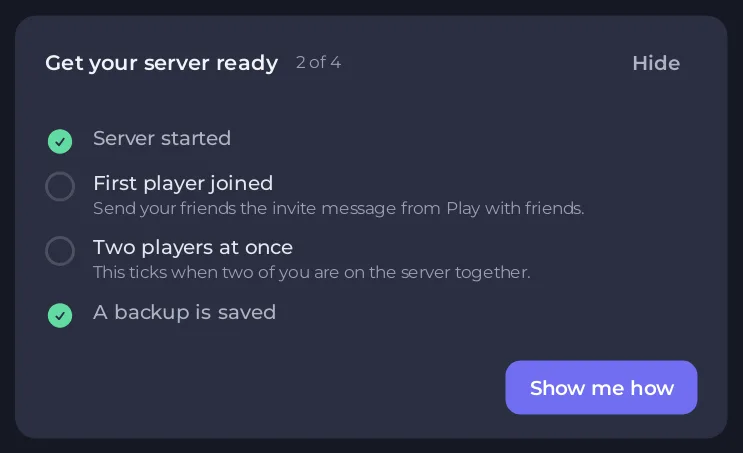
The player steps tick from the same player count as Active players. The card goes away when all four are done, or when you click Hide.
Arrange the cards
- Click Organize at the top of Overview. The cards start to wiggle.
- Drag the cards into the order you want. Server details always stays first.
- Make a card Wide to span both columns, or Normal. Hide a card you do not use.
- Add card brings back hidden cards, and adds the optional Shortcuts card with buttons to the pages you open most.
- Click Done to keep the order, or Cancel. Reset to default puts back the panel's order and every hidden card.

Your order is saved for you on this server. Each team member arranges their own. Organize is not offered on phones, which show the cards in the order you chose on a computer or tablet.
Good to know
- The Worlds page, right under Overview in the left menu, has your world, its earlier copies, upload and download: see How to use the Worlds page on your Enshrouded server.
- A tour of the whole panel: Your first five minutes: a tour of the server panel.





