%7B.s%7Banimation%3Ab%201.5s%20ease-out%20both%7D.d%7Banimation-delay%3A.16s%7D%7D%40keyframes%20b%7B0%25%7Bfill%3A%23F4F6FA%7D18%25%7Bfill%3A%23FFE08A%7D34%25%2C70%25%7Bfill%3A%23FF8A1F%7D80%25%7Bfill%3A%23FFE08A%7D100%25%7Bfill%3A%23FF8A1F%7D%7D%3C%2Fstyle%3E%3Cg%20transform%3D%22translate(143%20428.93)%20scale(3.885906)%22%3E%3Cg%20transform%3D%22translate(0%202)%22%20fill%3D%22%23706EF0%22%3E%3Cpath%20d%3D%22M0%200%20H48%20A40%2040%200%200%201%2048%2080%20V100%20H0%20Z%22%2F%3E%3Cpath%20transform%3D%22translate(91.75%200)%22%20d%3D%22M0%200%20L48%200%20L48%2050%20L76%2050%20L76%20100%20L0%20100%20Z%22%2F%3E%3Cpath%20transform%3D%22translate(173%200)%22%20d%3D%22M0%20100%20L58%20-4%20L116%20100%20Z%22%2F%3E%3Cpath%20transform%3D%22translate(264.25%200)%22%20d%3D%22M0%200%20L104%200%20L76%2050%20L76%20100%20L28%20100%20L28%2050%20Z%22%2F%3E%3Cg%20transform%3D%22translate(375%200)%22%3E%3Cpath%20d%3D%22M0%200%20L50%2038%20L50%200%20L100%200%20L100%20100%20L0%20100%20Z%22%20fill%3D%22%23F4F6FA%22%2F%3E%3Crect%20class%3D%22s%22%20x%3D%2247%22%20y%3D%2263%22%20width%3D%2219%22%20height%3D%2230%22%2F%3E%3Crect%20class%3D%22s%20d%22%20x%3D%2274%22%20y%3D%2263%22%20width%3D%2219%22%20height%3D%2230%22%2F%3E%3C%2Fg%3E%3Cpath%20transform%3D%22translate(484.75%200)%22%20d%3D%22M0%200%20L48%200%20L48%2037%20L52%2037%20L52%200%20L100%200%20L100%20100%20L52%20100%20L52%2063%20L48%2063%20L48%20100%20L0%20100%20Z%22%2F%3E%3Cpath%20transform%3D%22translate(588.5%200)%22%20d%3D%22M0%2050%20A53%2053%200%201%200%20106%2050%20A53%2053%200%201%200%200%2050%20Z%22%2F%3E%3Cpath%20transform%3D%22translate(698.25%200)%22%20d%3D%22M25%200%20H102%20V50%20H77%20A25%2025%200%200%201%2077%20100%20H0%20V50%20H25%20A25%2025%200%200%201%2025%200%20Z%22%2F%3E%3Cpath%20transform%3D%22translate(804%200)%22%20d%3D%22M0%200%20L90%200%20L90%2050%20L69%2050%20L69%20100%20L21%20100%20L21%2050%20L0%2050%20Z%22%2F%3E%3C%2Fg%3E%3C%2Fg%3E%3C%2Fsvg%3E)


Quick Tasks, in the left menu, is where you run a task now, pin it to Overview, or put it on a timer. For Enshrouded it has three ready-made schedules: Daily restart, Fresh world and Automatic backup.
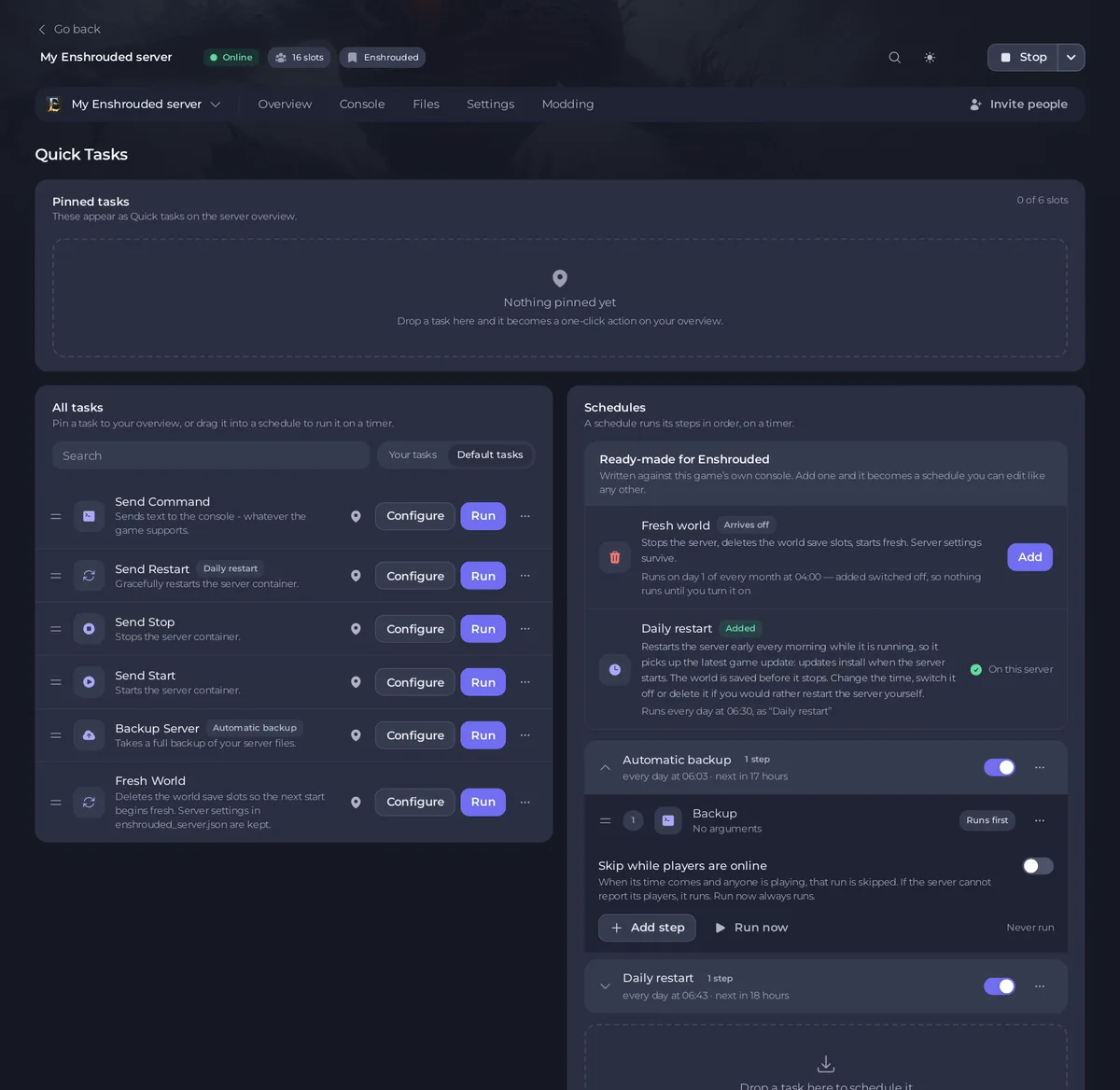
The page
- Pinned tasks: the tasks shown as buttons in the Quick tasks card on Overview. Drop a task here to pin it.
- All tasks: every task, with a Search box and the filters Your tasks and Default tasks.
- Schedules: the schedules on your server, with the Ready-made for Enshrouded list above them.
The ready-made schedules
| Schedule | What it does | On a new server |
|---|---|---|
| Daily restart | Restarts the server early every morning while it is running, so it installs the latest game update. The world is saved before it stops. | On |
| Automatic backup | Takes a full backup every night. When your backup slots are full, the oldest unlocked one makes room. | On, if your plan has backup space |
| Fresh world | On the 1st of the month: stops the server, deletes the world and the game's copies in savegame, and starts it again with a new world. Your settings are kept. | Off. It arrives off when you add it |
A ready-made schedule that is already on your server says On this server. Click Add to put one on your server. More: How to restart your Enshrouded server on a schedule, How to back up and restore your Enshrouded world and How to start a fresh Enshrouded world.
The default tasks
| Task | What it does |
|---|---|
| Send Restart | Restarts the server now. |
| Send Stop | Stops the server. The game saves the world as it stops. |
| Send Start | Starts the server. |
| Backup Server | Takes a full backup now. |
| Fresh World | Deletes the world so the next start begins fresh. It asks first. |
| Send Command | Sends text to the console. Enshrouded takes no console commands, so it does nothing on this game. Run on it opens Configure task to ask for the text first. |
Run, pin or schedule a task
- Run runs it now. Fresh World first opens the window Run Fresh World?, which lists what is deleted under Deleted from Files and offers Back up the server first.
- A task that needs a value, such as Send Command, does not run straight away: Run opens Configure task. Save task there saves your version under Your tasks, where you run it.
- Pin to overview, in the task's menu, adds it to the Quick tasks card on Overview.
- Schedule…, in the same menu, puts it on a timer: give it a Name, click Next step, choose Once or Repeats and the time, and click Schedule.
Manage a schedule
Each schedule has a switch to turn it on or off, and a ... menu with Edit schedule…, Run now and Delete schedule. Click a schedule to open it: you see its steps, Add step, Run now, when it last ran, and the switch Skip while players are online. The panel counts Enshrouded's players, so a restart can wait for an empty server: see How to restart your Enshrouded server on a schedule.
The page cannot change the time of a schedule that exists. For another time, make a new schedule and switch the old one off. The time of the Automatic backup can be changed on the Backups page, with Edit under Scheduled backups.
Good to know
- The full guide to the page: How to schedule tasks and automatic backups.
- To let a friend use this page, give their role the permissions under Schedules: see How to let a friend help run your Enshrouded server.





