%7B.s%7Banimation%3Ab%201.5s%20ease-out%20both%7D.d%7Banimation-delay%3A.16s%7D%7D%40keyframes%20b%7B0%25%7Bfill%3A%23F4F6FA%7D18%25%7Bfill%3A%23FFE08A%7D34%25%2C70%25%7Bfill%3A%23FF8A1F%7D80%25%7Bfill%3A%23FFE08A%7D100%25%7Bfill%3A%23FF8A1F%7D%7D%3C%2Fstyle%3E%3Cg%20transform%3D%22translate(143%20428.93)%20scale(3.885906)%22%3E%3Cg%20transform%3D%22translate(0%202)%22%20fill%3D%22%23706EF0%22%3E%3Cpath%20d%3D%22M0%200%20H48%20A40%2040%200%200%201%2048%2080%20V100%20H0%20Z%22%2F%3E%3Cpath%20transform%3D%22translate(91.75%200)%22%20d%3D%22M0%200%20L48%200%20L48%2050%20L76%2050%20L76%20100%20L0%20100%20Z%22%2F%3E%3Cpath%20transform%3D%22translate(173%200)%22%20d%3D%22M0%20100%20L58%20-4%20L116%20100%20Z%22%2F%3E%3Cpath%20transform%3D%22translate(264.25%200)%22%20d%3D%22M0%200%20L104%200%20L76%2050%20L76%20100%20L28%20100%20L28%2050%20Z%22%2F%3E%3Cg%20transform%3D%22translate(375%200)%22%3E%3Cpath%20d%3D%22M0%200%20L50%2038%20L50%200%20L100%200%20L100%20100%20L0%20100%20Z%22%20fill%3D%22%23F4F6FA%22%2F%3E%3Crect%20class%3D%22s%22%20x%3D%2247%22%20y%3D%2263%22%20width%3D%2219%22%20height%3D%2230%22%2F%3E%3Crect%20class%3D%22s%20d%22%20x%3D%2274%22%20y%3D%2263%22%20width%3D%2219%22%20height%3D%2230%22%2F%3E%3C%2Fg%3E%3Cpath%20transform%3D%22translate(484.75%200)%22%20d%3D%22M0%200%20L48%200%20L48%2037%20L52%2037%20L52%200%20L100%200%20L100%20100%20L52%20100%20L52%2063%20L48%2063%20L48%20100%20L0%20100%20Z%22%2F%3E%3Cpath%20transform%3D%22translate(588.5%200)%22%20d%3D%22M0%2050%20A53%2053%200%201%200%20106%2050%20A53%2053%200%201%200%200%2050%20Z%22%2F%3E%3Cpath%20transform%3D%22translate(698.25%200)%22%20d%3D%22M25%200%20H102%20V50%20H77%20A25%2025%200%200%201%2077%20100%20H0%20V50%20H25%20A25%2025%200%200%201%2025%200%20Z%22%2F%3E%3Cpath%20transform%3D%22translate(804%200)%22%20d%3D%22M0%200%20L90%200%20L90%2050%20L69%2050%20L69%20100%20L21%20100%20L21%2050%20L0%2050%20Z%22%2F%3E%3C%2Fg%3E%3C%2Fg%3E%3C%2Fsvg%3E)


The Console tab shows what your Enshrouded server prints. Use it to see that the server is ready and who joins. Keen Games documents no server commands for Enshrouded, and what you type in the command box does not reach the game.
Open the Console
- Open your server in the panel.
- Click the Console tab. A smaller copy is also on the Overview page, with Open console.
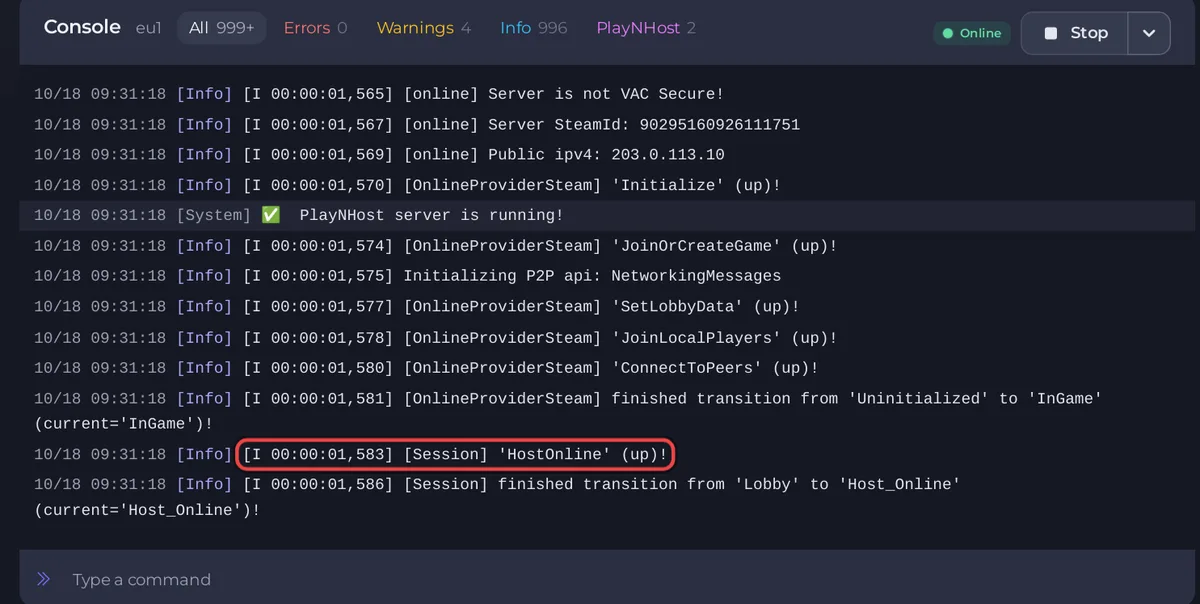
See How to use the console and run commands for the filters, the search and how to copy the text.
Lines worth knowing
| What you see | What it means |
|---|---|
Steam lines such as downloading and Success. | Auto Update checking for a newer server version at the start. |
Update failed, retrying without the old build record | The update did not report success, so the server is repairing its files and starting again. Let it finish. |
[Session] 'HostOnline' (up)! | The server is ready. The badge changes to Online. Keen Games documents this line. |
[server] Load deserialization took ... | The server finished loading its world. Keen Games documents this line too. |
[server] Player '...' logged in with Permissions: | A player joined. The panel uses this line for the Active players card. |
[server] Remove Player '...' | A player left. |
Session block with m#0, m#1, ... | A status report about every 30 seconds. m#0 is the server, the others are connected players. |
Trigger gameflow shutdown | The server is stopping and saving the world. |
If the server refuses to start because of a setting, the Console names the bad value: see Your Enshrouded server will not start after a settings change.
Why there are no commands
Keen Games documents no console commands and no remote console for Enshrouded dedicated servers, and the server is started without a way to type into it. Some websites list chat commands such as /kick. Keen Games does not document them, so we do not list them. Anything you type in the Type a command box, and the Send Command task on Quick Tasks, does not reach the game.
Do these tasks in the panel instead:
| To do this | Use |
|---|---|
| Start, stop, restart | The buttons at the top, or Quick Tasks |
| Change difficulty, chat, permissions | Gameplay Settings |
| See who is online | Active players |
| Save the world | Stop the server. A clean stop saves the world, and the game also saves every few minutes while players are on |
| Go back to an earlier save | Rewind |
| Kick or ban | An admin does it in the game: How to become admin |
When you contact support
Copy the last 50 to 100 lines of the Console into your ticket. See How to open a support ticket.





