%7B.s%7Banimation%3Ab%201.5s%20ease-out%20both%7D.d%7Banimation-delay%3A.16s%7D%7D%40keyframes%20b%7B0%25%7Bfill%3A%23F4F6FA%7D18%25%7Bfill%3A%23FFE08A%7D34%25%2C70%25%7Bfill%3A%23FF8A1F%7D80%25%7Bfill%3A%23FFE08A%7D100%25%7Bfill%3A%23FF8A1F%7D%7D%3C%2Fstyle%3E%3Cg%20transform%3D%22translate(143%20428.93)%20scale(3.885906)%22%3E%3Cg%20transform%3D%22translate(0%202)%22%20fill%3D%22%23706EF0%22%3E%3Cpath%20d%3D%22M0%200%20H48%20A40%2040%200%200%201%2048%2080%20V100%20H0%20Z%22%2F%3E%3Cpath%20transform%3D%22translate(91.75%200)%22%20d%3D%22M0%200%20L48%200%20L48%2050%20L76%2050%20L76%20100%20L0%20100%20Z%22%2F%3E%3Cpath%20transform%3D%22translate(173%200)%22%20d%3D%22M0%20100%20L58%20-4%20L116%20100%20Z%22%2F%3E%3Cpath%20transform%3D%22translate(264.25%200)%22%20d%3D%22M0%200%20L104%200%20L76%2050%20L76%20100%20L28%20100%20L28%2050%20Z%22%2F%3E%3Cg%20transform%3D%22translate(375%200)%22%3E%3Cpath%20d%3D%22M0%200%20L50%2038%20L50%200%20L100%200%20L100%20100%20L0%20100%20Z%22%20fill%3D%22%23F4F6FA%22%2F%3E%3Crect%20class%3D%22s%22%20x%3D%2247%22%20y%3D%2263%22%20width%3D%2219%22%20height%3D%2230%22%2F%3E%3Crect%20class%3D%22s%20d%22%20x%3D%2274%22%20y%3D%2263%22%20width%3D%2219%22%20height%3D%2230%22%2F%3E%3C%2Fg%3E%3Cpath%20transform%3D%22translate(484.75%200)%22%20d%3D%22M0%200%20L48%200%20L48%2037%20L52%2037%20L52%200%20L100%200%20L100%20100%20L52%20100%20L52%2063%20L48%2063%20L48%20100%20L0%20100%20Z%22%2F%3E%3Cpath%20transform%3D%22translate(588.5%200)%22%20d%3D%22M0%2050%20A53%2053%200%201%200%20106%2050%20A53%2053%200%201%200%200%2050%20Z%22%2F%3E%3Cpath%20transform%3D%22translate(698.25%200)%22%20d%3D%22M25%200%20H102%20V50%20H77%20A25%2025%200%200%201%2077%20100%20H0%20V50%20H25%20A25%2025%200%200%201%2025%200%20Z%22%2F%3E%3Cpath%20transform%3D%22translate(804%200)%22%20d%3D%22M0%200%20L90%200%20L90%2050%20L69%2050%20L69%20100%20L21%20100%20L21%2050%20L0%2050%20Z%22%2F%3E%3C%2Fg%3E%3C%2Fg%3E%3C%2Fsvg%3E)


Change the name and the password on the Settings tab, under Game Settings, then restart the server. Both reach the game when the server next starts.
Change them
- Open your server in the panel and click the Settings tab.
- In the left card Server Settings, click Game Settings.
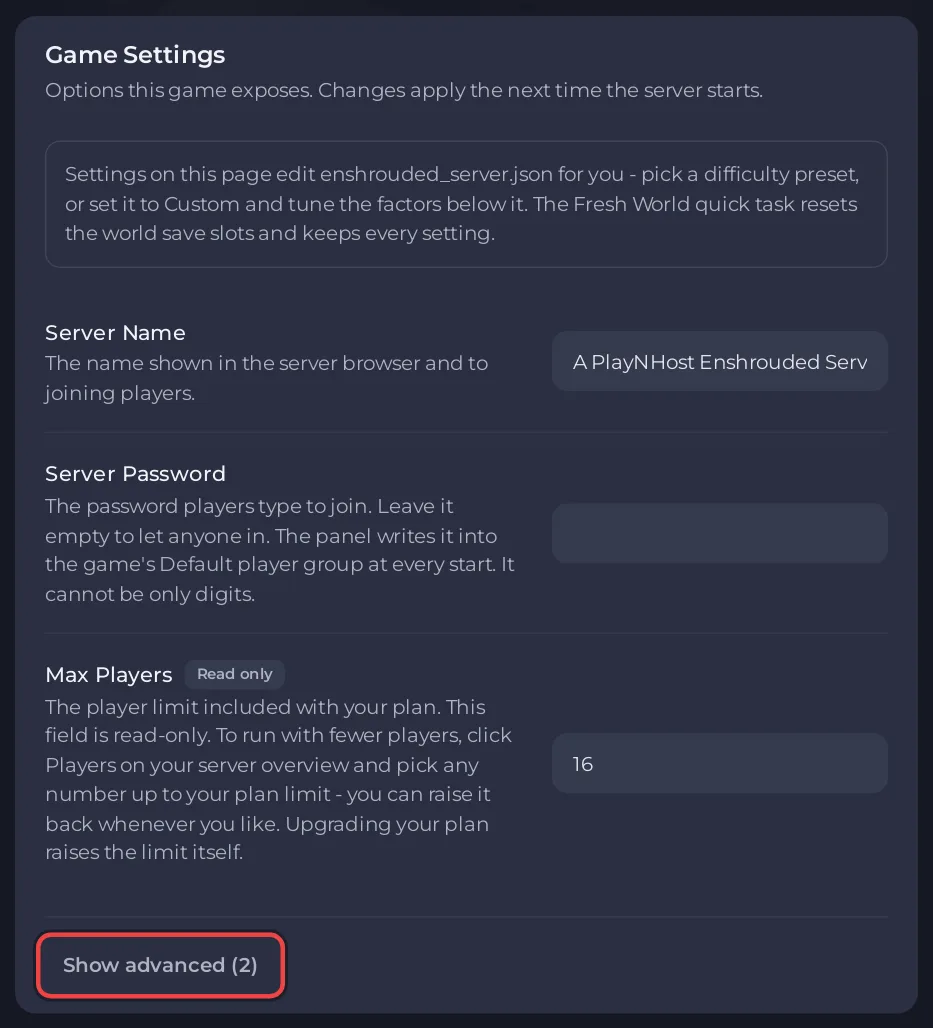
- Click the Server Name field and type the name you want. Click outside the field, or press Enter. The panel saves it.
- Click the Server Password field and type the password your players will use. Click outside the field, or press Enter.
- Restart the server. See How to start, stop, restart and force-stop your server.
Check the Play with friends card on Overview. It shows the new name and password, and Copy invite message copies them for your friends.
Password rules
- The password can be up to 64 characters.
- It cannot be only digits. Add a letter. The panel refuses a password made only of numbers.
- Leave it empty to let anyone in. Set a password before you invite people if you want a private server.
- It is case sensitive. Players must type it exactly.
Which name is which
Your server has two names:
- Server Name under Game Settings is the name players search for in the game's server list. The Play with friends card shows it as Server name.
- The name at the top of the Overview page is only for you in the panel. It does not change what the game shows. See How to rename your server and change player slots.
Good to know
- The panel writes the name, the password, the player limit and the port into the server's config file every time the server starts. Do not edit those in the file, because the panel puts its own values back. See Your Enshrouded settings keep changing back.
- The Admin password is a different password, on Gameplay Settings. See How to become admin on your Enshrouded server.
- Players who are already in the game stay connected until the server restarts.
- If players cannot join after a change, see Players cannot join your Enshrouded server with the password.





