
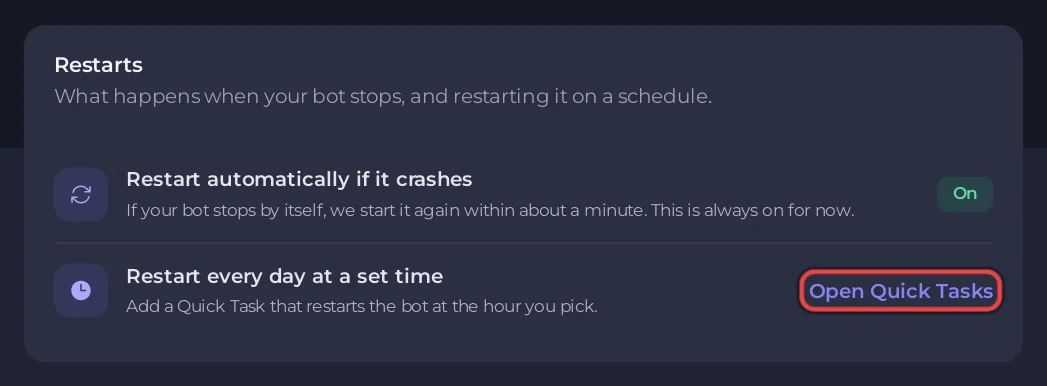
Schedule the Send Restart task in Quick Tasks: open the Bot page, pane Restarts, click Open Quick Tasks, choose Schedule… on Send Restart, and set it to Every day at a quiet hour.
What already happens without a schedule
The Restarts pane shows Restart automatically if it crashes as On. If your bot stops by itself, it is started again within about a minute. You do not need a schedule for that. If it crashes again within a minute of being restarted, it is left stopped, and Console shows the banner Your bot stopped after crashing twice (or the banner for the cause, when the panel recognises it).
Create a daily restart
- Open your bot server in the panel, then the Bot page, pane Restarts, and click Open Quick Tasks. You can also open Quick Tasks from the menu.
- Under All tasks, find Send Restart ("Gracefully restarts the server container."). The Search box helps.
- Open its menu (the three dots) and choose Schedule….
- In Schedule task, give it a Name, for example
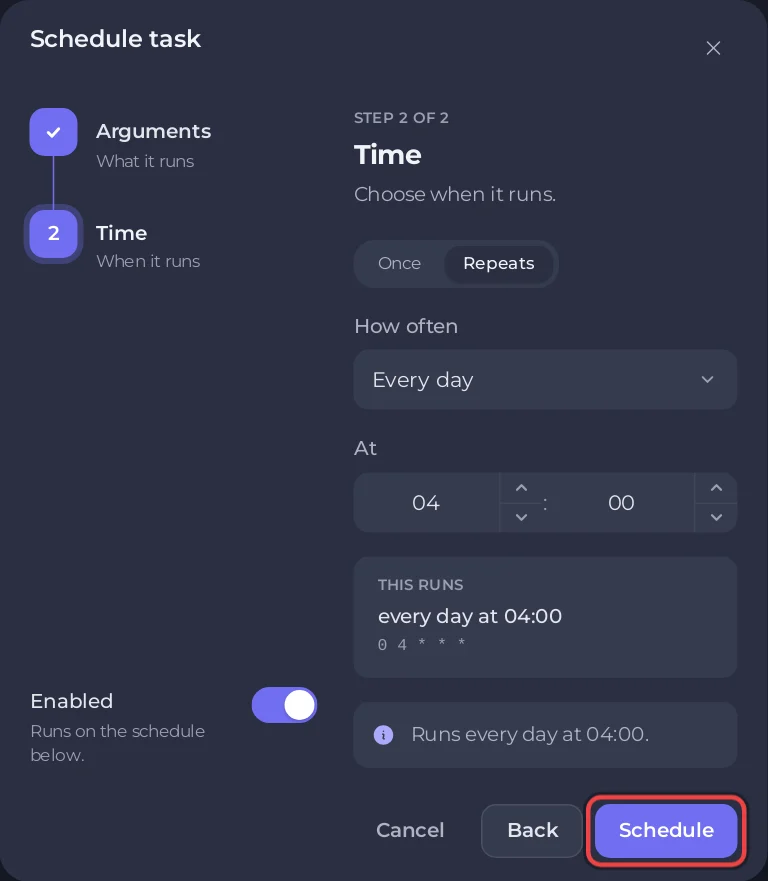
Nightly restart, and click Next step. - Choose Repeats, set How often to Every day and At to a quiet hour, for example 04:00. The line under it says when it runs, and what time that is where you are.
- Leave Enabled on and click Schedule.
The new schedule appears under Schedules, with its next run time. Its switch turns it on and off; its menu has Run now to test it once. The whole page is explained in How to schedule tasks and automatic backups.
Back up before the restart
If your bot keeps data in files, such as a SQLite database or JSON files, add a backup before the restart. A task you drag onto a schedule is added as its last step, so build it the other way round: choose Schedule… on Backup Server first, then drag Send Restart from All tasks onto that schedule. Steps run in order. A backup holds your server's files; it does not hold your token, your environment variables or a database from the Databases page. See How to create, download and restore backups.
When a scheduled restart helps
- Memory slowly climbs until the bot is stopped for using too much. A daily restart resets it while you look for the leak.
- You deploy from Git with Update on every start on: a nightly restart picks up what you pushed during the day. See How to deploy and update your Discord bot from GitHub.
- Packages install again once a day even when nothing changed, so regular restarts also bring in new versions allowed by your package file.
When it does not
A restart hides a problem; it does not solve it. If your bot needs one every few hours, read the console just before it stops: Why your Discord bot keeps stopping.