

To start a Vintage Story server on PlayNHost, click Start on the server's Overview page and wait for the badge to say Online. The Console prints Dedicated Server now running on Port followed by your port when the server is ready. The first start also generates your world.
How do I start it?
- Open your server in the panel. The badge next to the name says Offline.
- If you want a particular play style, seed or world size, set them first under Settings, Game Settings. They only shape a world that does not exist yet: How to choose your Vintage Story world settings before you start.
- Click Start. The badge changes to Starting.
- Click the Console tab to watch the server start.
- Wait for the line
[Server Event] Dedicated Server now running on Port, followed by your port number. The badge then says Online and players can join.
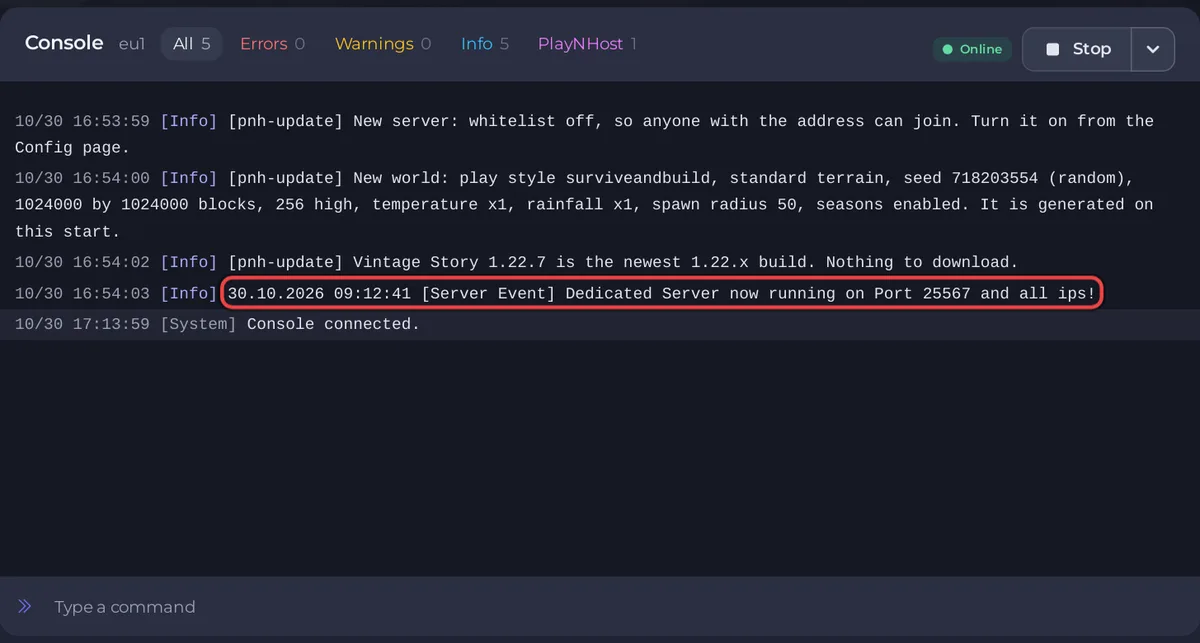
What does the Console show on the first start?
Before Vintage Story itself starts, PlayNHost prepares the server and prints its own lines, each starting with [pnh-update]:
New server: whitelist off, so anyone with the address can join.Since game version 1.20 a dedicated server uses the whitelist by default (dedicated server guide), so a new server would turn away every player, you included. PlayNHost switches it off once, on the first start. You can turn it back on: How to turn the whitelist on or off on your Vintage Story server.New world: play style surviveandbuild, standard terrain, seed ...: the world settings from Game Settings, with the seed the world gets. A random seed is marked(random). Note it down if you want the same world again later.- A line about updates, such as
Vintage Story 1.22.7 is the newest 1.22.x build. Nothing to download.
Then Vintage Story starts, generates the world and prints the ready line.
How long does the first start take?
On PlayNHost's test server, a restart of an existing world took about 50 seconds from stop to ready. The very first start also generates the world around the spawn, which can take longer. As long as new lines keep appearing in the Console, the server is still working.
What does a new Vintage Story server already have?
- A world being made from your Game Settings, saved as
data/Saves/default.vcdbsin Files. - The whitelist off, so anyone with the address can join. There is no join password: set one in How to set a password on your Vintage Story server.
- Public listing off, so the server is not in the in-game public server list. Players add it by address.
- Slots on the Overview set to the number your plan includes.
- Auto-update server on: the server takes new patch releases of its game version when it starts, never a new minor version: How to update your Vintage Story server.
- An empty
data/Modsfolder and a Modding tab to install mods from the official ModDB: How to add mods to your Vintage Story server. - An Automatic backup schedule under Quick Tasks, when your plan has backup slots. It saves the world and takes a backup once a night.
- Nobody has admin rights in the game yet. Make yourself admin from the Console: How to become admin on your Vintage Story server.
What should I do next?
If the badge never reaches Online, see Vintage Story server problems and fixes and How to fix a server that will not start.


