

A Vintage Story server on PlayNHost updates itself: each time it starts, it checks the official release feed and installs a newer patch release of the version it runs, for example 1.22.6 to 1.22.7. To update now, restart the server. It never moves to a new minor version such as 1.23 on its own, because mods are made for one minor version and a jump could leave yours behind.
How do I update to the newest patch release?
- Open your server in the panel and click the Console tab.
- Click Restart.
Read the
[pnh-update]lines at the top of the start. You see one of these:Vintage Story 1.22.7 is the newest 1.22.x build. Nothing to download.: you are up to date.Downloading Vintage Story ...thenUpdated to Vintage Story ... (was ...). The world and Mods folder were not touched.: the update is done.
- Wait for the badge to say Online. Players then need the same version in their own game.
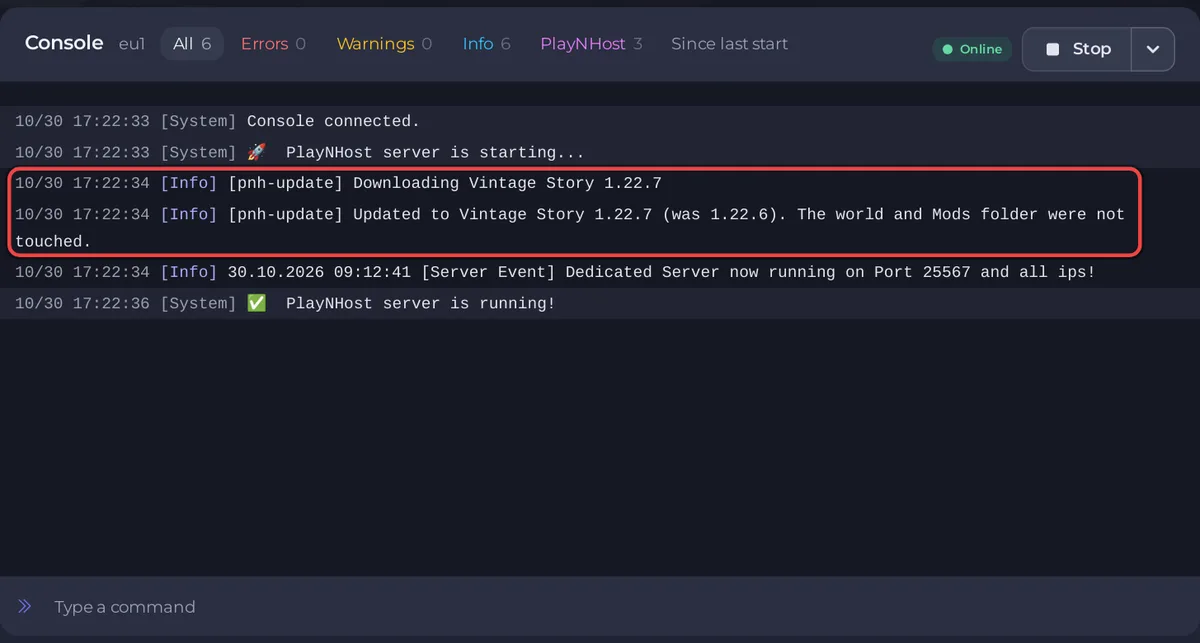
The update replaces the game files only. Your world, settings, player data and data/Mods are never touched.
How do I turn automatic updates off?
- Click the Settings tab, then Game Settings.
- Click Show advanced (1) at the bottom of the card.
- Switch off Auto-update server.
The next start prints Automatic updates are off. Starting on the installed build. Turn it on again when you are ready to update.
How do I stay on one version?
Set Release version under Game Settings to the version the server runs now, as shown in the [pnh-update] line of the last start, for example 1.22.7. From the next start the server is never updated; the Console prints Vintage Story is pinned to 1.22.7, so it is left as installed. Use this when a mod you rely on has not been updated yet. Set it back to latest to take patch updates again. Typing a different version does not install it on a restart: that needs the server installed again, as below.
How do I move to a new minor version, such as 1.23?
Moving to a new minor version means installing the server's game files again with the new version. Open a ticket and support does it for you:
- Take a backup on the Backups page and download it: How to back up and restore your Vintage Story world.
- Check on the Vintage Story ModDB that your mods have releases for the new version.
- Open a ticket and say which version you want: How to open a support ticket.
A world that ran on a newer version may not open on an older one again, which is why the backup comes first.
What are the release branches?
Release branch under Game Settings picks where versions come from:
| Branch | What it is |
|---|---|
| stable | The tested public release. Recommended, and the default. |
| unstable | Test builds. They may break mods. |
| pre | Pre-release candidates. Needs an exact Release version, such as 1.22.0-rc.10. |
Leave Release branch on stable and ask support for a branch change in the ticket above. The automatic update reads the branch on every start, and on 30 October 2026 the official unstable channel held only 1.22 release candidates, older than stable 1.22.7: switching a 1.22.7 server to unstable and restarting puts that older test build on it. The current versions are on the official Vintage Story site.
Do my players have to update too?
Yes. The official troubleshooting guide says each player's game version must match the server's, so after a server update each player updates their own game to match. See How to join your Vintage Story server.


