%7B.s%7Banimation%3Ab%201.5s%20ease-out%20both%7D.d%7Banimation-delay%3A.16s%7D%7D%40keyframes%20b%7B0%25%7Bfill%3A%23F4F6FA%7D18%25%7Bfill%3A%23FFE08A%7D34%25%2C70%25%7Bfill%3A%23FF8A1F%7D80%25%7Bfill%3A%23FFE08A%7D100%25%7Bfill%3A%23FF8A1F%7D%7D%3C%2Fstyle%3E%3Cg%20transform%3D%22translate(143%20428.93)%20scale(3.885906)%22%3E%3Cg%20transform%3D%22translate(0%202)%22%20fill%3D%22%23706EF0%22%3E%3Cpath%20d%3D%22M0%200%20H48%20A40%2040%200%200%201%2048%2080%20V100%20H0%20Z%22%2F%3E%3Cpath%20transform%3D%22translate(91.75%200)%22%20d%3D%22M0%200%20L48%200%20L48%2050%20L76%2050%20L76%20100%20L0%20100%20Z%22%2F%3E%3Cpath%20transform%3D%22translate(173%200)%22%20d%3D%22M0%20100%20L58%20-4%20L116%20100%20Z%22%2F%3E%3Cpath%20transform%3D%22translate(264.25%200)%22%20d%3D%22M0%200%20L104%200%20L76%2050%20L76%20100%20L28%20100%20L28%2050%20Z%22%2F%3E%3Cg%20transform%3D%22translate(375%200)%22%3E%3Cpath%20d%3D%22M0%200%20L50%2038%20L50%200%20L100%200%20L100%20100%20L0%20100%20Z%22%20fill%3D%22%23F4F6FA%22%2F%3E%3Crect%20class%3D%22s%22%20x%3D%2247%22%20y%3D%2263%22%20width%3D%2219%22%20height%3D%2230%22%2F%3E%3Crect%20class%3D%22s%20d%22%20x%3D%2274%22%20y%3D%2263%22%20width%3D%2219%22%20height%3D%2230%22%2F%3E%3C%2Fg%3E%3Cpath%20transform%3D%22translate(484.75%200)%22%20d%3D%22M0%200%20L48%200%20L48%2037%20L52%2037%20L52%200%20L100%200%20L100%20100%20L52%20100%20L52%2063%20L48%2063%20L48%20100%20L0%20100%20Z%22%2F%3E%3Cpath%20transform%3D%22translate(588.5%200)%22%20d%3D%22M0%2050%20A53%2053%200%201%200%20106%2050%20A53%2053%200%201%200%200%2050%20Z%22%2F%3E%3Cpath%20transform%3D%22translate(698.25%200)%22%20d%3D%22M25%200%20H102%20V50%20H77%20A25%2025%200%200%201%2077%20100%20H0%20V50%20H25%20A25%2025%200%200%201%2025%200%20Z%22%2F%3E%3Cpath%20transform%3D%22translate(804%200)%22%20d%3D%22M0%200%20L90%200%20L90%2050%20L69%2050%20L69%20100%20L21%20100%20L21%2050%20L0%2050%20Z%22%2F%3E%3C%2Fg%3E%3C%2Fg%3E%3C%2Fsvg%3E)


A new Valheim server is installed for you, then it waits for you to press Start. The first start takes about a minute, because the server also makes a new world. When the badge says Online, the server is ready, and the join code for console friends appears on the Play with friends card a few seconds later.
Before you press Start
Right after you order, the badge near the server name says Installing. The install usually takes a minute or two. Wait until it says Offline, which means the server is installed and stopped.
A new server comes with these settings already in place:
- Server Name is set to a default name, and you can change it.
- Server Password is already set to a long password made just for your server. Valheim will not run without a password. You can read it, and change it, in the panel.
- World Name is
Dedicated. The server makes a new world with this name the first time it starts. - Public Server is on, so the server is listed in the in-game server browser.
- Enable Crossplay is on, on all three server types, so players on other platforms can join with the join code.
- PlayNHost Tools is on. It is a small plugin that runs only on the server and lets the panel name who is online, kick, ban and send messages. Players install nothing. See How to turn on PlayNHost Tools on your Valheim server.
- Auto Update is on, so the newest Valheim version is downloaded every time the server starts.
- A Daily restart schedule restarts the server early every morning while it is running, so it picks up Valheim updates. See How to schedule restarts and backups for your Valheim server.
Start the server
- Open your server in the panel. The Overview page is the first page you see.
- Click Start. The badge changes to Starting.
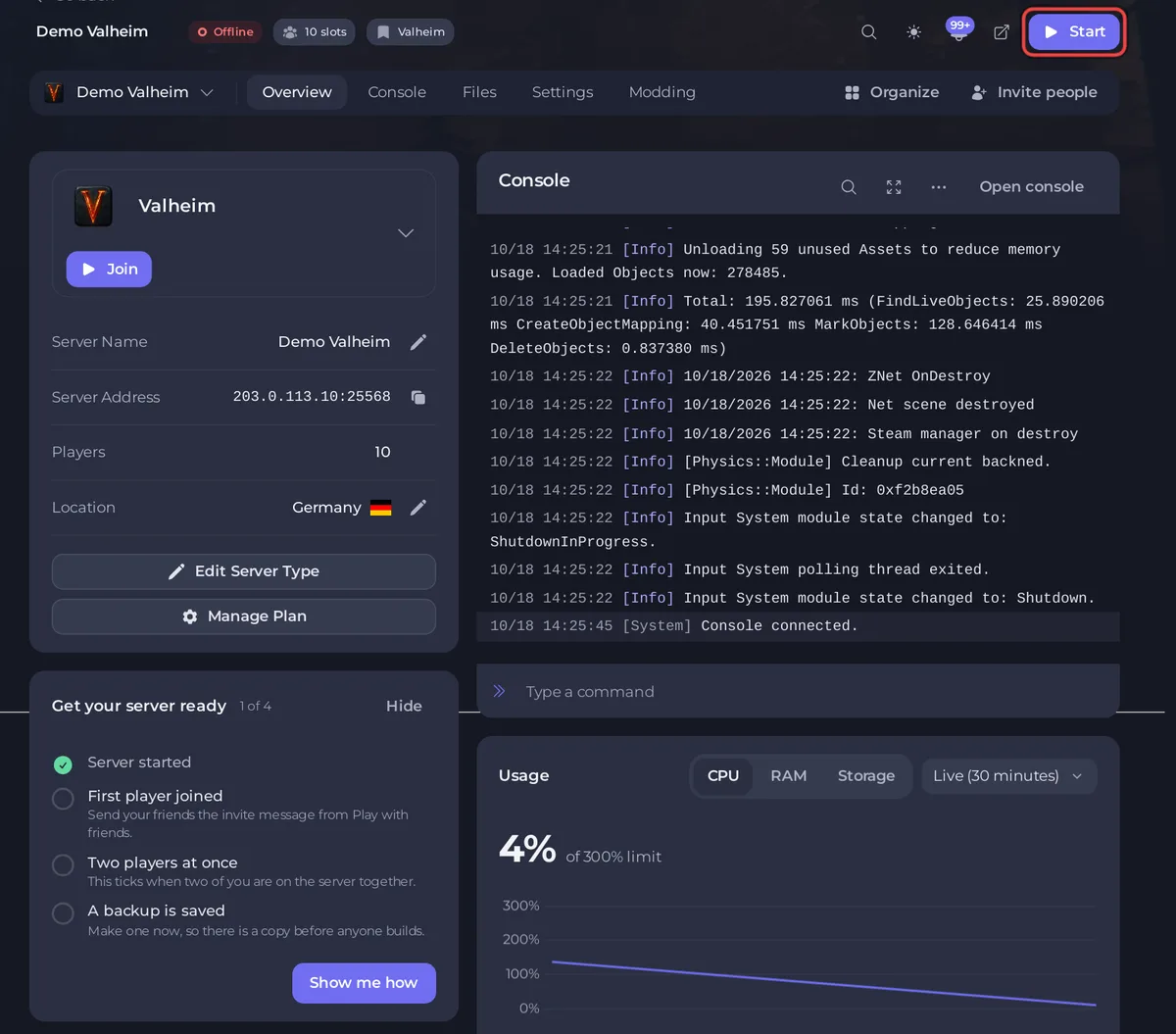
- Open the Console tab to watch. A server with no world yet prints lines like these:
Load world: Dedicated (Dedicated)missing .../worlds_local/Dedicated.dbLoading: Generating locationsOpened PlayFab server
The missing line is normal. It only means there was no world with that name yet, so the game makes one. Generating the world takes about 20 seconds. A line [playnhost-bridge] ready v1.0.0 also appears once: it says PlayNHost Tools have started.
- The badge changes to Online when the Console prints
Opened PlayFab server(crossplay on) orOpened Steam server(crossplay off). The whole start usually takes about a minute.
- A few seconds later the game registers the server and prints the join code, in a line like
Session "My Server" registered with join code 123456. The same six digits show on the Overview page. See How to find your Valheim join code.
What you see on the Overview page
- Get your server ready is a short checklist for the owner: Server started, First player joined, Two players at once and A backup is saved. It ticks itself and goes away when it is finished.
- Play with friends holds the address, the password, the steps to join and, while the server runs, the Join code. Copy invite message puts all of it in one message. See How to invite friends to your Valheim server.
- Active players shows who is on the server, by name, with Access for admins, bans and the allow list. See How to see who is online on your Valheim server.

Your world
Your worlds are on the Worlds page in the left menu. Until the game saves the new world for the first time, the page says that the world the server runs does not exist yet. Valheim saves on a timer and when the server stops normally, and from then on the world is listed and marked Active. See How to use the Worlds page on your Valheim server.
What to do next
- Look at the password and server name, and change them if you like: How to change your Valheim server name and password.
- Join the server yourself: How to join your Valheim server.
- Already have a world on your PC? Upload it before your friends build anything new: How to upload your own Valheim world.
- Make yourself an admin: How to become admin on your Valheim server.
- Make your first backup: How to back up and restore your Valheim world.
If the server does not reach Online, see Valheim server will not start: what to check.





